If flicker appears at the same lid angle, stop moving the lid to reproduce it: that points toward the internal display path, but it does not prove a loose cable. If the symptom also occurs at a fixed angle or on an external display, start by checking drivers, apps and the graphics output.
Contents
- Symptoms to separate
- Diagnosis table
- Safe checks, from simple to advanced
- Two manufacturer notes
- When to stop and call a technician
- Frequently asked questions
- Sources
Symptoms: when does the screen flicker?
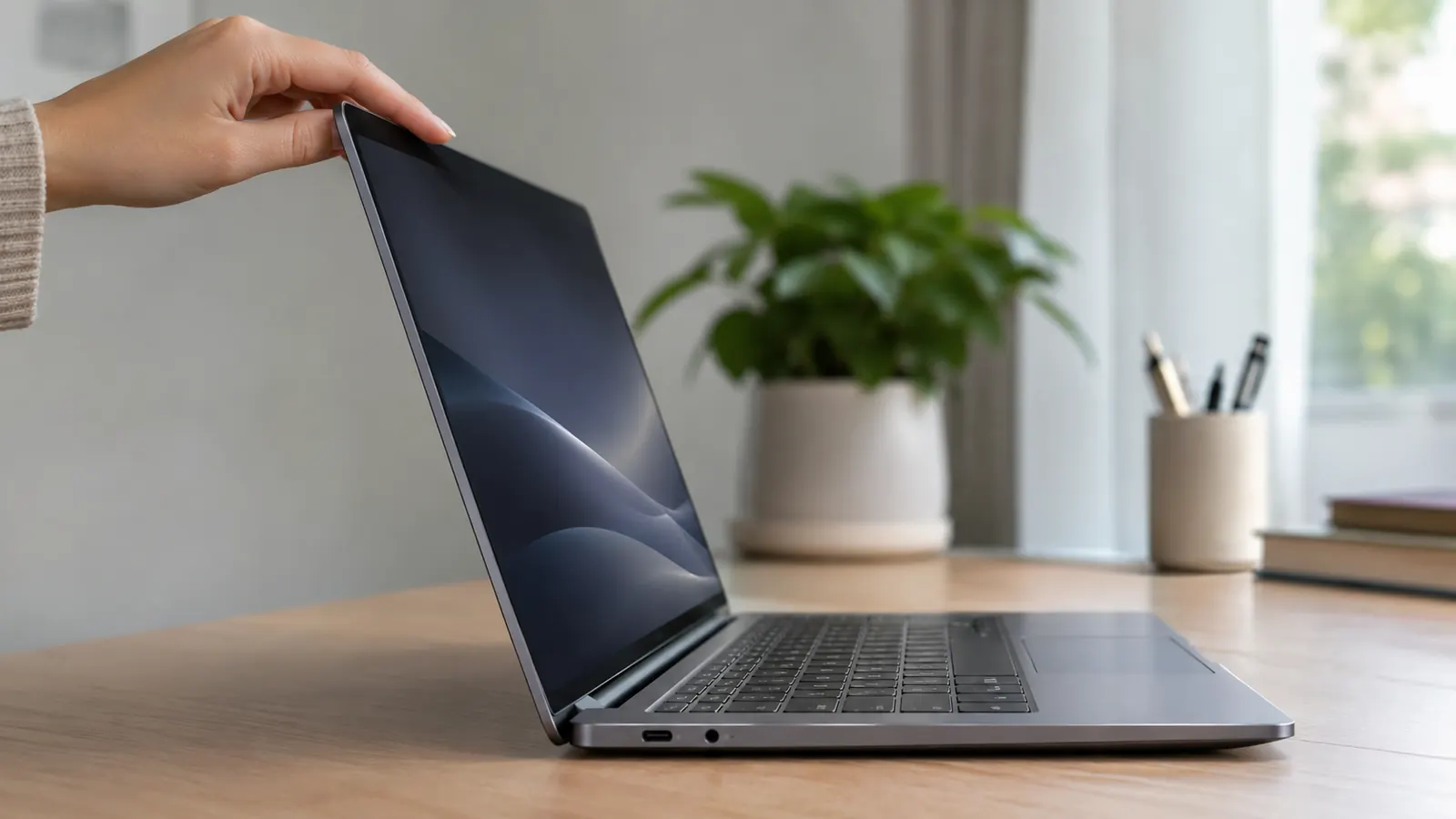
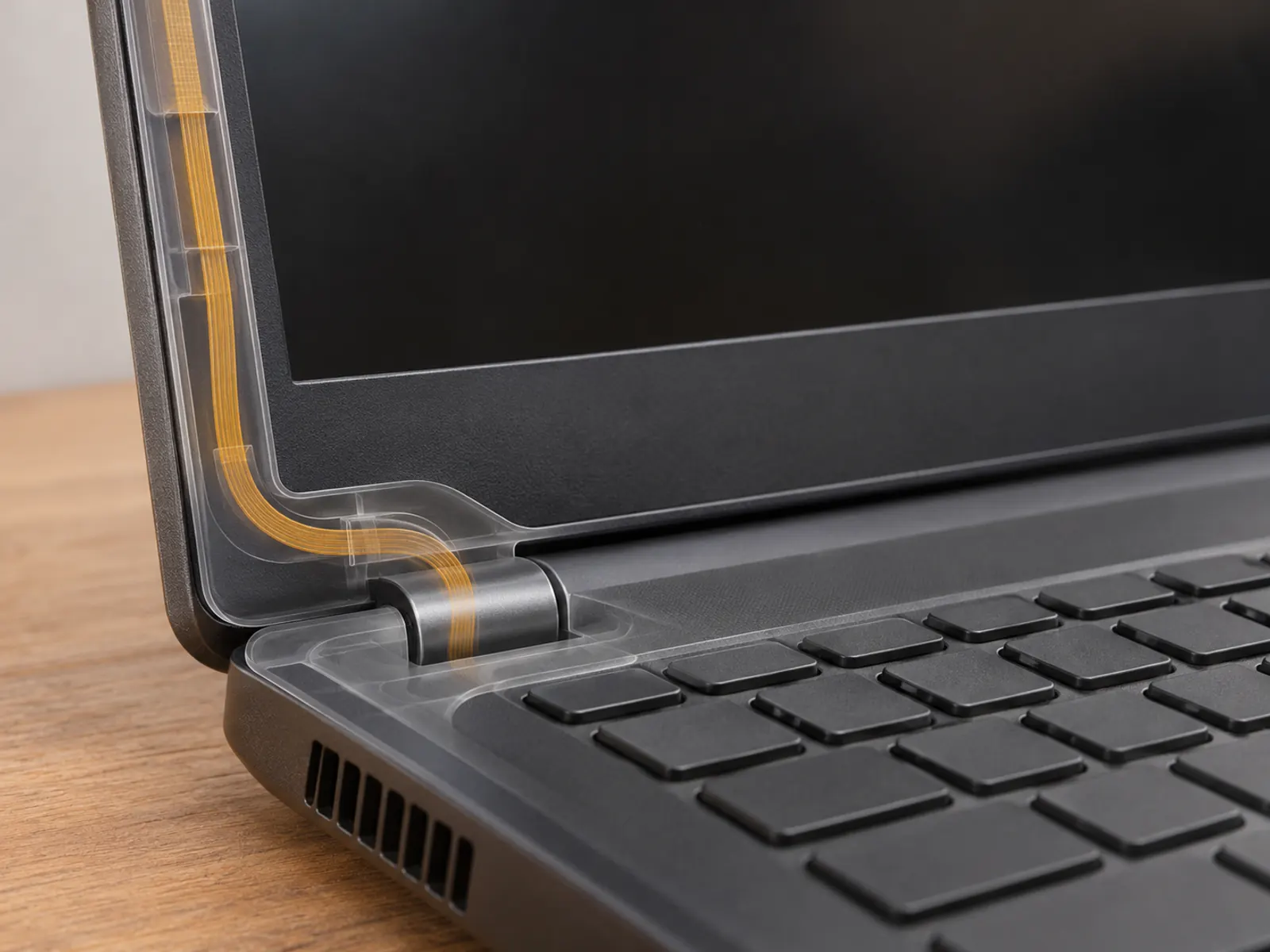
A screen that flashes, briefly dims or shows lines when the lid angle changes deserves cautious observation. A timing link to movement can point to something that depends on the display's position: the panel, backlight, connector or internal display path. It does not identify the failed part. A hinge may also be too stiff, displaced or damaged, but only a suitable inspection can confirm that.
The key detail is whether the symptom repeats. Note if it occurs only during movement or continues while the lid remains still. A display that goes dark at one angle, flickers when the desk is touched, changes with brightness or shows permanent bands does not provide the same clue in every case. Do not twist the display or force a hinge to find a failure point.
A software or graphics problem can also produce flashes, brightness changes or unstable images. For Windows 10 and Windows 11, Microsoft suggests comparing Task Manager with the rest of the screen: if both flicker, a display driver is one possible cause; if only the normal content flickers, an incompatible app is one possible cause. This clue is for Windows software problems and does not rule out a hardware issue linked to the lid.
An external display provides another comparison if you already have one and a normal supported connection. If the laptop panel flickers but the external display stays stable, the problem appears more confined to the built-in screen or its path. If both displays change together, graphics output, a driver, an app or a broader issue remains possible. None of these results alone confirms a failed panel, cable or GPU.
Any angle check should be limited to normal opening and closing. If flicker worsens, the screen goes dark, a noise appears or the hinge catches, stop immediately. Back up your files if the computer remains stable; repeated movement is not a stress test.
Diagnosis table
| Symptom | Likely cause | Next action |
|---|---|---|
| Flicker appears at the same lid angle | Possible hardware clue involving panel, backlight, connection or hinge; no part is confirmed | Stop repeated movement, note the approximate angle and request an inspection |
| Built-in display flickers at a fixed angle and Task Manager flickers too | Possible graphics driver or Windows display path issue | Follow Microsoft and manufacturer steps, especially after a recent update |
| Built-in display flickers but external display stays stable | Built-in display or its connection path becomes more suspect, without confirmation | Record the result and contact support for the exact model |
| Built-in and external screens flicker together | Possible driver, app, GPU or another shared cause | Compare Task Manager, startup and recent changes without opening the case |
| Black image, fixed lines, stiff hinge or lifted bezel | Possible hardware damage; rule out a swollen battery if the case is deforming | Shut down, disconnect power and arrange an inspection |
Safe checks, from simple to advanced
Start by protecting your files and recording the symptom. Continue with non-invasive comparisons; make Windows changes only after these observations.
1. Protect your data and stop unnecessary movement
Save your work and back up important files if the computer remains usable. Put it on a stable surface. Keep the display at an angle where the image remains readable and avoid repeatedly opening, closing or shaking the lid. Do not press on the panel or try to push a hinge back into place.
Check: the computer remains stable at a fixed position and important files have a recent copy.
If it didn't work: if the screen goes dark, the image worsens or movement feels blocked, shut down and go straight to “When to stop and call a technician.”
2. Record the conditions without provoking the fault
Write down the exact model, Windows version, open apps, when the symptom began and what changed beforehand. Note whether it occurs during normal opening, at a fixed angle, after wake, on battery or with the power adapter connected. If you already noticed the same angle during ordinary movement, record it approximately; do not keep repeating the movement to find it.
Also note any unusual hinge play, clicking, new resistance or a bezel that lifts. Do not disassemble anything. A difference between two conditions is evidence to report, not proof of cause.
Check: your notes describe a symptom seen during ordinary use, without forced handling.
If it didn't work: do not try to trigger more flicker; compare with an external display only if you can do so with a supported cable and without moving the lid.
3. Compare with an external display already available
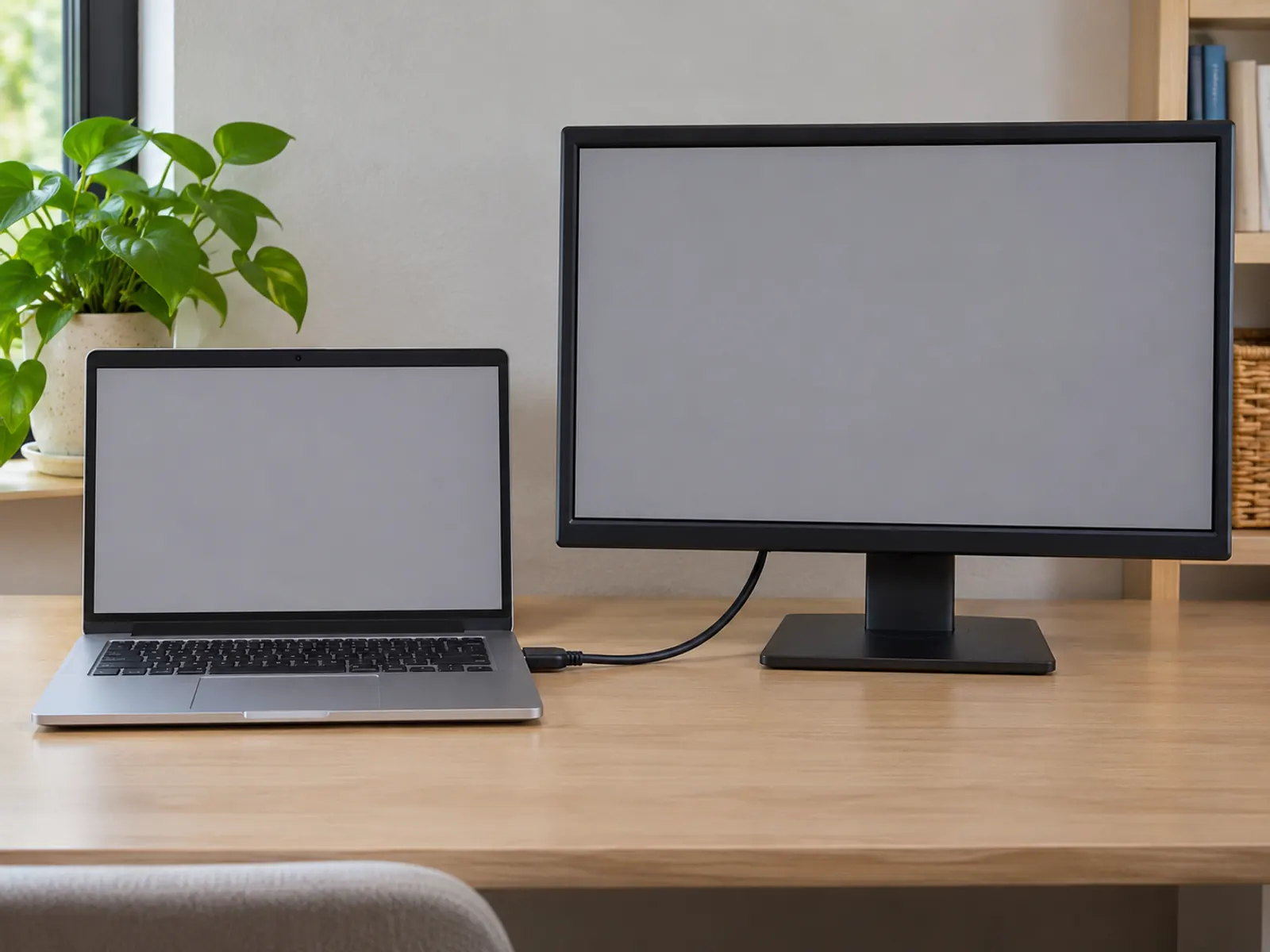
If you normally use an external monitor, connect it through a supported input while keeping the laptop still. Keep its cable away from the hinge. Compare both images with the same content and note which display flickers. Do not tug a connector, rotate the lid during the comparison or change more than one condition at a time.
A stable external image while the built-in panel flickers makes the internal display path more suspect; it does not prove an internal cable has failed. If the external screen is not detected, read the guide to a monitor not detected through a USB-C dock before drawing a conclusion about the laptop.
Check: record “built-in display,” “external display” or “both.”
If it didn't work: if you do not already have an external display, do not buy one just for this check; continue to the fixed-angle Windows comparison.
4. Separate a Windows clue from an angle-related clue
If flicker also happens without moving the lid, open Task Manager with Ctrl + Shift + Esc. Observe it at the same time as the rest of the display. Microsoft says that if Task Manager flickers too, a graphics driver is a likely clue; if it stays stable while normal content flickers, an incompatible app is more likely. This check does not diagnose flicker that appears only during lid movement.
If the issue began just after a driver update, consult Microsoft's instructions for rolling back the previous display driver in Device Manager > Display adapters > Properties > Driver > Roll Back Driver. The option may be unavailable. For other changes, use the driver published for your exact laptop model; avoid unknown utilities that promise to replace every driver.
Do not uninstall several apps or drivers at once. Record the result before changing one thing, then restart if Microsoft or the manufacturer directs you to. Microsoft ended Windows 10 support on 14 October 2025. That does not mean all Windows 10 flicker is a driver issue, but support and updates for your operating system belong in the decision.
Check: note whether the symptom changes with Task Manager and after the targeted Windows step.
If it didn't work: if flicker remains linked to lid angle, return to the hardware observations and contact support instead of trying repeated reinstalls.
5. Use only the screen test provided for your model
Some manufacturers provide an LCD self-test before Windows starts; key combinations and sequences vary by model. Read the manual or support page for your exact model. A stable color test does not rule out a movement-related intermittent connection, because the symptom may not appear during the self-test.
The ElectronixLab screen test can help spot visible pixels or uniformity issues while the panel stays at a fixed angle. It does not test a hinge cable, driver or the cause of intermittent flicker. For external monitor flicker at a high refresh rate, also see the 144 Hz monitor flicker guide.
If flicker continues without lid movement, the guide to 60 Hz, 120 Hz and 144 Hz screen refresh rates explains what a refresh setting changes; it does not check a hinge.
Check: interpret the result only within the limits described by the manufacturer or tool.
If it didn't work: if the test is not documented for your model or the display flickers during its self-test, stop and request professional diagnosis.
Two manufacturer notes that show why the model matters
HP publishes an “Intermittent Display Flickering” advisory for the EliteBook 630, 640 and 650 G9; EliteBook 830 and 840 G8; and ZBook Firefly G8. The advisory identifies a case for those product families. It cannot identify the same cause on another laptop, and its public title does not specify a Windows version.
HP also documents a different symptom, display-panel flicker while idle in Windows, for the Pavilion Plus 14-Ey0000. These two HP product examples involve different circumstances, which is a reminder that flicker does not automatically identify a hinge or cable. Read the support page for your exact model and software; do not apply an update or procedure intended for a different model.
For ThinkPad displays, Lenovo's support decision tree asks whether flicker stops at the same angle while opening and closing the lid. That is a useful observation question, not an instruction to force the hinge. If ordinary movement clearly triggers the symptom, record it and leave the lid still until diagnosis.
When to stop and call a technician
Shut down and arrange repair if flicker becomes a complete blackout, lines or a dark area remain, the hinge clicks or resists, the screen bezel separates, or the issue worsens with normal movement. Do not open the display bezel or unplug an internal cable: procedures vary, panels are fragile and a battery can still supply power.
If the palm rest or keyboard rises, the case separates or the battery appears swollen, stop using and charging the computer. Do not press the case or puncture or remove the battery; follow the manufacturer's damaged-battery instructions. A burning smell, smoke, liquid or unusual heat also calls for an immediate stop and service. HP recommends stopping use of a notebook with a swollen battery and contacting HP support or an authorized service provider.
When requesting diagnosis, provide the model number, operating system, the angle where you noticed the symptom during ordinary use, the built-in/external display result, recent update history and the manufacturer's test result if you ran it as directed. Ask the technician to inspect the hinge, panel and display path; do not order a cable or panel from the symptom alone.
Frequently asked questions
These answers provide triage clues. They do not identify a defective part remotely.
Does a screen that flickers when I move the lid mean the cable is loose?
No. An internal connection is one possibility, but the panel, backlight, connector, hinge or another fault may also be involved. A technician must inspect the exact model.
Should I keep opening and closing the laptop to find the exact angle?
No. You can note a single observation during normal movement. Do not repeat it if the fault appears, worsens or comes with noise or resistance.
Why does an external screen stay stable while the laptop screen flickers?
The two outputs do not use exactly the same hardware path. This points more toward the built-in display, but it does not confirm a cable failure or defective panel.
Can Task Manager tell whether the hinge is at fault?
No. Microsoft's check helps separate some Windows causes when flicker occurs at a fixed angle. It does not diagnose an internal or mechanical path that reacts to movement.
Does a screen color test prove that the laptop is fixed?
No. It may reveal a visible fault during the test, but a stable result does not guarantee that an intermittent angle-related symptom is gone.
When can I move the screen again after repair?
Wait until the technician completes checks and follow their instructions. If the symptom returns during normal movement, stop using the hinge and request another inspection.
Next step: use the screen test at a fixed angle to inspect colors and pixels, then share your observations with the manufacturer or technician. It cannot locate an intermittent internal connection.
Sources
- Microsoft Support, Troubleshoot screen flickering in Windows, Windows 10 and 11; consulted 8 November 2026.
- Lenovo Support, Internal display flickering — ThinkPad, consulted 8 November 2026.
- HP Support, intermittent display flickering for specified EliteBook and ZBook families, consulted 8 November 2026.
- HP Support, Pavilion Plus 14 display flicker while idle in Windows, consulted 8 November 2026.
- Dell Support, How to Test Your Dell Laptop Screen, model-dependent LCD BIST; consulted 8 November 2026.
- HP Support, Swelling or deformation of notebook battery, consulted 8 November 2026.
Be the first to leave a comment.