A “144 Hz test” can mean two different things: checking which refresh mode the operating system has selected, or observing how quickly a browser animation appears to update. The first is the practical source for the configured display mode. The second can reveal whether a page is receiving frames at a steady cadence, but it does not inspect the monitor’s physical scanout or prove that every pixel is refreshed at a particular rate.
Refresh rate is expressed in hertz (Hz), or cycles per second. A 60 Hz mode can present up to 60 display refreshes each second; 120 Hz and 144 Hz modes allow more frequent updates when the monitor, graphics hardware, connection and current resolution support them. The numbers do not promise that a game or browser will render that many unique frames, and a higher setting does not by itself establish better response time, motion clarity or image quality.
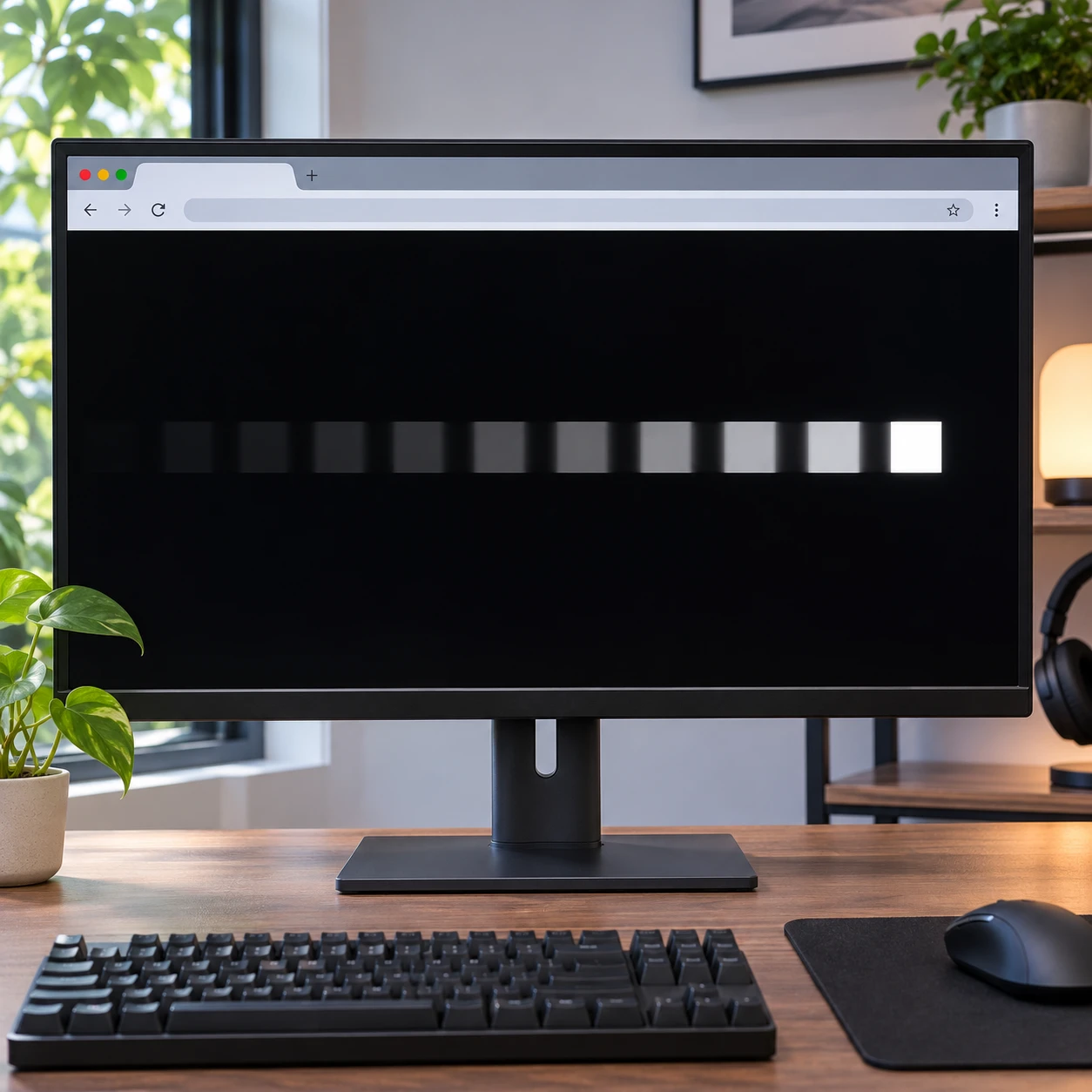
Check the selected display mode first
On Windows, open Settings, choose System, then Display, select the monitor you want to check, and open Advanced display. The refresh-rate menu lists modes available to Windows for that display configuration. Microsoft’s instructions explain how to select a supported rate. If you use more than one screen, confirm that you selected the correct one; a laptop panel and an external monitor can have different capabilities.
The offered list depends on the monitor’s reported modes, graphics hardware, resolution, cable, adapter, dock, color or HDR settings, and display arrangement. A mode may disappear after changing resolution or moving a cable. If the rate you expect is unavailable, check the display manual and connection specifications before changing multiple settings. Do not force a custom mode with an untrusted utility.
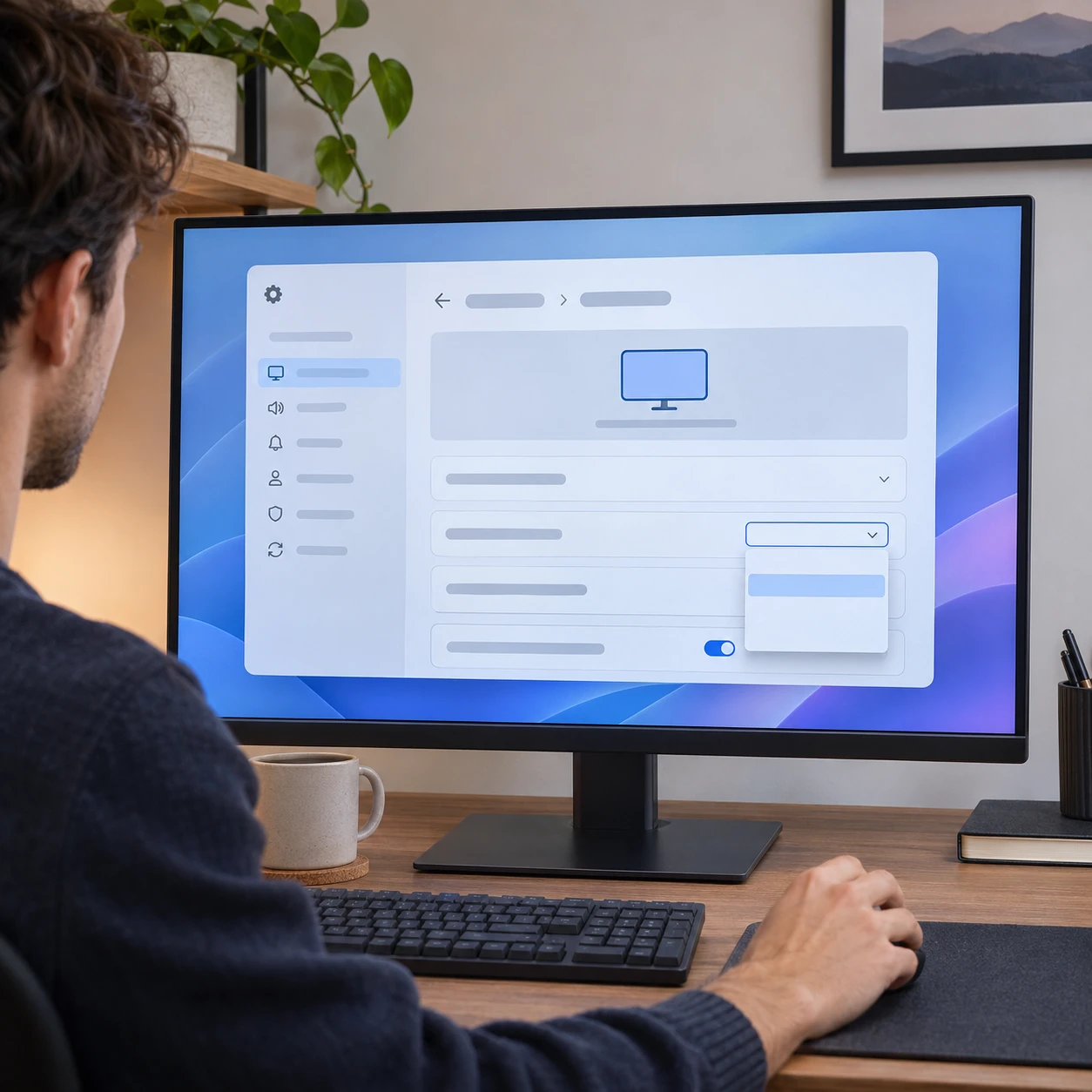
Use these reversible checks
- Open Advanced display and note the monitor name and selected refresh rate before changing anything.
- If Windows offers the expected mode, select it and apply. Keep the confirmation window open until the picture looks stable; revert if the screen goes blank or distorted.
- Check the monitor’s own information or on-screen display, if available, to see what input mode it reports.
- For an external display, reconnect the cable and review the device or dock guidance. Avoid assuming every connector supports every rate at every resolution.
- Repeat the check after changing one setting at a time. Record the selected resolution, refresh mode, connection path and display name.
What an online refresh test measures
Browser refresh tests typically animate an object and examine when the page receives animation callbacks or how consistently the animation advances. In web pages, requestAnimationFrame() schedules work for a browser repaint; its timing is influenced by the browser and the current display pipeline. Background tabs are often throttled, and a busy page or power-saving mode can reduce frame delivery. Close unnecessary work, keep the page visible, and compare the result more than once.
A stable animation can be consistent with a working high-refresh setup, but it is not conclusive proof of the panel’s hardware rate. The browser may report frame timing at a rate influenced by compositor scheduling, variable refresh, dropped frames, remote sessions or system load. A test showing roughly 60 updates per second can also reflect the page or browser rather than a monitor locked to 60 Hz. Use the operating system’s display-mode list as the main check.
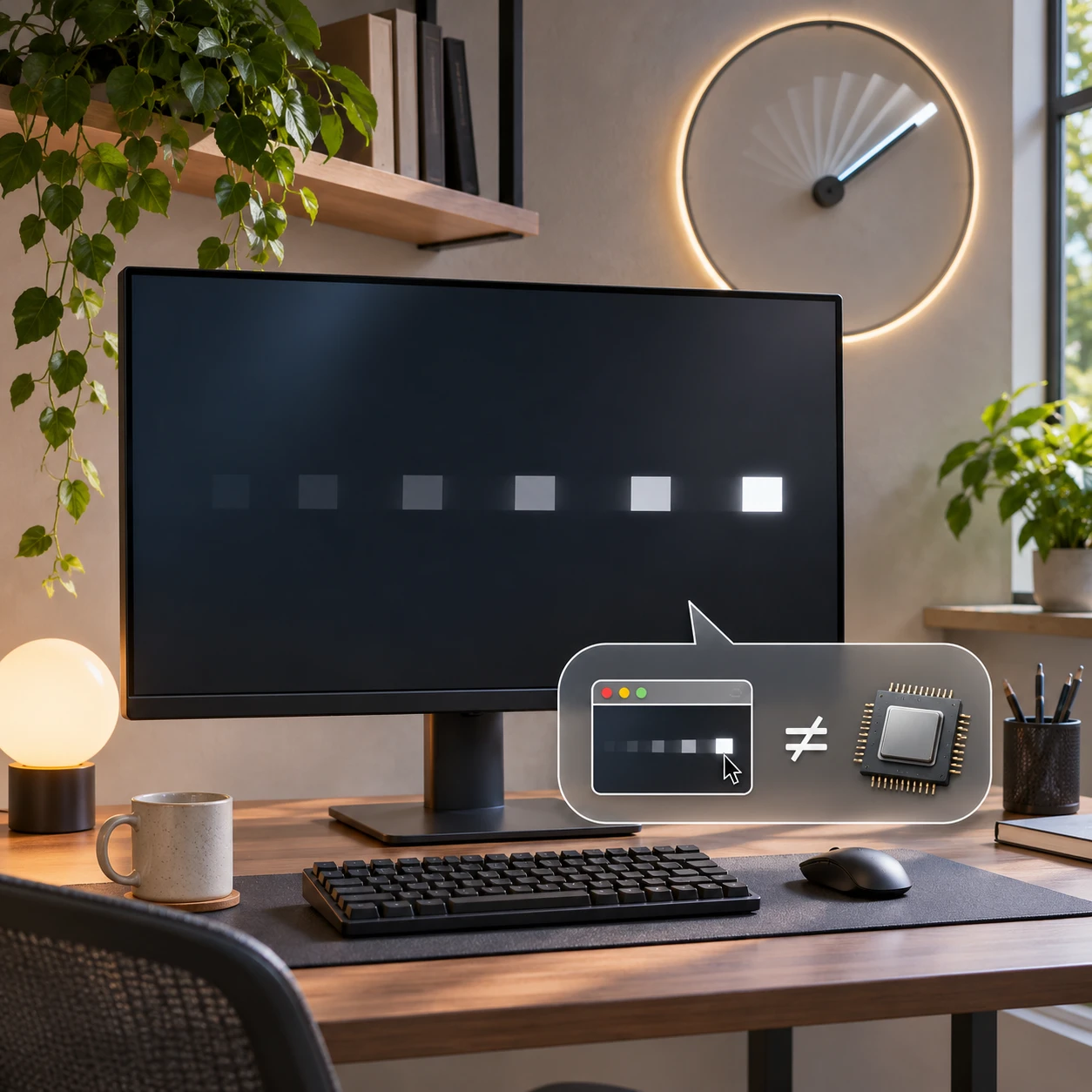
Compare 60 Hz, 120 Hz and 144 Hz responsibly
Compare modes on the same monitor, at the same resolution, with the same connection and pattern. Make one change, confirm that it applied, then observe the same movement or scroll action. Smoothness is partly subjective, and a short online animation should not be turned into a precise numerical score. A camera recording adds its own shutter and frame-rate limits, so it may show bands or duplicated positions unrelated to what your eyes see.
At 60 Hz, a display has fewer opportunities to present a new image in each second than at 120 Hz or 144 Hz. Whether you notice a difference depends on the content, frame production, synchronization, panel response and viewing conditions. A game limited to a lower frame rate cannot deliver a unique new game frame on every refresh. A browser test has its own rendering constraints and may not exercise the same path as a full-screen application.
| Observation | What it can indicate | What to verify next |
|---|---|---|
| Windows lists 120 Hz or 144 Hz and it remains selected | The system has selected that advertised mode | Confirm the right monitor and check its input information |
| Browser motion looks more fluid after changing modes | The display pipeline or animation may be presenting more frequent updates | Repeat the same test with the page visible and system load low |
| Browser result stays around 60 updates | Browser cadence, load, throttling or a 60 Hz mode may be involved | Check Advanced display and close background tabs |
| Expected mode is missing | Resolution, connection, adapter, monitor or driver limits may apply | Review the exact monitor and cable documentation |
Troubleshoot a missing or unstable high-refresh option
First confirm you selected the intended screen. Then check its native resolution, supported modes, cable type and connection route. If a dock is involved, consult its specifications and connect the monitor directly as a comparison if practical. Update graphics drivers only through the computer or GPU manufacturer’s official channel. After each change, reopen Advanced display and check the resulting mode rather than relying on a benchmark label.
If the monitor blanks after a mode change, wait for the operating system’s confirmation prompt to revert; do not repeatedly force the setting. A flicker or black screen can also result from a connection or compatibility issue, so stop if the picture is unstable. For motion trails and pixel artifacts, see the separate monitor response-time and ghosting guide. For screen gradients, the monitor gradient test checks grayscale and color transitions; it does not measure hertz.
Frequently asked questions
How do I know if my monitor is running at 144 Hz?
Check the selected monitor and refresh rate in Advanced display, then check the monitor’s own input information if available. A browser animation is a secondary visual check, not the authoritative hardware reading.
Does an online test prove 120 Hz or 144 Hz?
No. It can observe browser animation callbacks and frame delivery, which depend on the browser, operating system and display pipeline. Use system settings and the monitor’s reported mode to confirm the selected rate.
Why is 144 Hz missing from the list?
The available modes depend on the exact monitor, resolution, graphics hardware, cable, adapter, dock and display configuration. Check manufacturer documentation for the complete connection path.
Does 144 Hz mean every app displays 144 unique frames?
No. The display mode sets a refresh opportunity; each application and graphics pipeline has its own frame rate. Some frames may repeat or be dropped.
Sources
Consulted 6 November 2026: Microsoft Support: change the refresh rate in Windows; MDN Web API reference: requestAnimationFrame documents browser animation scheduling; LG’s monitor guide discusses refresh rate and response time as distinct specifications.
Be the first to leave a comment.