A monitor 144hz only showing 60hz does not automatically mean the panel is defective. Windows can list only the modes it receives from the complete display path: monitor, selected input, graphics output, cable, dock or adapter, and active resolution. First confirm which display Windows has selected and which modes it exposes. That prevents buying a cable before you know where the limit is.
Quick fix
- In Windows 11, open Settings > System > Display > Advanced display, then select the affected monitor.
- Read the listed resolution and refresh rate. Under “Choose a refresh rate,” select 144 Hz if it is listed without an asterisk.
- If only 60 Hz appears, confirm the monitor's native resolution and compare the supported modes of the monitor, graphics output, cable, and every dock or adapter.
- When possible, temporarily connect the monitor directly to a graphics-card output using a cable documented for the mode you need.
- Use the monitor's physical menu to confirm its active input and check for a compatibility mode documented by its manufacturer.
After each change, return to Advanced display and confirm the rate. If 144 Hz appears and then disappears, note what changed: resolution, port, adapter, or display mode.
Why the menu stays at 60 Hz
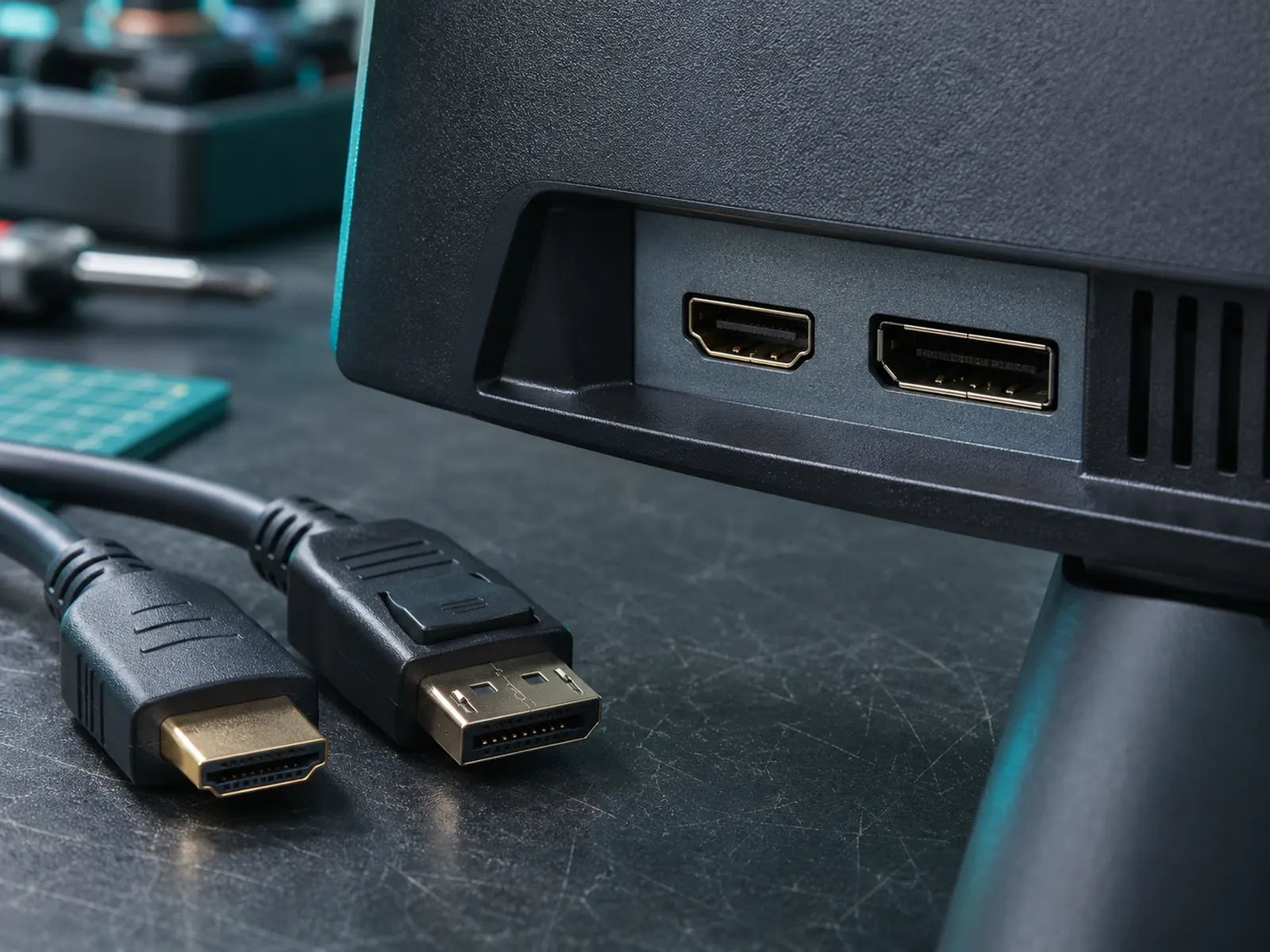
A “144 Hz” label describes a capability under specific conditions. The exact combination of resolution, color depth, HDR mode, variable refresh rate, and input can change which modes are available. A monitor may support 144 Hz through one input but not another, or only after enabling an option in its menu. There is no universal chart that can diagnose a path from the word “HDMI” or “DisplayPort” alone. Compare the published limits for the exact monitor and graphics output.
A USB-C dock, passive adapter, KVM, splitter, or receiver can become the limiting link. Simplify the signal path instead of replacing several parts at once. The monitor and GPU specifications list supported combinations; the dock's documentation lists its own limits. A connector that physically fits does not guarantee support for the mode you want.
1. Confirm the mode in Windows 11
Open Start > Settings > System > Display > Advanced display. In the display selector, choose the screen whose name or number matches the monitor. With multiple screens, this page reports the selected display, which may not be the one you are looking at. If needed, return to Display and use “Identify.”
Under “Choose a refresh rate,” select 144 Hz only if the option appears at your preferred resolution. Microsoft notes that an asterisk marks a rate that does not support the current resolution; selecting it can change resolution. Check both values after making a selection. If 144 Hz is missing, a Windows menu cannot create a mode that the display path does not report.
Check: Advanced display shows 144 Hz for the selected monitor at the resolution you want to keep. If the setting returns to 60 Hz, continue without changing game settings yet.
Check: after a direct connection, Windows reports the same target resolution and refresh rate consistently. If it does not, record the exact input and adapter path before moving to the next step.
2. Separate refresh rate from resolution
A manufacturer may specify 144 Hz only for a particular resolution or input. The requested signal carries more data as resolution or some picture options increase, so the monitor, graphics output, and every link between them must support the combination. Check the monitor manual's “video modes” or “supported refresh rates” table and the limits for the exact GPU output. Do not infer a limit from the connector name alone.
In Windows, temporarily choose the recommended native resolution and reopen Advanced display. If 144 Hz appears at a lower resolution but not at the native one, the signal path or selected mode combination is a likely constraint. That result guides the diagnosis; it does not prove the cable is defective by itself.
3. Isolate the cable, input, and adapters
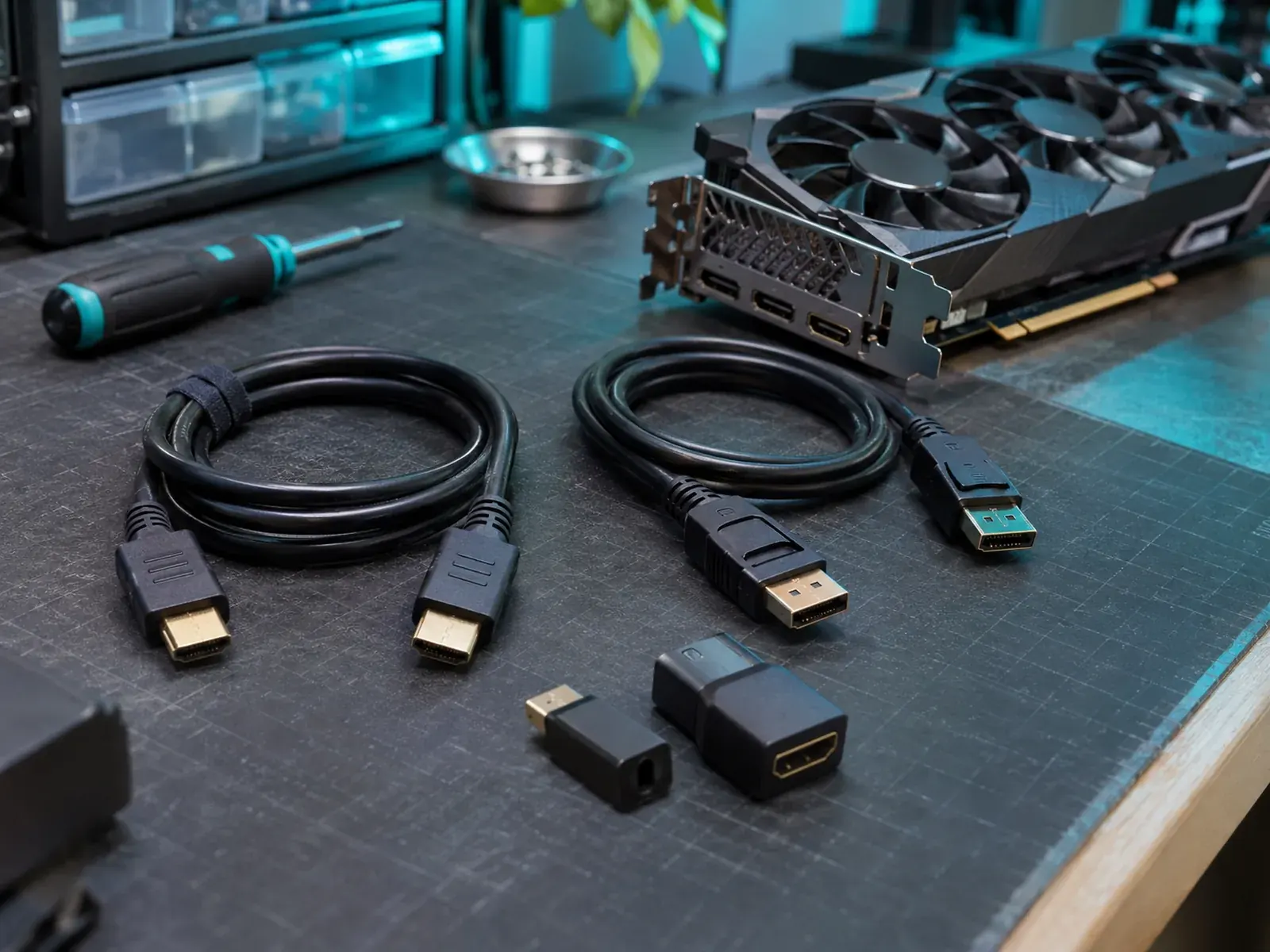
Inspect both ends and reconnect them securely, with the monitor off if its manufacturer recommends that precaution. Check which graphics-card port the cable uses: on a desktop with a discrete graphics card, its outputs are separate from the motherboard's video connectors. Compare the port name, revision, and certified modes in the monitor and GPU documentation. An HDMI or DisplayPort label on a cable is not enough to establish its capacity.
If the path includes a dock, adapter, KVM, or receiver, remove one item at a time and connect the monitor directly to the GPU. Keep the resolution the same for the comparison. If the mode returns, document and check the last item removed. If the direct connection remains at 60 Hz, test a different monitor input with the appropriate cable and output, then compare with a second cable whose rating matches the device specifications.
4. Check the monitor's own menu
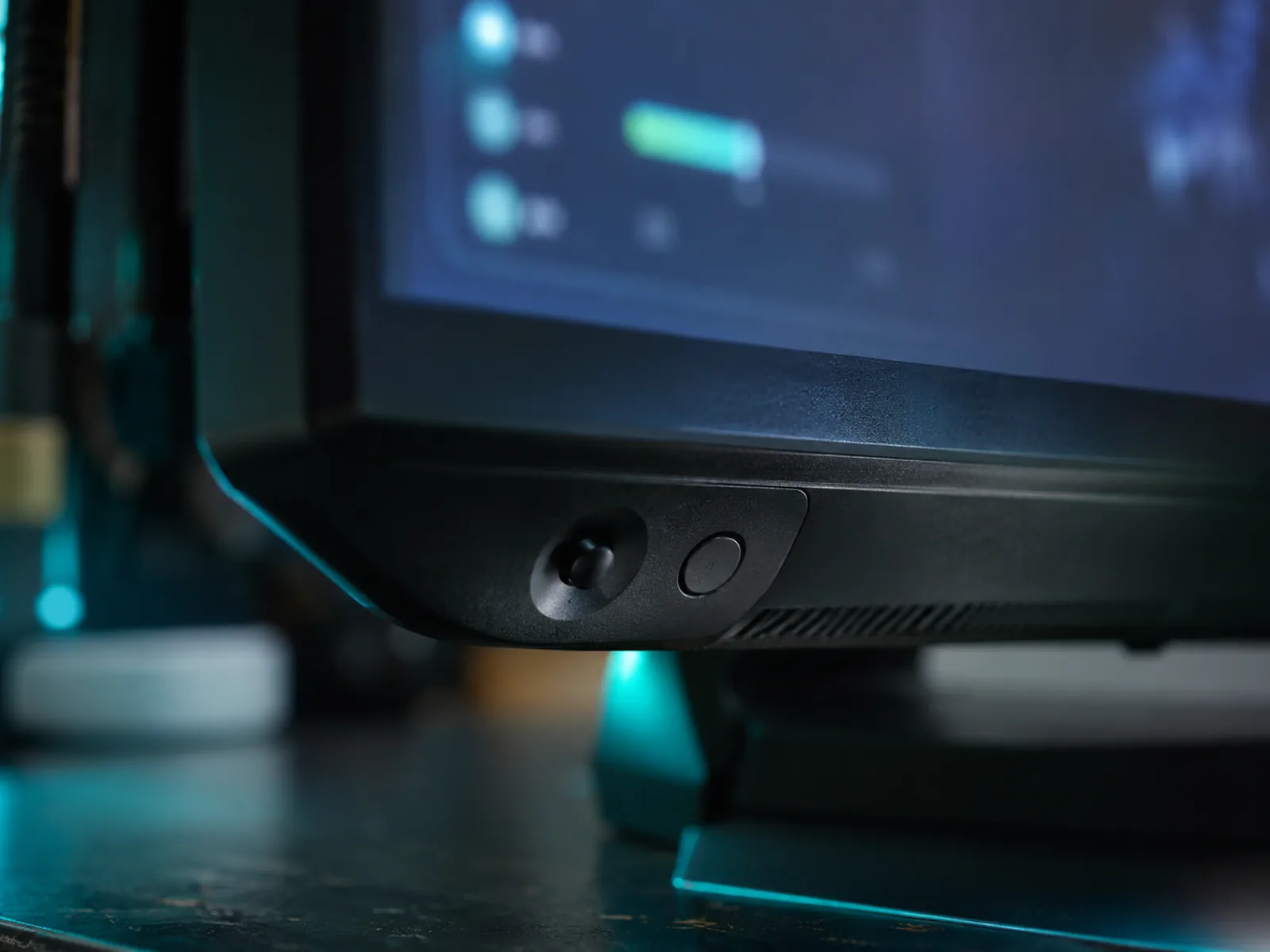
Use the monitor's physical buttons or joystick. Consult its manual for the input selector, compatibility mode, adaptive-sync option, and any setting that changes available modes. Menu labels differ by brand; do not enable an option if the manual does not explain it. Select the input you actually use and change only a mode that the manual explicitly documents as limiting refresh rate, then check Windows again.
5. Check Windows and game settings
Windows 11 includes Dynamic Refresh Rate (DRR) on compatible hardware. It adjusts the refresh rate according to activity. Microsoft says DRR requires a VRR-capable display and a refresh rate of at least 120 Hz; it can limit the maximum refresh rate of other games. If you are investigating a problem limited to a game and DRR is enabled, temporarily turn it off in Advanced display to compare, then restore your preferred setting if nothing changes.
A game can select its own display mode. Check the game's video options for resolution and refresh rate, then compare them with the Windows desktop. Do not install a utility that forces a mode outside the manufacturer's specifications. If the desktop shows 144 Hz while a game stays at 60, the investigation shifts to fullscreen mode, game settings, and VRR compatibility; the cable is not the default explanation.
Decision table
| What you see | What to check next |
|---|---|
| 144 Hz is missing even at native resolution | Selected display, input, manual settings, full signal path, and port limits |
| 144 Hz appears only at a lower resolution | Modes supported by the input, GPU output, cable, and each adapter |
| Windows offers 144 Hz but a game does not | Game resolution/rate, fullscreen mode, DRR, or VRR behavior |
| The rate changes with the selected display | Repeat the check on the target monitor in Advanced display |
Common mistakes
- Trusting the 144 Hz box label without checking the matching input and resolution.
- Replacing a cable before isolating a dock, KVM, or incorrect graphics output.
- Confusing a display's refresh rate with the number of frames a game renders.
- Selecting an asterisk-marked mode without noticing Windows may change resolution.
- Changing several options at once, which hides the limiting link.
If 144 Hz is still unavailable
- The manual does not list the mode for this input: check another supported input or output. Do not expect a different cable to unlock a mode the manufacturer does not specify.
- A dock or adapter is required: identify its model and compare its supported modes with your target resolution. Try another documented path before buying hardware.
- The mode should be available but remains missing: identify the GPU and monitor model, install updates offered by Windows Update or the PC/GPU manufacturer, restart, and recheck the monitor menu and Advanced display.
To compare display values after your changes, use our screen refresh rate test. For a screen that actually flickers at 144 Hz, see our 144 Hz flicker diagnosis. The tools directory lists available calculators and tests.
Check the limits of the complete signal path
The most useful check changes one variable at a time. Record the available resolution and rate, then change only one link: monitor input, graphics output, or adapter. Note the result, restore the previous state, and move to the next comparison. This separates a mode limit from a loose connection or setting without assuming one particular component has failed.
On the monitor specification, look for a supported-modes table rather than relying only on a “maximum refresh rate” headline. The input, resolution, refresh rate, and any listed conditions must match your connection. In the GPU documentation, identify the exact physical output. If a laptop uses USB-C, also check the published video capabilities of that laptop port and the dock's limits. Two computers can have USB-C ports with the same shape but different video capabilities.
A different result from another input is evidence, not proof of a bad cable. If the same resolution and GPU output produce a different mode on two monitor inputs, prioritize the selected input or its configuration. If the mode changes only when you remove a dock, compare the modes the dock actually specifies. Keep each conclusion limited to the check you performed.
When a lower refresh rate may be the right setting
A lower rate may be the only mode specified for a particular port and resolution, or it may suit an activity that does not need the advertised maximum. If you use a temporary mode during diagnosis, confirm that the resolution remains readable and that Windows has not switched to an asterisk-marked mode. Then restore a supported mode that fits your needs and the monitor's specifications.
The rate shown in Windows and the frames per second rendered by a game are different measurements. A display can refresh at one rate while a game produces a different frame count. VRR technologies synchronize them within supported limits, but they do not turn a 60 Hz connection into a 144 Hz mode. If Windows reports 144 Hz while movement in one game still looks limited, diagnose the game and its display mode separately.
Make the check repeatable
Before changing a setting, record the current state: selected display, resolution, rate, physical input, whether a dock is present, and which application shows the symptom. Change one item, then reread the values in Windows. If you reverse the change, the original result should return; that reversibility is stronger evidence than changing several menus at once.
With multiple monitors, check each display individually. Advanced display reports the resolution and rate for the selected monitor. Duplicate mode can require a shared combination across displays; to isolate the 144 Hz monitor, temporarily try an extended layout if it does not disrupt your work, then restore your usual layout. This does not mean Duplicate is always limited. It checks whether the display combination changes the available list.
Do not confuse the desktop setting with an application's frame rate. First confirm Windows keeps the selected mode, then open the game or application and inspect its own options. Keep a before-and-after note for both environments. If the desktop remains at 144 Hz but one application still looks like 60, that app's configuration is a separate lead.
FAQ: monitor 144Hz only showing 60Hz
Does a 144 Hz monitor always run at 144 Hz?
No. It must receive a supported mode through the selected input, GPU, and every intermediate device. Windows can also select a lower rate, and content may use a separate display mode.
Can an HDMI cable limit a monitor to 60 Hz?
It can, depending on the documented capabilities of the cable and both ports at the chosen resolution. The word HDMI alone is not a diagnosis: check the complete path and the exact device specifications.
Do I need DisplayPort to reach 144 Hz?
Not always. Some HDMI inputs support the target rate, while other combinations require DisplayPort. Check the monitor's specification for your resolution and the GPU output's capabilities.
Why does 144 Hz appear only at a lower resolution?
The requested resolution and refresh rate may not be available through the current path. Compare the manual's supported modes and try a direct connection before deciding that a component has failed.
Does 60 Hz mean my monitor is broken?
Not by itself. A setting, wrong selected display, input limit, or intermediary can hide the mode. Hardware becomes more likely only after you check the documented limits of the full path.
Sources
- Microsoft Support — change your monitor's refresh rate in Windows.
- Microsoft Support — use multiple monitors in Windows.
Sources checked November 15, 2026. Menus can vary by Windows build and device capability.
Last updated: November 15, 2026.
Be the first to leave a comment.