When a moving object leaves a faint trail on a monitor, the symptom is often called ghosting. That word describes what you see; it does not identify one cause. Pixel transitions, overdrive settings, refresh behavior, graphics output, camera capture and even the test animation can affect the image. A browser test is useful for comparing motion under consistent conditions, but it cannot measure a panel’s gray-to-gray response time in milliseconds or certify its performance.
Keep three questions separate. Pixel response describes how quickly a display changes between brightness or color states. Refresh rate describes how often the display can present a new frame. Input latency is the time between an action and its visible result across the device, software, graphics pipeline and screen. These affect motion together, but they are not interchangeable measurements. VESA’s ClearMR program uses a defined test method to characterize motion blur for certified products; a browser animation is not a substitute for that compliance test.
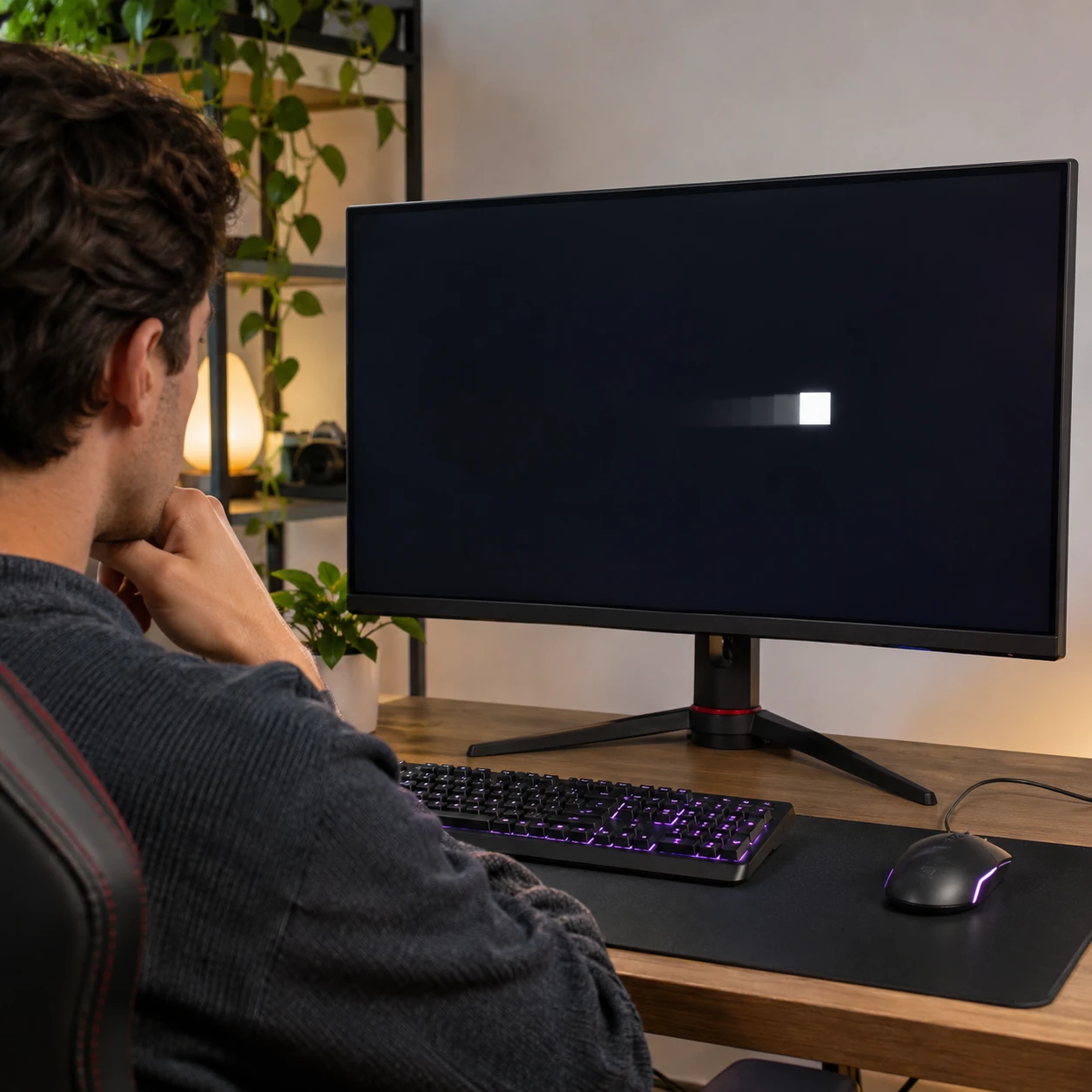
What a browser motion test can tell you
A moving pattern can help you compare whether a trail or overshoot is more noticeable at one setting than another. Keep the browser window, animation, room lighting, viewing distance and display mode consistent. If the same trail appears in several test patterns and ordinary moving content, you have a repeatable visual symptom worth investigating. A single screenshot, particularly a phone photograph of a moving image, cannot isolate the panel’s response behavior.
The browser controls its own drawing schedule. The operating system, graphics driver, browser compositing, power mode and display refresh setting all influence how frames reach the screen. If the page misses frames or the display is not operating in the expected mode, an apparent stutter can be caused by the path to the monitor rather than slow pixels. Use a browser test as an observation aid, not a benchmark reporting a guaranteed numeric response time.
Prepare a repeatable comparison
- Choose the monitor you intend to test and set its native resolution. Connect it directly if a dock or adapter could be changing available display modes.
- Open one motion pattern in a current browser. Close video players, screen recorders and extra tabs that may compete for resources.
- Use the refresh rate currently selected by your operating system. Check the monitor’s on-screen menu for its active signal mode if it provides one.
- Keep viewing distance and brightness steady. Look at the moving edge with your eyes rather than pausing and treating a compressed screenshot as a measurement.
- Repeat the same sequence at each overdrive setting. Write down the setting name and what you saw; do not assume that “fastest” will look best.
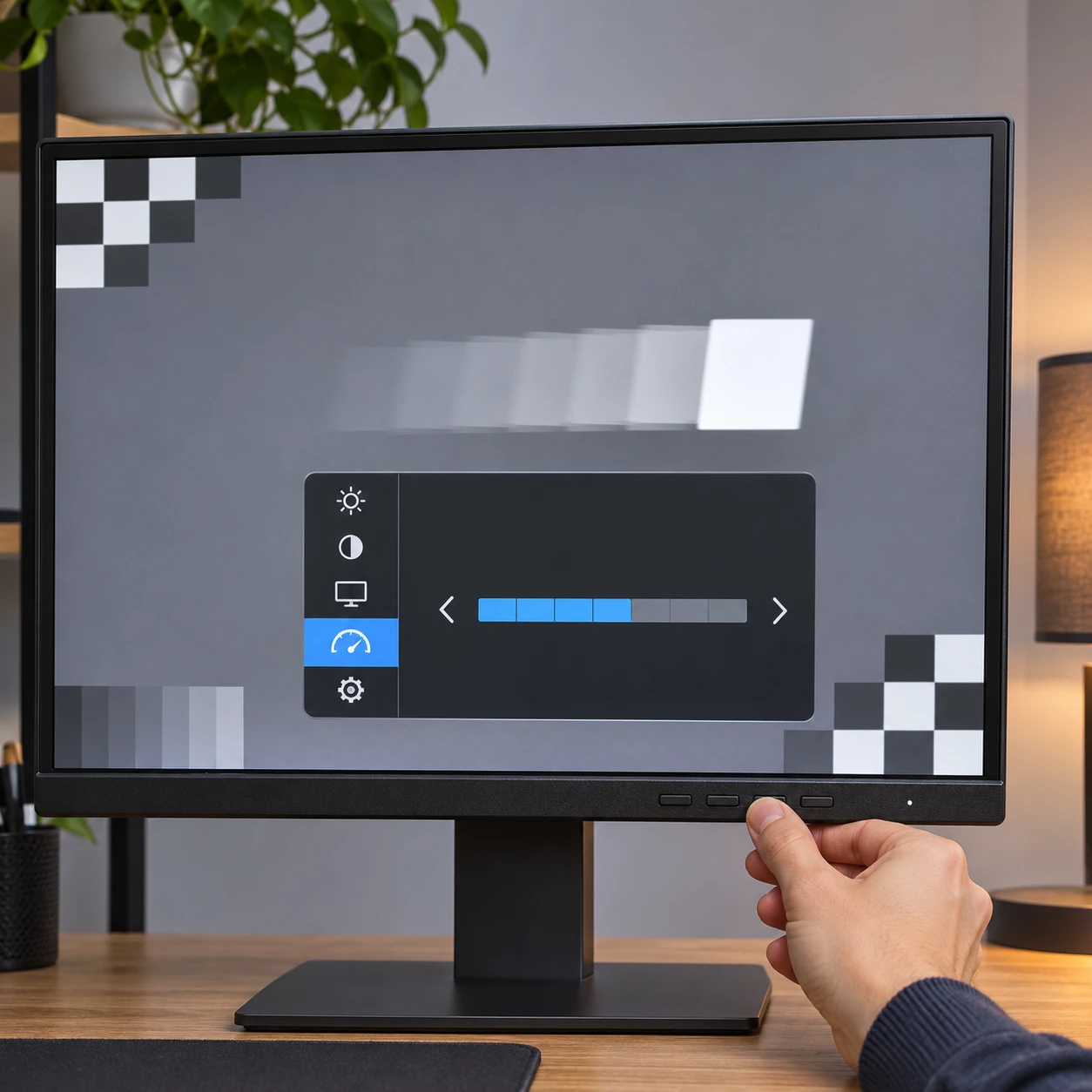
Read the trail before changing settings
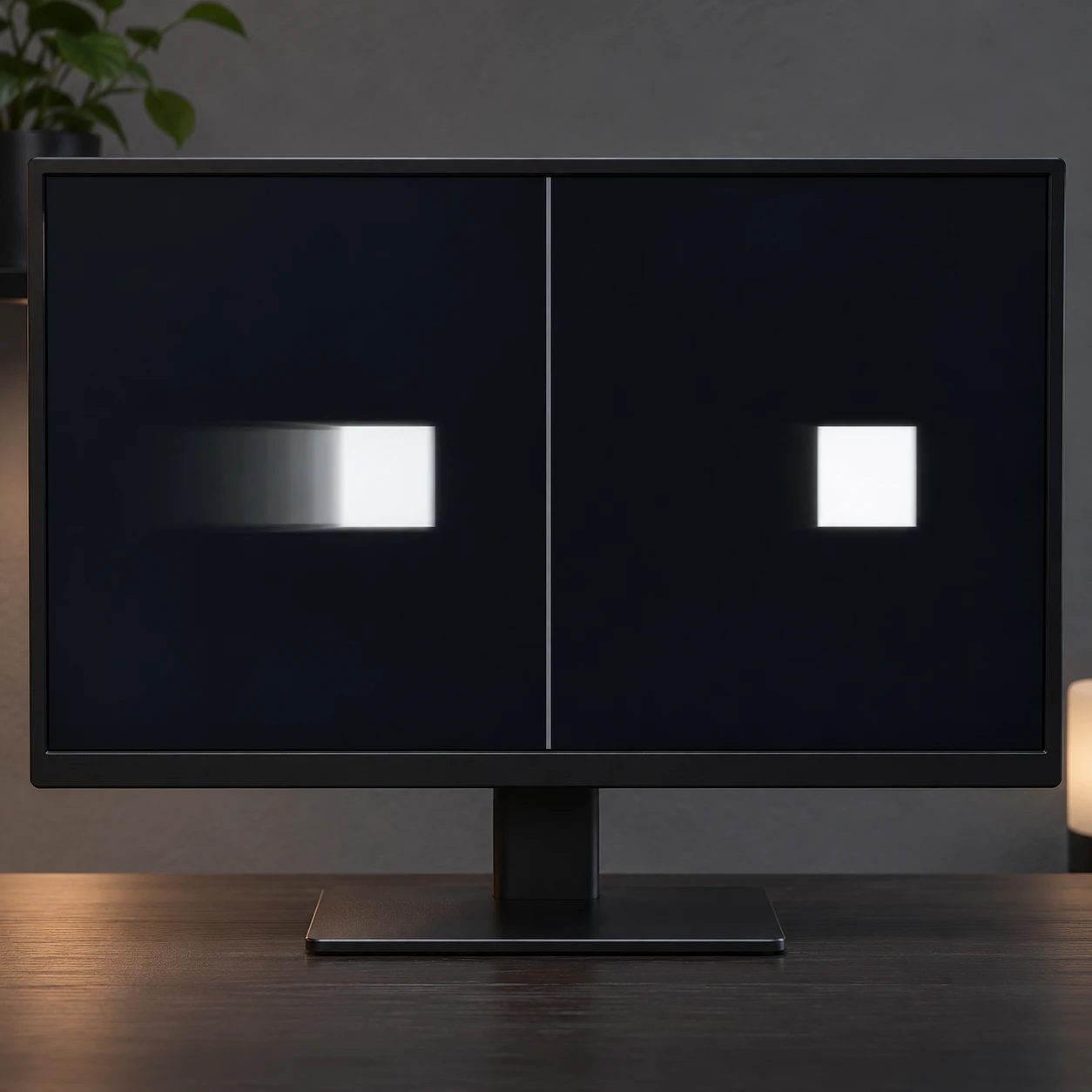
A darker duplicate following a moving bright object is commonly described as a trailing artifact. An overshoot or inverse ghost can look like a brighter or differently colored rim ahead of or behind the object. The exact appearance depends on the panel and image; do not infer a specific internal defect from the pattern alone. Compare at a few overdrive levels, including the default, and return to default if the image becomes worse or uncomfortable.
Overdrive applies extra drive to make some pixel transitions occur faster. A stronger setting can reduce one visible trail but create overshoot on another transition. The manufacturer may offer different names or only a few presets. There is no universal best value: the appropriate level depends on the monitor, refresh rate, variable-refresh behavior and personal tolerance for artifacts. Change one setting at a time and keep a note so you can restore the original.
| What you notice | Possible explanation | Useful next step |
|---|---|---|
| Soft trail behind a moving edge | Pixel transition behavior, sample-and-hold blur, or the test image | Compare the same motion at another overdrive preset and in ordinary content |
| Bright or colored rim around the object | Overdrive overshoot is one possibility | Try a less aggressive preset and compare again |
| Jerky motion with little trailing | Frame pacing, browser load, source frame rate or refresh mismatch | Close competing apps and verify the selected display mode |
| Delay after clicking a control | Input or software latency somewhere in the full system | Use a suitable end-to-end method; a pixel trail test does not measure click latency |
Why “1 ms” is not a complete test result
Manufacturers may publish a response-time figure tied to a particular transition, test procedure or operating mode. A single quoted value does not describe every gray-to-gray transition, refresh mode or overdrive setting. Look for the method and conditions in the manufacturer’s documentation, and compare like with like. VESA explains that ClearMR is a separate standards-based approach to motion-blur characterization, with certified products tested under a defined process.
Motion also depends on how long a frame remains visible, the rate at which images move, and the viewer’s tracking eye movement. A browser may animate at a cadence that differs from the panel’s refresh rate. A camera may record rolling-shutter bands or exposure blur. These limits explain why an online pattern can reveal a visible issue but cannot confirm a precise pixel response time. Do not report milliseconds based only on how a trail looks in a browser.
Check the signal path if results look uneven
If motion stutters, verify the selected refresh rate in the operating system’s advanced display settings and check the monitor’s signal information. Make sure the cable, adapter, dock and chosen resolution support the mode you expect; the available modes can depend on the connection and hardware. Temporarily disable variable refresh only if you can restore it, then compare. Do not install an unknown utility or change hidden service-menu values to force a mode.
For additional display checks, ElectronixLab’s monitor gradient test covers grayscale and color transitions, not response time. If you are also seeing bright corners on a dark screen, the backlight bleed and IPS glow guide addresses that different symptom. A clear separation between symptoms makes support reports more useful.
Frequently asked questions
Can a browser test prove my monitor is 1 ms?
No. It can display motion and help compare visible artifacts, but it does not measure every pixel transition under a specified laboratory method. Check the manufacturer’s documented test conditions or a recognized certification for a compatible model.
Is motion blur the same as ghosting?
Not exactly. Motion can look soft because of several display and perception effects. A distinct duplicate trail is often called ghosting, while a broad loss of clarity during movement may be described as motion blur. A browser view cannot identify every contributing cause.
Should I always select the strongest overdrive?
No. A stronger setting can add bright inverse trails or other artifacts. Compare presets at your normal refresh mode and choose the setting that looks acceptable in the content you use.
Does a high refresh rate guarantee low ghosting?
No. Refresh rate and pixel transitions are different properties. A higher rate can improve motion presentation when the full system supports it, but the monitor’s transition behavior and settings still matter.
Sources
Consulted 6 November 2026: VESA ClearMR overview describes a standards-based motion-blur certification; LG’s monitor guide discusses the relationship between refresh rate and response time; Microsoft Edge performance reference documents browser frame and paint events.
Be the first to leave a comment.