A dark-screen test can help you notice uneven illumination, but a black image on a monitor is not a laboratory measurement. Room light, viewing angle, panel type, brightness, camera exposure and the displayed signal all change what you see. This guide gives you a repeatable way to inspect a liquid-crystal display (LCD), distinguish common visual effects, and record a concern without declaring a panel defective from one dramatic phone photo.
“Backlight bleed” is often used as a catch-all for bright areas near an LCD edge. It is useful to describe the appearance, but it does not identify the cause. IPS glow is a viewing-angle effect reported with some IPS displays; it changes as your position changes. Light leakage can appear fixed in the panel area or along an edge. A dark-screen test can show where brightness looks uneven; it cannot identify the exact construction fault or judge a warranty claim.
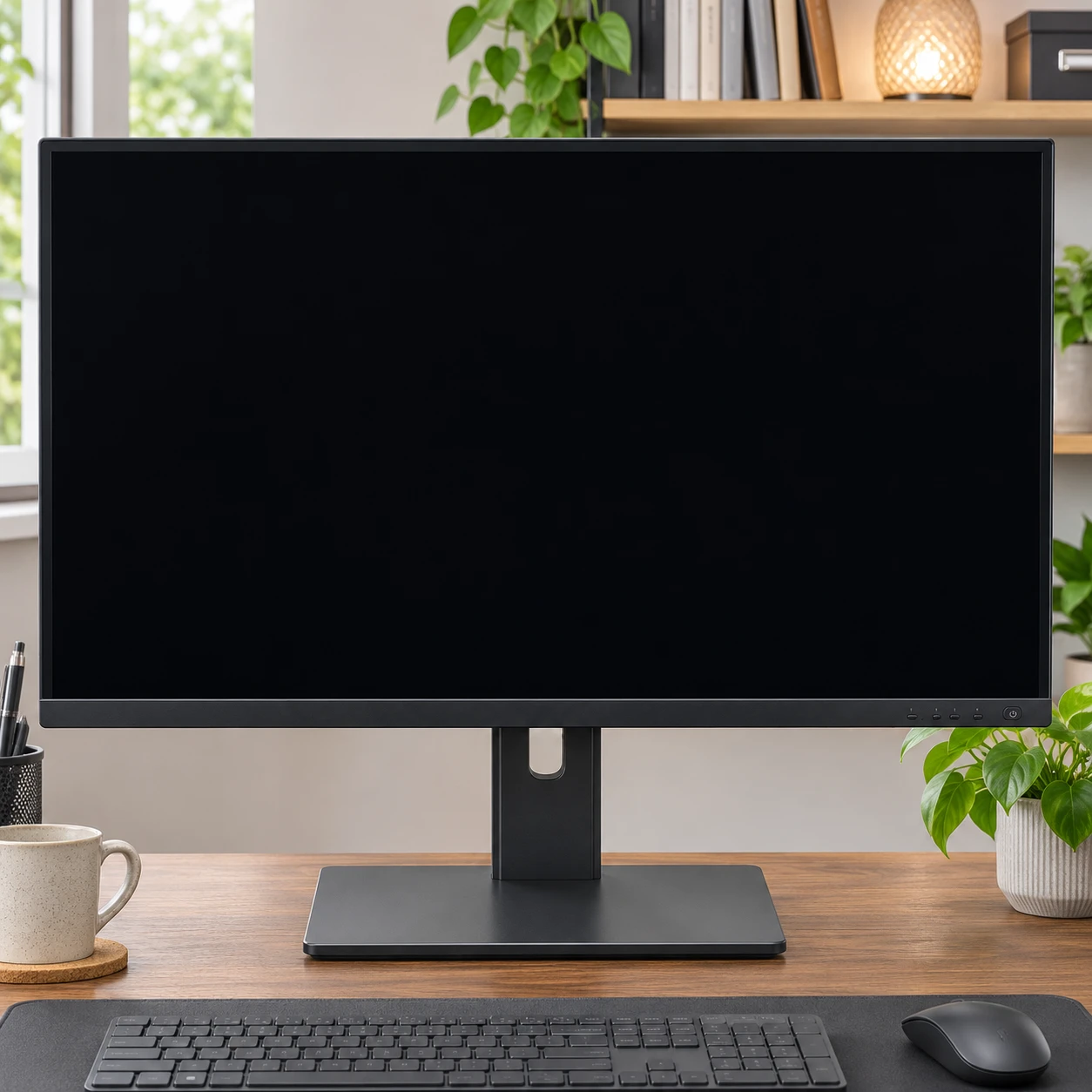
Prepare a fair screen inspection
Start with the display warmed up and connected normally. Use its native resolution and a known dark image that fills the panel; avoid a video player whose controls, subtitles or black bars cover parts of the picture. Keep the room dim enough to see the screen, but do not create an extreme pitch-black setup just to exaggerate a faint difference. Dell’s guidance for its displays emphasizes checking the screen in normal lighting and comparing similar displays under similar conditions. Follow the support instructions for your own manufacturer and model.
Set brightness to the level you normally use. Temporarily disable dynamic contrast, local dimming or automatic brightness only if you know how to restore the settings afterward; document what you changed. These features may alter dark scenes, so comparing results with them switching on and off can be informative. Do not change service menus or dismantle the display. The goal is a repeatable observation, not a calibration procedure.
Run the test from the center first
- Clean the screen gently using the manufacturer’s care instructions. A smudge can look like a shadow or bright patch.
- Open a uniform dark image at full screen. Confirm that the desktop, browser chrome and cursor are not covering the panel.
- Sit at your usual distance with your eyes level with the center. Look at the whole panel for a few seconds, then inspect corners and edges without moving your head too close.
- Return to the same position and repeat after a short pause. Note the location, approximate shape and whether it is visible during normal use.
- Move your viewing position slightly left, right, up and down. Record whether a glow changes with angle or stays in the same place.
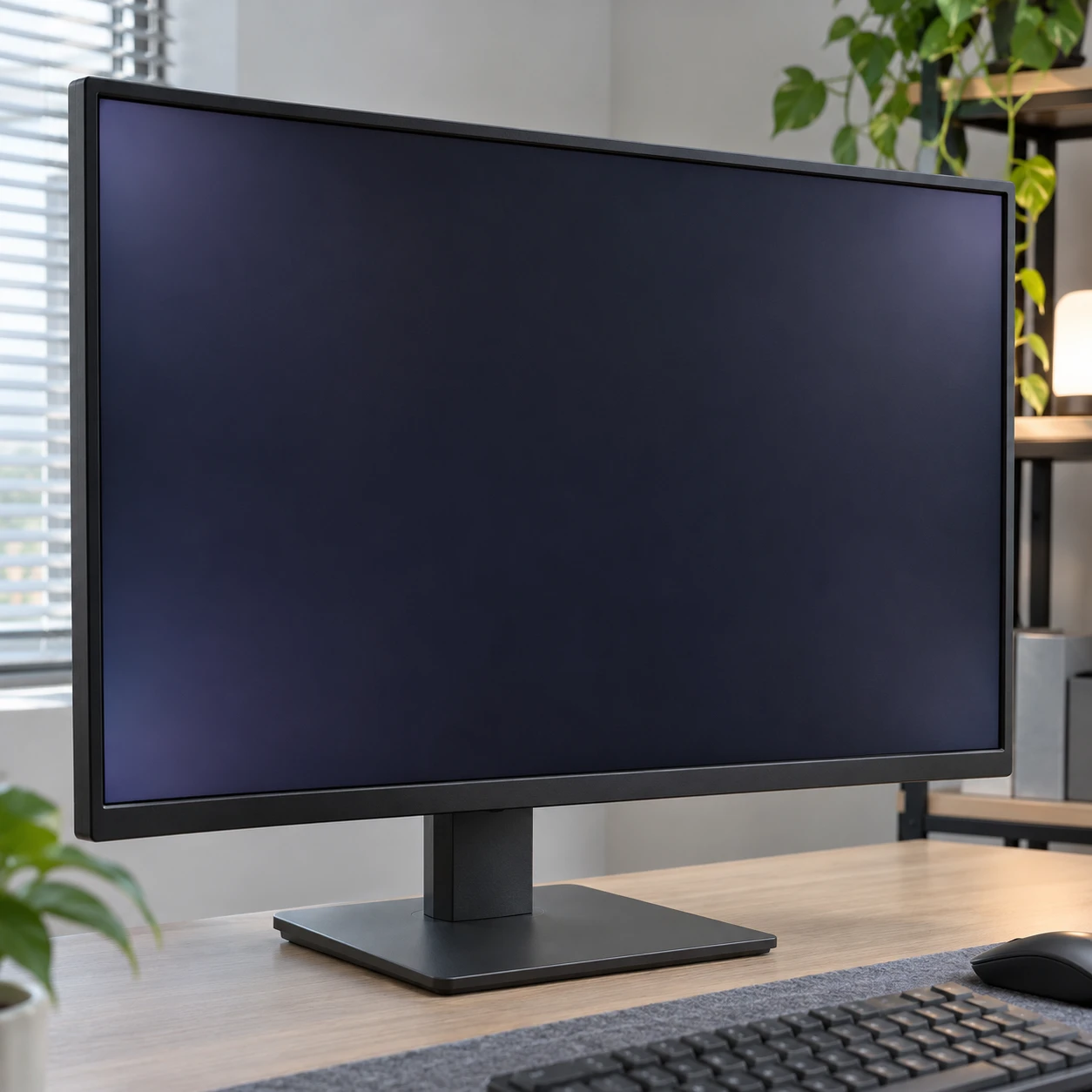
Tell IPS glow from fixed light leakage
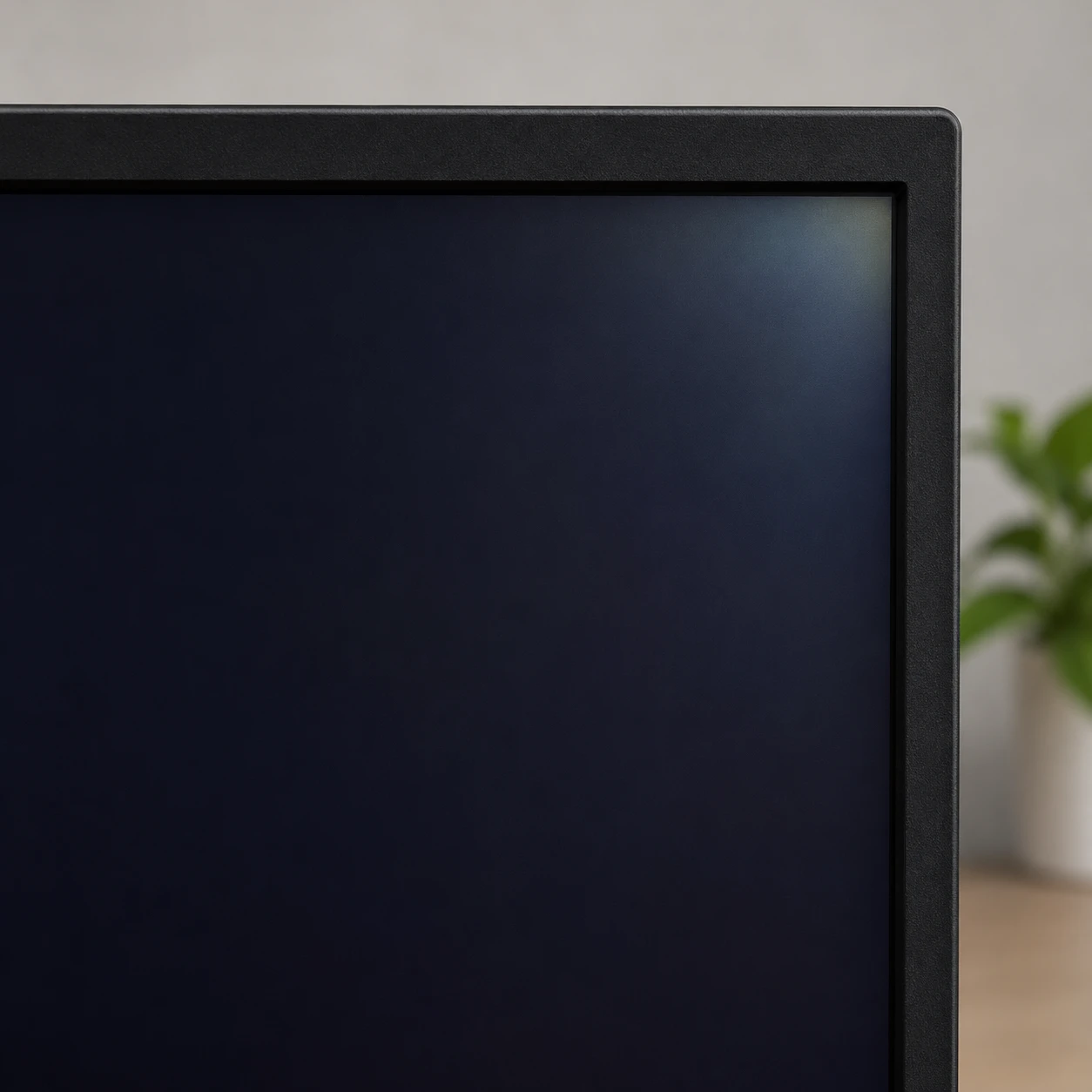
A glow that becomes more noticeable in one corner and changes when you shift your viewing angle is consistent with an angle-dependent effect such as IPS glow. It may be much less visible from your normal seating position or on ordinary content. That observation alone does not prove the panel is within specification or outside it: panel design, room, image level and model-specific guidance matter.
A bright patch that appears to remain in the same place as you move can be described as fixed uneven illumination or possible light leakage. Check whether it is also visible on a dim gray image, a normal photo or a video scene. A feature that is obvious only on a completely black screen in a dark room may not affect normal use in the same way. Conversely, a persistent area visible during everyday work deserves a careful record and a manufacturer comparison.
| Observation | What it may suggest | Useful next check |
|---|---|---|
| Glow shifts as your head moves | An angle-dependent panel effect | Return to normal seating position and compare ordinary content |
| Patch stays fixed near an edge | Uneven illumination or possible leakage | Repeat at normal brightness and document the same location |
| Patch appears only in a phone photo | Camera exposure, processing or reflections | Judge the screen with your eyes and retake a controlled photo |
| Image is uniformly gray or black | Signal, video setting or test image issue | Check another source and confirm the image fills the panel |
Why phone photos can exaggerate the result
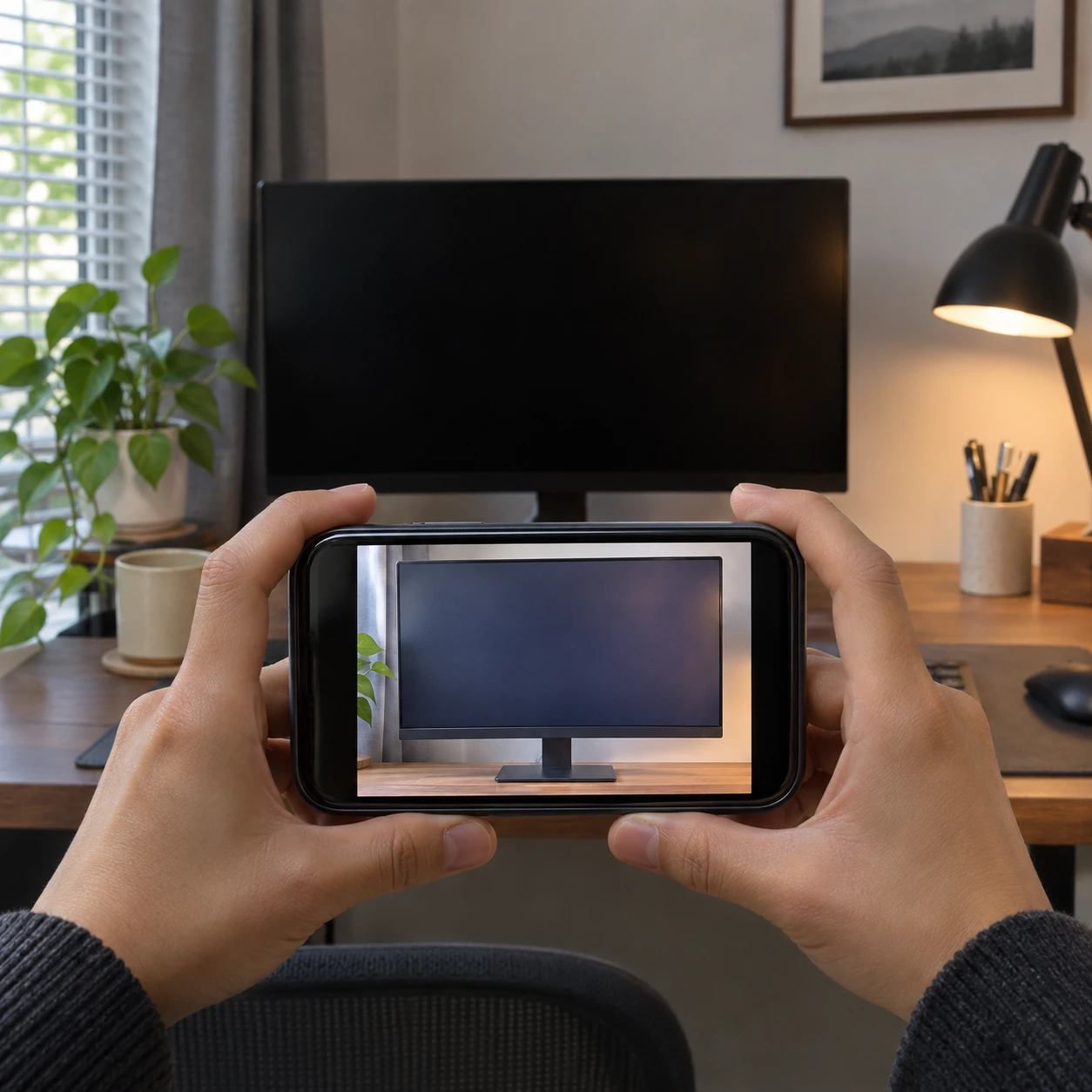
Phones automatically adjust exposure, focus, white balance, noise reduction and tone mapping. In a dark room, a camera may brighten a black screen and amplify faint variations that your eyes barely notice. Reflections from a lamp or a window can also look like leakage. A photo is evidence of what the camera recorded, not a calibrated measurement of panel brightness or uniformity.
If you need a record for support, first capture the screen as you see it from your normal position, then take a second photo with the phone steady and centered. Avoid touching the screen, zooming digitally or editing the image. Include the model and settings, room conditions, and whether the issue is visible in everyday content. Tell support that the photo is illustrative. Do not compare images taken with different camera exposures as though they were equivalent measurements.
Keep the diagnosis safe and proportionate
Do not press, twist or massage the panel or bezel. Physical pressure can damage a display and is not a valid repair method. Do not loosen screws, open the monitor or apply heat. If the screen is cracked, flickering, unusually hot, or has a spreading bright area after impact, stop the test and contact the seller or manufacturer. Keep the purchase details and follow the warranty process for the exact model.
For a simple visual check of color transitions, ElectronixLab’s monitor gradient test can help you inspect grayscale and color bands. It is not a backlight-bleed meter. A dark-screen check answers a different question: whether you can see an uneven area under the conditions you recorded. Keep those limits clear when comparing a display or requesting service.
Frequently asked questions
Does a bright corner always mean backlight bleed?
No. Viewing angle, reflections, camera exposure, panel behavior and signal settings can all change the appearance. Repeat the check from your usual position and compare normal content before describing the symptom.
Should the room be completely dark?
No. An extremely dark room can make small differences seem more dramatic than they are in daily use. Start with subdued, ordinary room lighting and use the brightness you normally choose.
Can an online test measure IPS glow?
A browser can display a controlled dark image, but it cannot measure the physical panel or determine whether it meets a manufacturer’s standard. Treat the page as a visual aid only.
When should I contact support?
Contact the maker if the area is persistent, bothersome during normal use, new after damage, or outside the guidance for your exact model. Share repeatable observations and unedited photos rather than diagnosing a specific internal fault yourself.
Sources and further reading
Consulted 6 November 2026: Dell Support: distinguish IPS glow and light leakage; Dell Support: laptop LCD light leakage; EIZO Monitor Test provides visual test patterns. Guidance varies by manufacturer and model.
Be the first to leave a comment.