Quick Fix — compare power, profile, and temperature
- Use the supplied or approved adapter directly from a wall outlet; confirm Windows recognizes charging.
- Choose the normal Windows power mode and rerun the same game section without changing other settings.
- Record FPS, CPU/GPU clocks, and temperature with a trusted vendor tool or in-game counter.
- Check that the game uses the discrete GPU and that vents are clear.
Check: if FPS also drop on battery or in another game, investigate heat, drivers, or background load. If the drop occurs only with this adapter: check recognition, rated power, and the maker’s profile.
A gaming laptop FPS drop when plugged in feels backwards, but a connected charger does not guarantee maximum performance. The adapter may be underpowered, unrecognized, faulty, or limited by the maker’s thermal profile. Heat, game settings, selected GPU, and background tasks can also differ between runs. Compare repeatable scenes before buying a replacement adapter.
Set up a fair comparison
Choose a repeatable game scene or built-in benchmark, keep resolution, graphics quality, and FPS cap constant, and pause downloads. Run once on battery and once plugged in after a short pause. Record average and stability of FPS, plus temperatures and clocks if a trusted tool exposes them. Battery performance may be intentionally limited, so one FPS reading does not prove a fault.
| Observation | Check next |
|---|---|
| Windows does not recognize the adapter | Outlet, cable, connector, rating, and compatibility. |
| FPS fall after several minutes | Temperature, fans, and airflow. |
| Only one game is affected | Graphics profile, frame cap, and game options. |
| Discrete GPU is barely active | GPU chosen in Windows and the game. |
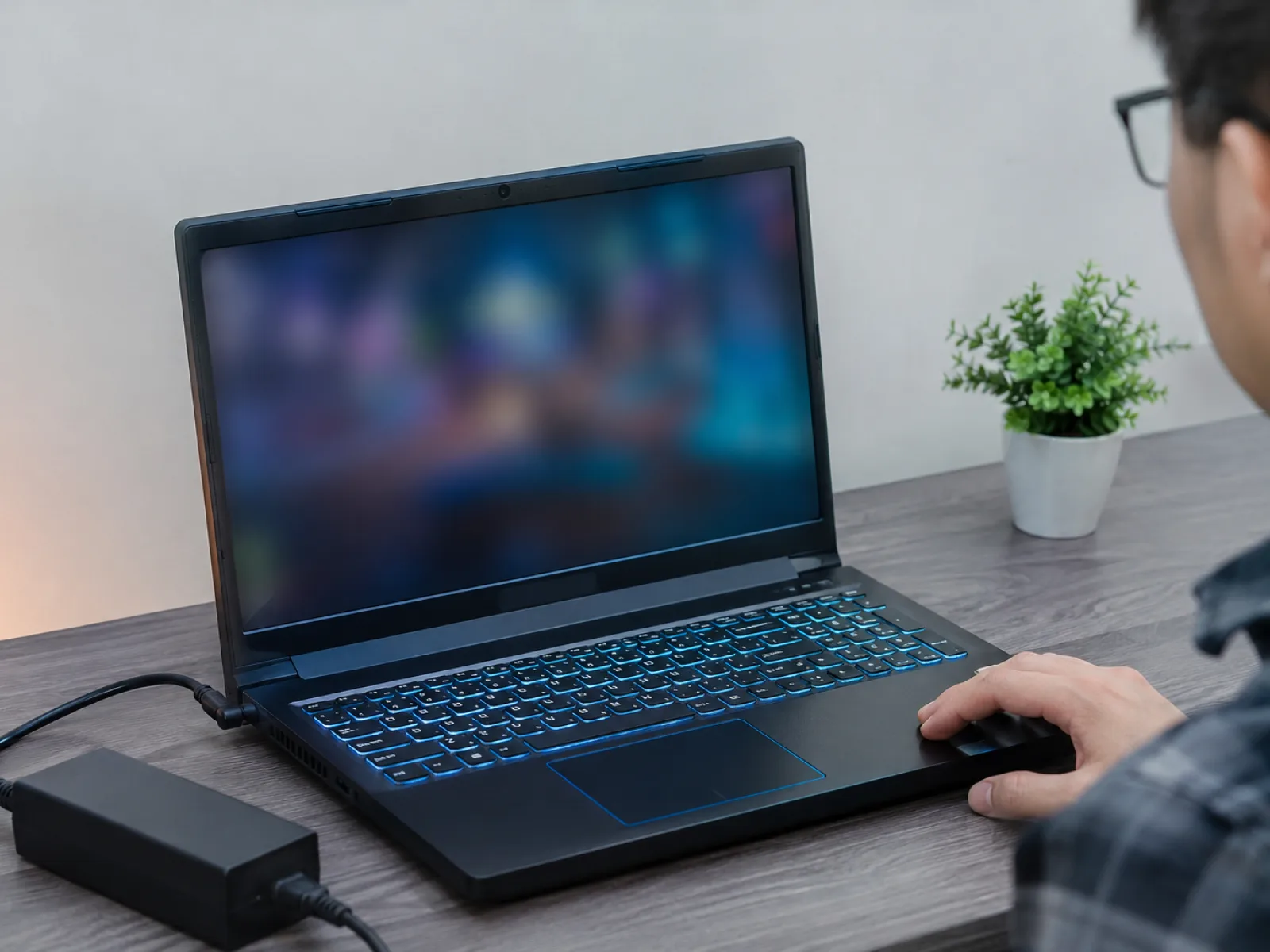
Check the adapter and power mode
- Applies to: low battery or slow charging alerts. Check the adapter label against the exact model’s requirements. Connect it directly and visually inspect plug and cable; do not use exposed wires or a questionable adapter. Check: do Windows and the maker utility recognize it? If it remains unidentified: try only an approved adapter with the required rating.
- Open Settings > System > Power & battery and compare power mode. Names and choices vary by device. In the maker utility, also check thermal or quiet profiles. Change one mode and repeat the same scene. Check: compare clocks and FPS. If performance mode runs hotter without helping the game: restore the prior mode and check heat and frame caps.
- Check the game’s graphics panel and Windows Settings > System > Display > Graphics. Select the app and its high-performance GPU if offered. Check: watch GPU use in the scene. If the wrong GPU remains selected: review the game option and the laptop maker’s driver.
Check heat, airflow, and throttling
Place the laptop on a hard surface, clear air intakes, and make sure fans can turn. Soft bedding often blocks airflow. Compare temperatures with limits for the exact model; limits vary, and one brief peak is not enough to diagnose a problem. If temperatures rise and clocks drop at the same time, thermal or power limiting is a possibility. Do not open a laptop under warranty.
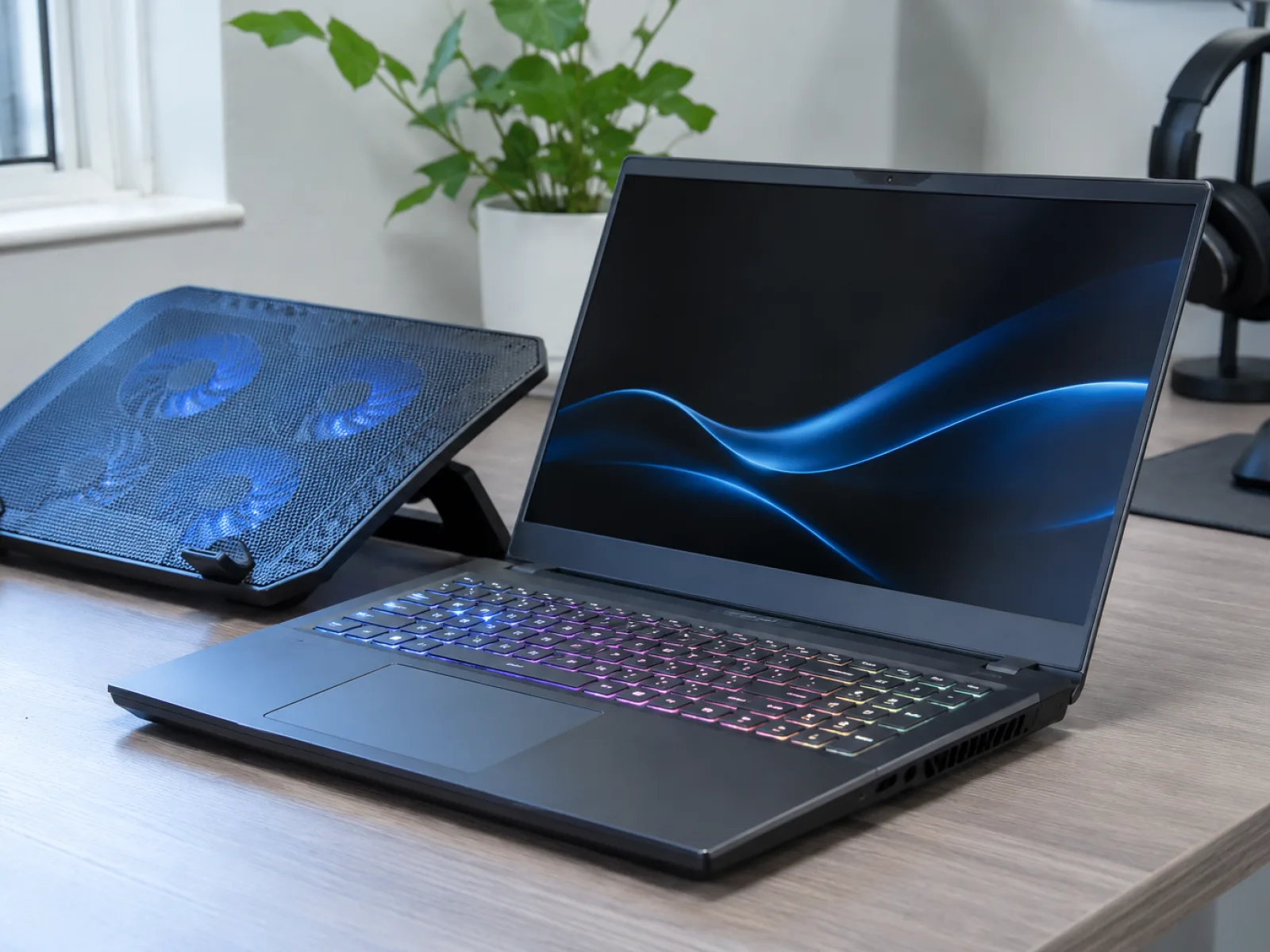
Listen to fans, but do not use noise alone as a diagnosis. Clean accessible surfaces only as the manual permits; do not push objects into fan blades. If FPS drop after a period of play and recover after cooling, repeat under the same conditions and check temperatures. If the laptop overheats at idle or shuts down: stop long gaming runs and have cooling inspected.
Rule out frame caps and background software
Check V-Sync, frame limit, refresh rate, and the game profile. A fixed ceiling can look like a performance drop when the PC is simply following a cap. Close nonessential recorders or overlays for one run without disabling antivirus or security features. In Task Manager, look for a CPU or disk process active during the scene. Get GPU drivers through Windows Update or the laptop maker and prefer its validated driver; avoid unknown utilities.
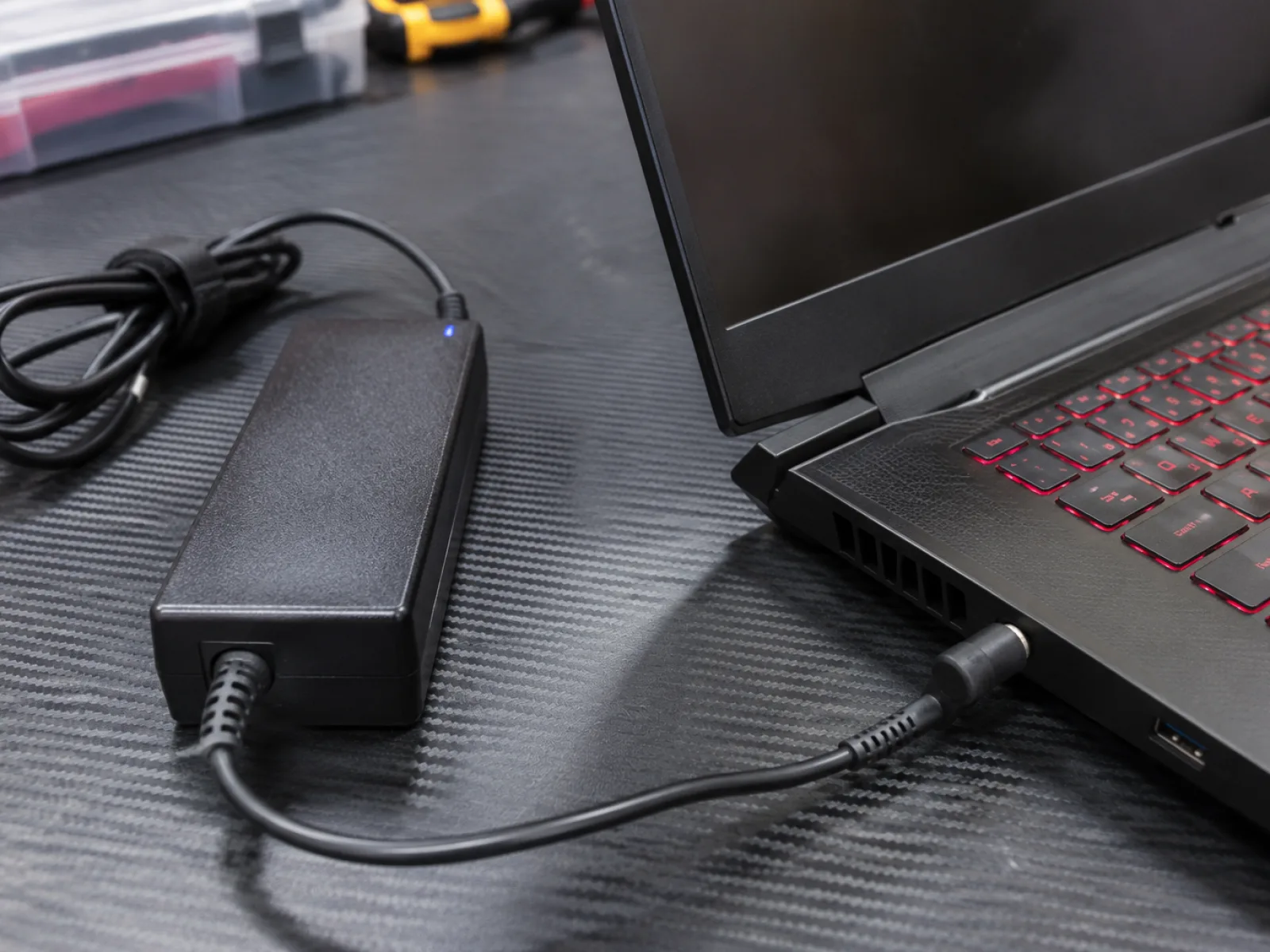
To avoid a false lead, record when the drop occurs, power mode, battery level, temperature, and frame rate. Compare those readings with the same scene, not a different session. A quiet profile may limit fans; performance mode can increase noise and heat without removing a game cap. If the frame rate stays fixed at one value, check the limiter before interpreting clock readings. Avoid running several monitoring utilities at once because they may report values differently.
If FPS do not improve after changing the profile, return to the known setting and inspect temperatures. If the charger is not recognized, do not stress-test the laptop until you confirm an approved supply.
When to request service
If an approved adapter is not recognized, its connector becomes hot, or clocks fall despite normal temperatures, contact the maker. Power limits and profiles depend on the chassis. Dell notes behavior depends on the system and adapter in use; do not apply another model’s rating. Record laptop model, adapter part number, selected mode, and when the drop occurs.
Common mistakes
Do not buy a charger just because the plug fits, disable thermal protections, or compare different scenes and profiles. Avoid overclocking to compensate for a supply the laptop does not recognize.
Frequently Asked Questions
Why do FPS drop when the laptop is plugged in?
The profile, adapter recognition, temperature, selected GPU, or a frame cap may change behavior. Compare the same scene and settings.
Will a higher-wattage adapter always fix it?
No. Use only an adapter approved for the exact laptop; compatibility, identification, and connector matter.
Does a high temperature prove a fault?
No. Check the model’s documentation and clock behavior. A clock and FPS drop together warrants thermal checks.
Should I disable antivirus to test?
No. Close only nonessential tasks and keep security protection on.
Sources and next step
Dell Support — performance issue or battery drains while AC adapter is connected. Recommendations depend on the model. Last updated: November 12, 2026.
Be the first to leave a comment.