Quick Fix — Find Where the Duplicate Appears
When a keyboard double types on Windows 11, first separate two characters from one brief tap from repeat during a held key.
- In a plain text editor, tap several keys once; note whether one key repeats or all keys do.
- Try the same keys in another app and compare with Windows On-Screen Keyboard, opened with Windows + Ctrl + O.
- If you use an external keyboard, unplug it and try it on another port or computer.
- In Windows 11, check Settings > Accessibility > Keyboard and note Filter Keys before changing anything.
Check: if only the physical keyboard duplicates keys in several apps, suspect the keyboard or its connection. If the on-screen keyboard or one app also reproduces it: check software and settings before replacing hardware.
If keyboard double typing in Windows 11 is the symptom, first determine whether a key sends two taps or repeats while held. Those behaviors can have different causes. A comparison across two apps and with On-Screen Keyboard helps separate the physical keyboard, connection, and software without installing another program.
Diagnose keyboard double typing in Windows 11
A repeat setting affects what happens while a key is held. It does not repair a switch that sends two separate events. Keep this distinction in mind when reproducing the problem: one short press, release, and a pause make the result easier to interpret.
Compare the symptom before changing settings
| What you observe | Next check |
|---|---|
| One key doubles in several apps | Try the keyboard on another device; suspect that key or its mechanism. |
| On-Screen Keyboard types correctly | Compare the physical keyboard, cable, receiver, or driver. |
| Only one app is affected | Try another text field and inspect that app’s own features. |
| Letters repeat only while a key is held | Check keyboard repeat delay and rate. |
Test several characters without rapid tapping or holding the keys. An online tester can display received key events, but never enter a password into a third-party tool. ElectronixLab’s keyboard tester shows key events locally in the page; use it only for non-sensitive keystrokes.

Separate a physical keyboard from an app
- Applies to: Windows 11. Open Notepad and tap the affected keys once. Repeat in another text field. Check: note whether the duplicate follows one key, one app, or a type of press. If only one app is affected: disable its macros or extensions only if you recognize them, then restart that app.
- Open On-Screen Keyboard with Windows + Ctrl + O, then click the same key once. Check: compare a physical and on-screen press in the same editor. If both produce a duplicate: the physical keyboard may not be responsible; inspect the text field, app, and accessibility settings.
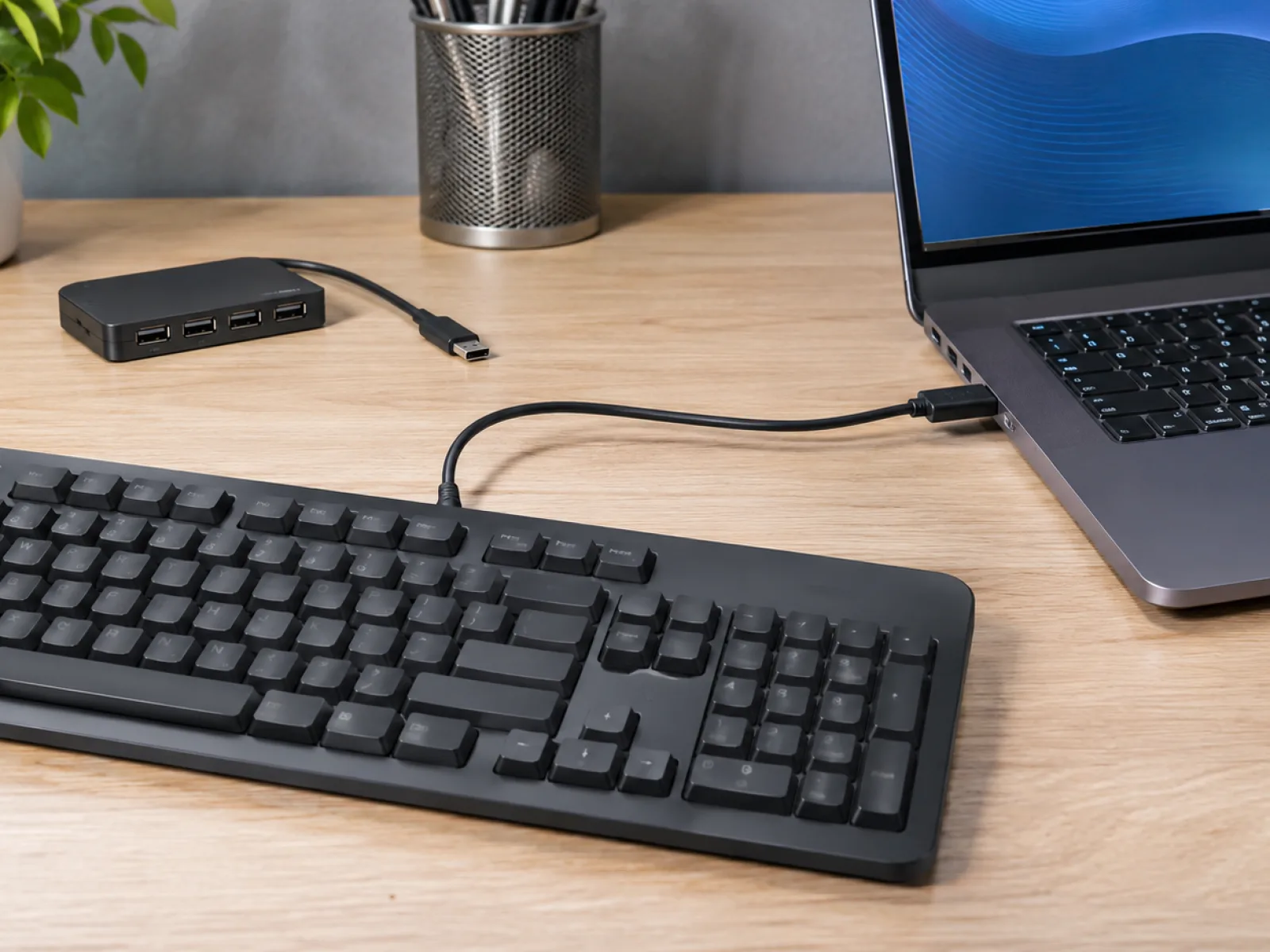
- For an external USB keyboard, connect it directly to the computer and try a different port. For a wireless model, check charge, receiver, and pairing using its manual. Check: does another port or computer change the behavior? If the same key doubles across devices: the keyboard itself is the leading suspect.
Check Filter Keys and key repeat
In Settings > Accessibility > Keyboard, check whether Filter Keys is on. Microsoft says this feature can ignore brief or repeated keystrokes. Its role is to filter some keystrokes; it does not repair a contact that sends two events. Note the current state, then change one setting and repeat the same check so you can undo the change.
A letter that continues while you hold a key is normal key repeat, with an adjustable delay and rate. If the issue happens only during a long hold, open Windows Keyboard Properties and adjust the repeat delay slightly; then check the same editor again. Do not confuse this setting with two characters from one brief press.
When hardware is the likely cause
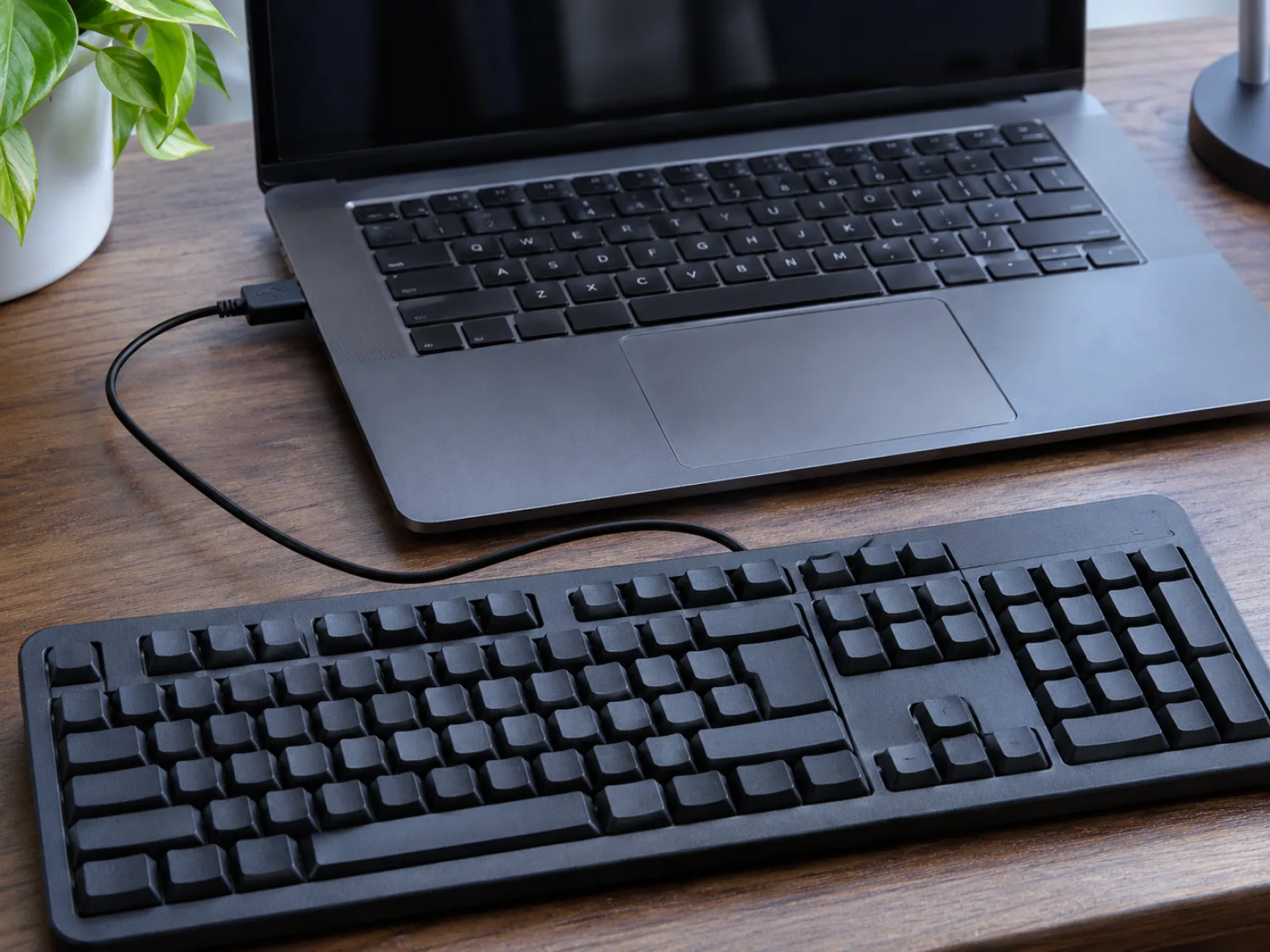
If the same key doubles on several devices while On-Screen Keyboard works, inspect the outside of the keyboard and its cable. Unplug it before cleaning. Do not spray liquid into it or pull laptop keycaps; mechanisms differ and can break. For a mechanical keyboard designed for removable caps, follow the manufacturer’s manual and use suitable tools.
A built-in laptop key that repeats consistently may have a worn contact, contamination, or a cable issue. An external keyboard that works on another computer but not yours may point to the port, receiver, or driver instead. If multiple keys fail together rather than duplicating, see our guide to keyboard ghosting and rollover.
Common mistakes
Do not uninstall every HID device, edit the registry, or replace a keyboard immediately. A cross-check between On-Screen Keyboard, another app, another port, and another device is more informative than changing several things at once.
Frequently Asked Questions
Why does my keyboard type two letters after one press?
A key or switch may send two events, but software or an app setting may also be involved. Compare the physical keyboard with On-Screen Keyboard in two apps.
Can Filter Keys cause double letters?
Microsoft describes Filter Keys as a setting that can ignore brief or repeated keystrokes. Note its state and change one setting at a time; it cannot repair a faulty switch.
How do I tell key chatter from normal repeat?
Normal repeat occurs while a key remains held. A duplicate after a brief tap may be a switch or software event; test one key at a time in a plain editor.
When should I replace the keyboard?
Consider replacement if the duplicate follows that keyboard across devices after connection checks, or arrange service if a built-in laptop keyboard is affected.
Sources and next step
Microsoft Support, Make your mouse, keyboard, and other input devices easier to use (consulted November 12, 2026). Last updated: November 12, 2026. Continue with our keyboard tester or tutorial catalog.
Be the first to leave a comment.