A left-right speaker test plays a brief sound through one stereo channel at a time. It helps you confirm whether a browser, computer, phone or audio connection sends the left channel to the left side of your listening setup and the right channel to the right side. It is a basic routing check, not a measurement of speaker quality, volume accuracy or hearing.
Before starting, lower the volume to a comfortable level. The test should use short, ordinary speech or gentle tones; there is no benefit in turning a test sound up until it feels loud. Stop if playback is uncomfortable. If you use headphones, wear them as intended and keep the left and right earcups in their marked positions. If you use speakers, sit facing them in the normal listening position.
What the test can and cannot tell you
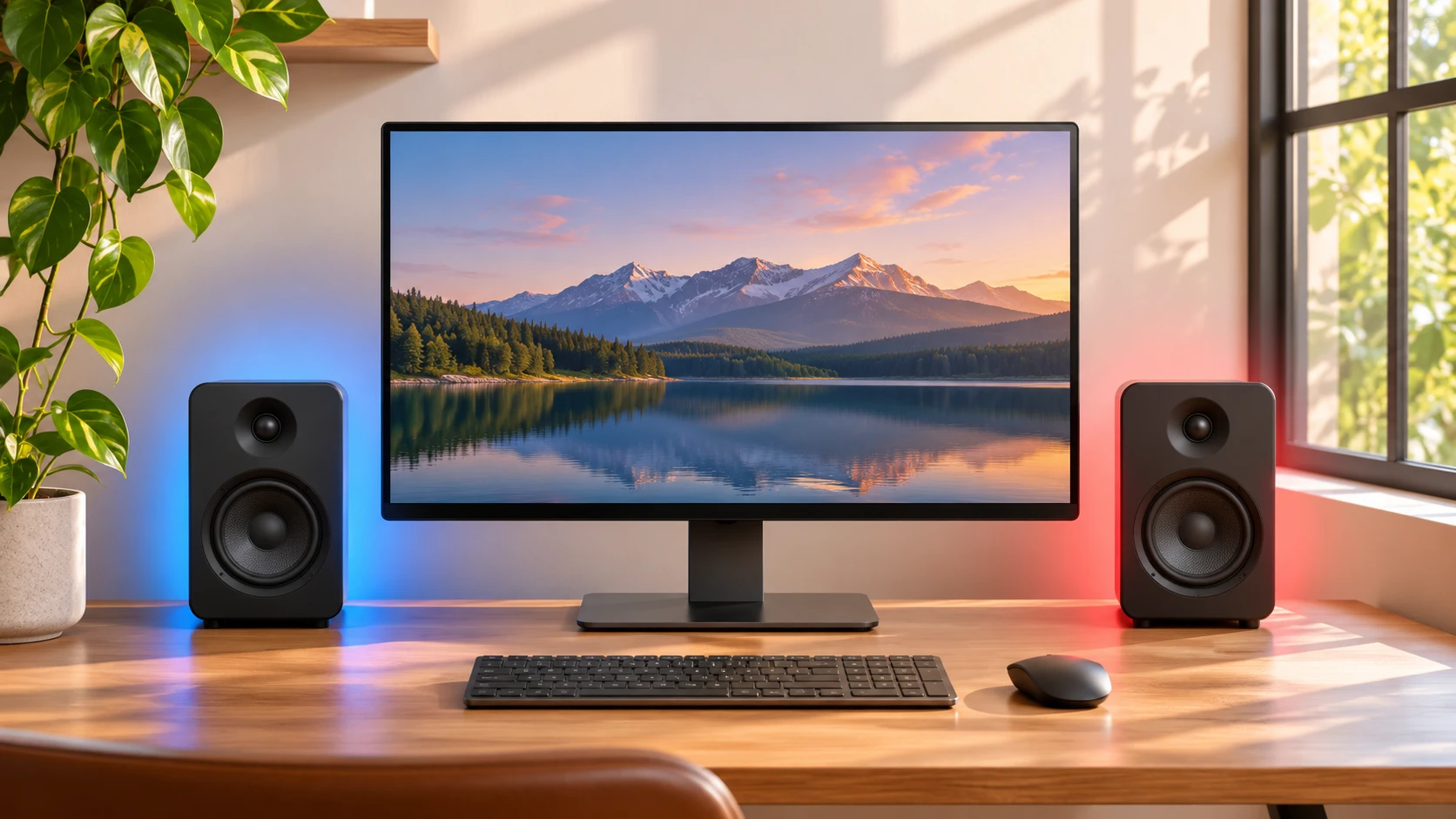
A stereo recording stores separate left and right channel signals. A test page can play a sample that is intended for only one channel, then switch to the other. If you hear the first sample from the side marked left and the second from the side marked right, the playback path is probably routing those samples as expected at that moment.
The result is limited to the whole path being tested: the browser, operating system, selected output, cable or wireless connection, speakers or headphones, and your setup. It cannot identify which component is faulty if a channel is missing. It also cannot confirm that every song, app or game is mixed correctly, because ordinary content may place sounds in both channels or use surround audio. A browser result is not a hearing test and cannot diagnose hearing loss or an ear condition.
Run a safe, repeatable channel check
- Set the device volume low, then choose the output you intend to test: speakers, wired headphones or a Bluetooth headset. Close or pause other audio so you can identify the short test sample.
- Keep the speakers in their normal left and right positions, or put the headphone cups on the matching ears. The labels refer to the listener facing forward, not to the viewer looking at the back of a device.
- Start the left-channel sample. Confirm that it comes from the left speaker or left headphone cup. Do not infer a result from a visual animation alone.
- Play the right-channel sample and confirm that it comes from the right side. Repeat once at the same comfortable volume if the result is unclear.
- If the test includes a both-channels sample, listen for sound from both sides. Record which sample played, which side you heard it on, the output device and whether the result changed after a setting adjustment.
Read the result before changing settings
| What you hear | What it suggests | Next check |
|---|---|---|
| Left sample on the left; right sample on the right | Channel routing works for the tested output and page | Try the app or content that originally had the problem |
| Both samples come from both sides | Mono audio, duplicated output, a mono device, or a test/source issue may be involved | Check mono settings and repeat with known stereo headphones or speakers |
| Left and right are reversed | The physical devices may be swapped, or a connection/profile may route them unexpectedly | Check speaker placement, cable orientation and output configuration |
| One sample is silent or much quieter | Balance, a loose connection, device profile, source or hardware path may be responsible | Check balance, reconnect, then compare another app or output |
These are clues, not proof of a failed speaker. Keep the initial observation so you can tell whether each later check changed the symptom. Change one thing at a time and repeat the same left, then right sequence.
Check Windows balance, mono audio and the selected output
On Windows, first confirm that the intended device is selected under Settings → System → Sound → Output. If the computer is sending sound to a monitor, dock, headset profile or another connected device, a speaker test may be using a different path than expected. Microsoft’s audio troubleshooting guidance also recommends checking the output device and connections when sound is missing.
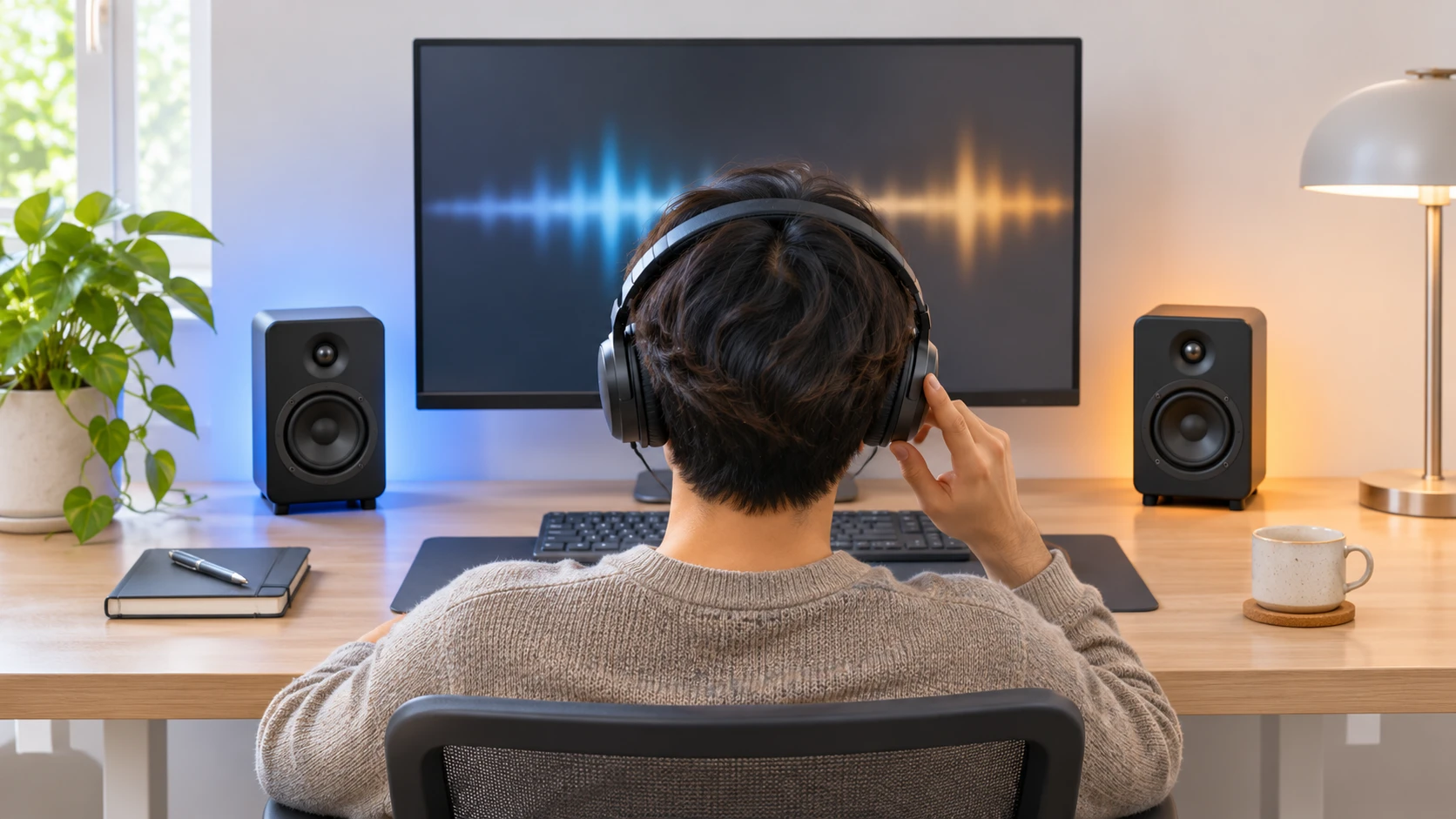
Next, inspect the left-right balance for the selected output. The location varies by Windows version and device driver; open that output’s properties and look for separate left and right level controls. Make sure neither side is muted or set lower than intended. In Settings → Accessibility → Audio, check whether Mono audio is enabled. Microsoft describes mono audio as combining stereo sound into a single channel so the same audio can be heard through one side. That is useful for accessibility, but it changes what a left-right test should sound like.
If you change a balance or mono setting, rerun the same test. Restore your preferred accessibility setting afterward if you enabled or disabled it only for comparison. Windows menus and driver panels can differ; use the device maker’s instructions for controls that are not present in the standard Sound settings.
For Bluetooth headphones or speakers
Confirm that the Bluetooth device is selected as the active output, not only connected. Disconnect and reconnect it once, then rerun the channel samples. If one side remains silent, check the balance control and the headset’s own app or physical controls. Microsoft’s one-channel Bluetooth guidance includes checking left-right balance and pairing state as reasonable first steps.
Some Bluetooth devices expose different profiles when their microphone is active. A call app can therefore use a different audio route or quality mode from music playback. Close call software temporarily and repeat the test in the same output mode you use for ordinary listening. Do not assume that a channel problem in one application proves the headset has failed.
For wired speakers, headphones and adapters
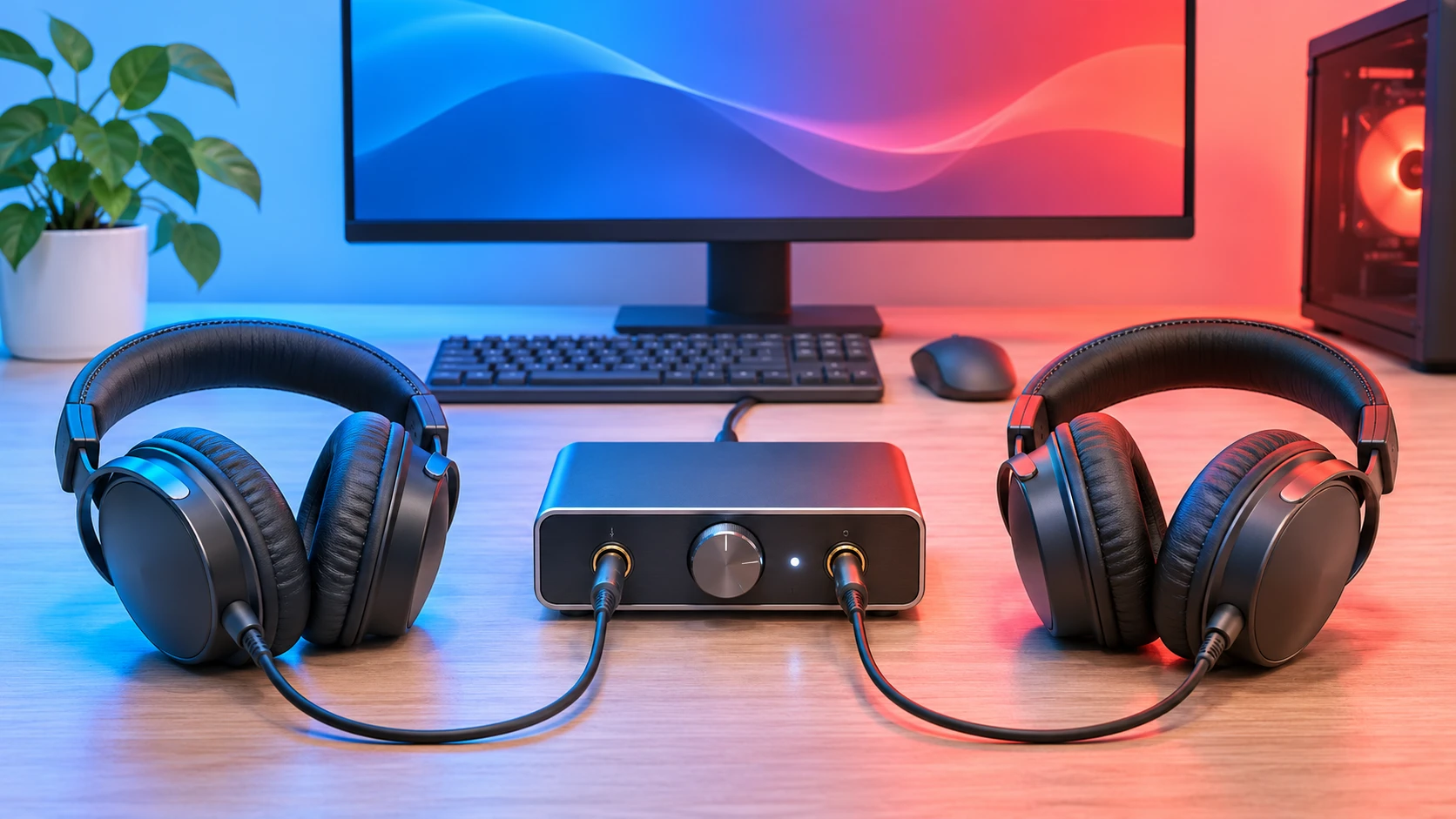
Lower the volume before reconnecting a plug. Push the connector fully into the intended output and check that any adapter is designed for the device and plug type. A partly inserted 3.5 mm plug, an incompatible splitter, or swapped left-right speaker cables can change what you hear. For desktop speakers, verify that the left and right speaker cables match the labels on the amplifier or powered speaker system. Do not force a connector or open powered equipment for this test.
Next, compare with a second known-good output, such as another pair of headphones or speakers, and another app that plays ordinary stereo audio. If the original device works elsewhere but one app does not, inspect that app’s output and channel settings. If the same side stays absent across multiple sources and devices, the problem may be in the original output or connection; the channel test alone cannot say which part needs repair.
When phone or laptop speakers do not behave like stereo speakers
Not every device has two physically separated speakers. A phone may use one speaker, a combined earpiece-and-speaker arrangement, or processing that changes playback depending on orientation and settings. Some laptop models also combine or virtualize channels. A left-right test may sound centered or less distinct even when the device is operating as designed. Check the model’s specifications and compare with headphones known to reproduce stereo channels before treating the result as a fault.
Frequently asked questions
Why do I hear the same sound on both sides?
The device may be in mono mode, the output may have only one physical speaker, the test may be using a mono source, or a routing setting may duplicate the channels. Check the test source and mono setting, then repeat on known stereo headphones.
Does a successful channel test prove both speakers are healthy?
No. It only shows that the samples reached the expected sides at that time. It does not test distortion, frequency response, maximum output, long-term reliability or all applications.
Do I need to allow microphone access?
No. A left-right playback check should not require microphone permission. If a page requests microphone access for this task, decline it and use a playback-only test.
Can this test tell whether my hearing is balanced?
No. The test checks audio routing and playback. Differences in perceived loudness can have many causes, and an online speaker test cannot assess hearing or provide a medical diagnosis.
Sources
Consulted 6 November 2026: Microsoft: fix Bluetooth audio playing in only one channel discusses balance and pairing checks; Microsoft: make Windows easier to hear documents mono audio; Microsoft: fix audio issues when no sound plays covers output selection and connection checks; Microsoft Learn: audio channel masks explains how channel positions map to speaker positions.
Be the first to leave a comment.