A webcam test online can quickly show whether a camera produces a live preview, whether the selected device is correct, and whether the image is usable for a call. It cannot prove that every meeting app is configured correctly, measure the sensor’s true resolution, or diagnose a faulty camera by itself. Start with a local preview in Windows Camera when possible; use a browser test only on a site you trust and only after you understand the permission prompt.
A camera preview is sensitive. A browser permission lets a page receive video from the selected camera while access is active. It does not, by itself, tell you whether a site stores or sends the stream. Check the site’s identity and privacy information before allowing access, avoid unknown test pages, and do not grant microphone permission for an image-only check. Stop the preview and close the tab when finished; review the site’s camera permission afterward if you granted persistent access.
Run the simplest test first
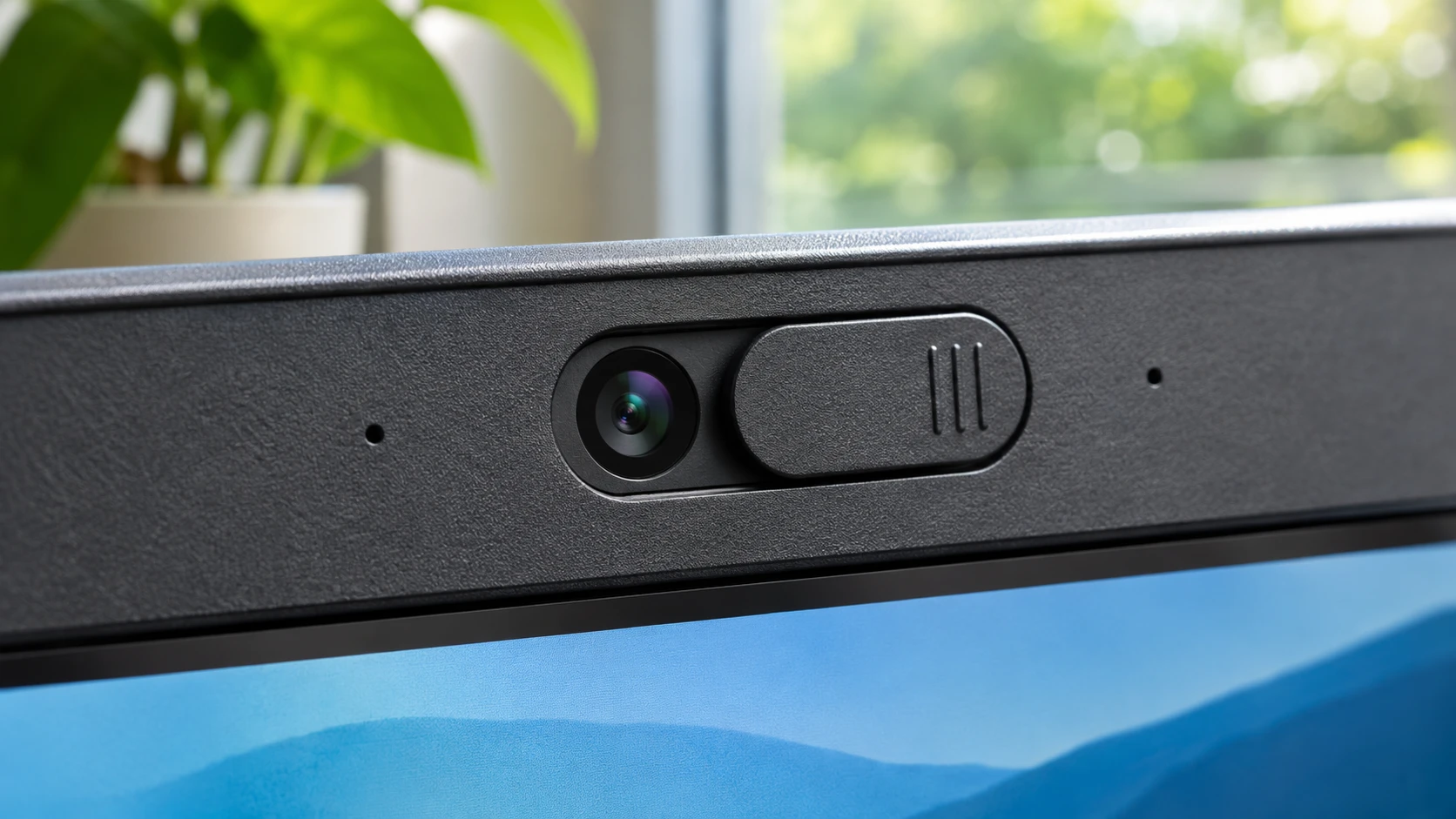
- Check the physical camera. Open any built-in privacy shutter, remove an object covering the lens, and look for a laptop camera key or hardware switch. Its symbol and function vary by model; use the computer manual rather than guessing at a function-key combination.
- Open the Windows Camera app from the Start menu and wait for a live preview. If Windows asks for access, grant it only if you intend to use the camera in that app.
- Choose the camera you mean to test. A laptop may expose an integrated camera and an external USB webcam; docking stations and virtual cameras can add more choices.
- Check the preview for a stable image, normal color and usable framing. Do not record or take a photo just to verify the live preview.
- If the local preview works but a browser test does not, keep the camera connected and troubleshoot the browser permission and selected device separately.
Starting with the Camera app helps separate a device-wide problem from a single-site or browser problem. If the app itself reports that no camera is attached, skip browser adjustments until Windows can detect the camera.
Use an online camera preview carefully
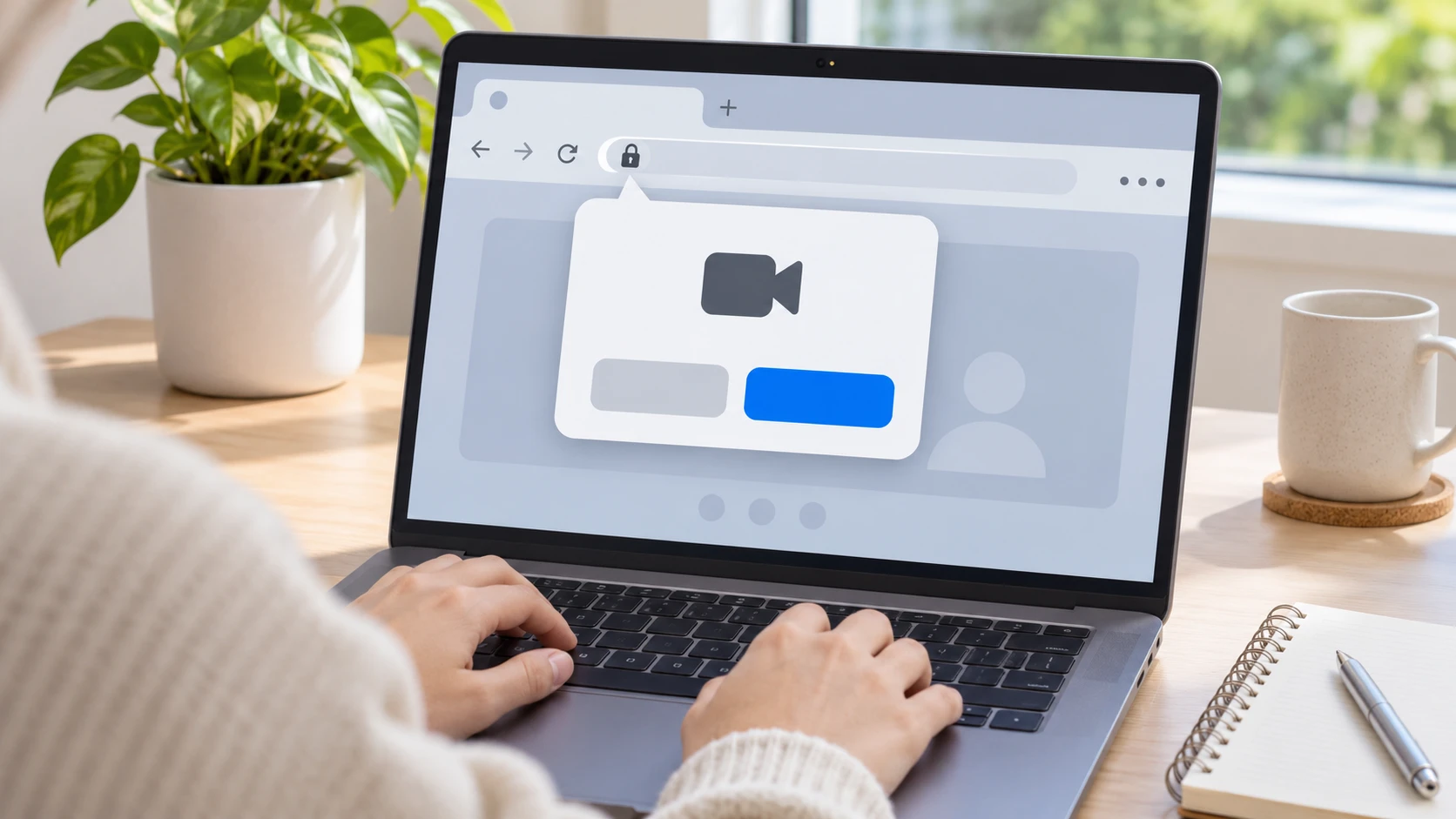
Browser camera access is normally restricted to a secure context, such as an HTTPS site, and the browser asks for permission before a page can request video. The browser prompt may let you choose a camera. If you deny access, a site cannot show a live preview through that request; you can usually change the site’s permission from the browser controls near the address bar and reload the page.
Before selecting Allow, check that the domain is exactly the one you intended to visit. A page that only needs a webcam image should not need microphone access. If a test page immediately asks for both, decline the microphone permission unless you also intend to test audio. A camera icon in the browser toolbar can help you see that access is active, but browser indicators and controls vary.
Once the preview appears, move slightly and confirm that the picture updates. If it stays black, first verify the physical shutter and selected camera. Then close other video-call, recording and browser tabs that may already be using the device. If the site uses a saved “Block” permission, change only that site’s camera permission; do not enable camera access for every site to solve a single-page issue.
Windows camera permissions and browser permissions are separate
On Windows 11, open Settings → Privacy & security → Camera. Confirm that camera access for the device is enabled, then check the app-level controls. Microsoft distinguishes Microsoft Store apps from desktop apps: browsers and many conferencing programs are desktop apps, so the “Let desktop apps access your camera” control may matter even when the browser does not appear in the per-app list. An administrator may control these switches on a managed computer.
After the Windows setting, check the browser’s permission for the particular site. Both layers can block access: an allowed browser site cannot override a Windows-wide camera setting, and Windows access does not automatically grant every website permission. If the webcam works in Windows Camera but not on one site, begin with the browser’s site permission and camera selection. If it fails in Windows Camera and all other apps, investigate Windows access, hardware switches, device detection or the driver.
Diagnose a black screen or “camera in use” message
| Observation | Likely area to check | Next step |
|---|---|---|
| Black preview in every app | Shutter, hardware switch, Windows privacy, device detection or driver | Check the physical controls, then the Camera app and Windows permissions |
| Camera works in Windows Camera but not one browser site | Site permission, chosen camera, secure connection or browser state | Check that site’s camera permission and reload after selecting the right device |
| “Camera in use” or another app is named | Meeting app, recorder, another browser tab or virtual-camera utility | Close competing apps and retest in one place |
| Preview is frozen or intermittently black | USB connection, hub, power management, driver or resource contention | Reconnect a USB camera directly and repeat with background video apps closed |
| Image appears but looks dark or soft | Lighting, lens cleanliness, focus, exposure or selected resolution | Improve front lighting and framing before changing advanced settings |
Change one variable at a time and repeat the same preview. For an external camera, reconnect its USB plug and try a direct computer port rather than a hub as a comparison. Avoid repeatedly unplugging it during a recording. If the camera is still missing in Windows, use Microsoft’s Camera troubleshooter and the computer or webcam maker’s driver instructions. Do not download drivers from an unofficial “driver updater” site.
Improve image quality after the camera works
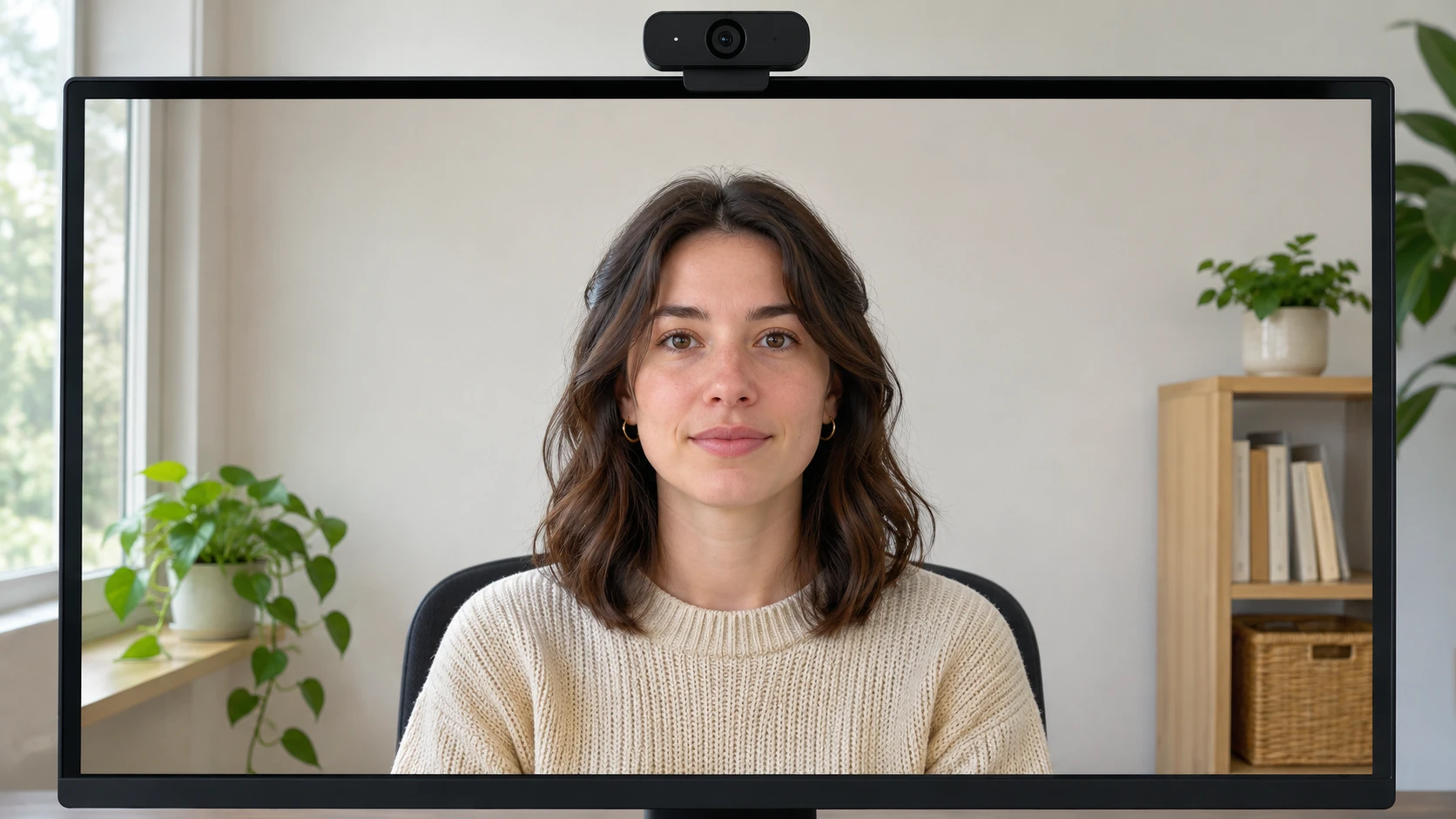
Clean the lens gently with a suitable soft cloth and check that a privacy cover is fully open. Place the camera near eye level and frame your head and shoulders with a little space above your head. Face a window or diffuse light source where possible. A bright window behind you can make the camera darken your face; add light in front instead of raising exposure until the image becomes noisy.
Use the resolution and frame-rate options supported by the camera and app. More pixels do not always produce a clearer call: poor light, compression, focus limits and a slow connection can reduce visible detail. Many laptop webcams use fixed focus, so move to a normal working distance rather than expecting a focus ring. If the image looks good in Windows Camera but poor in a meeting app, check that app’s camera selection, preview settings and connection quality before changing drivers.
When the camera remains undetected
If the Windows Camera app cannot find a camera, note the exact error and test whether an external webcam appears on another USB port or computer if one is available. On a laptop, check the manufacturer’s privacy key and any firmware or BIOS camera setting documented for that model. In Device Manager, inspect the camera category for a disabled or flagged device. Prefer Windows Update or the PC manufacturer’s support page for a driver. Create a restore point or follow the vendor’s rollback instructions before replacing a working driver.
A hardware fault becomes more plausible only after the camera remains undetected across appropriate permissions, apps and connections. A black preview alone is not enough to justify replacing a camera. If the device is under warranty, use the manufacturer’s diagnosis and repair path instead of opening the display assembly.
Frequently asked questions
Does an online webcam test upload my video?
A permission prompt only grants the page access to the camera stream; it does not disclose how that particular site handles video. Review the site and its privacy policy before allowing access, and choose an offline Windows preview if you do not trust the site.
Why does the browser show a black preview while the Camera app works?
The browser may be blocked for that site, using another camera, or unable to access the device while another app holds it. Check the site-level permission, select the correct device and close competing video apps.
Do I have to allow the microphone?
No, not for a picture-only webcam check. Decline microphone access unless you separately want to test audio in a trusted app.
Will better lighting fix a low-resolution camera?
Lighting can reduce grain and improve exposure, but it cannot change the sensor’s true resolution or lens limits. Select a supported resolution in the app and judge the result in the intended call environment.
Sources
Consulted 7 November 2026: Microsoft: manage camera app permissions in Windows explains device, Store-app and desktop-app access; Microsoft: camera does not work in Windows covers built-in troubleshooting; Microsoft: Windows camera, microphone and privacy explains Windows and website permission layers; MDN: MediaDevices.getUserMedia() documents browser camera permission and secure-context requirements.
Be the first to leave a comment.