A NAS backup strategy 3-2-1 gives a home office several independent ways to recover files after a drive failure, accidental deletion, theft, fire, or ransomware. The NAS can be the main shared copy, but it should not be the only place a file exists. Build the plan around what must be restored, how quickly it must return, and whether a backup remains available if the NAS account or room is compromised.
Start with a practical baseline: keep working files on the NAS, make a versioned copy to a separate device, and keep another copy off-site or offline. Then restore a few representative files and one folder before calling the plan complete. This is a planning guide based on vendor and government documentation, not a hands-on test of a particular NAS model.
What the 3-2-1 rule means for a small office
Count the live data and both backup copies
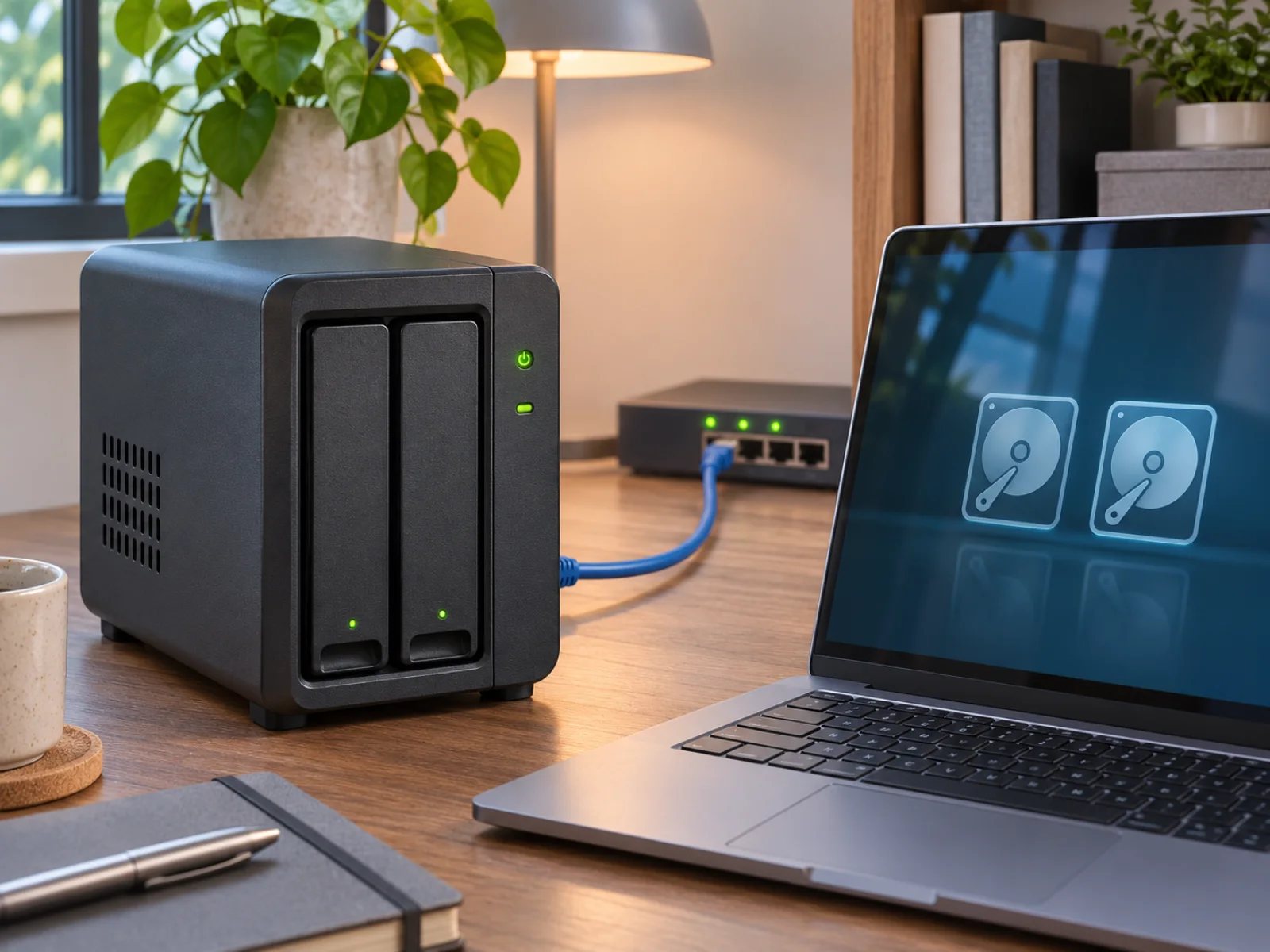
The traditional rule means three copies of important data in total, stored on two different kinds of media, with one copy kept off-site. That usually means the live files plus two backups. “Different media” is often interpreted as different storage types or devices; the useful principle is to avoid making every copy depend on one disk, one appliance, one account, or one location. The exact implementation can vary with your budget and the systems you use.
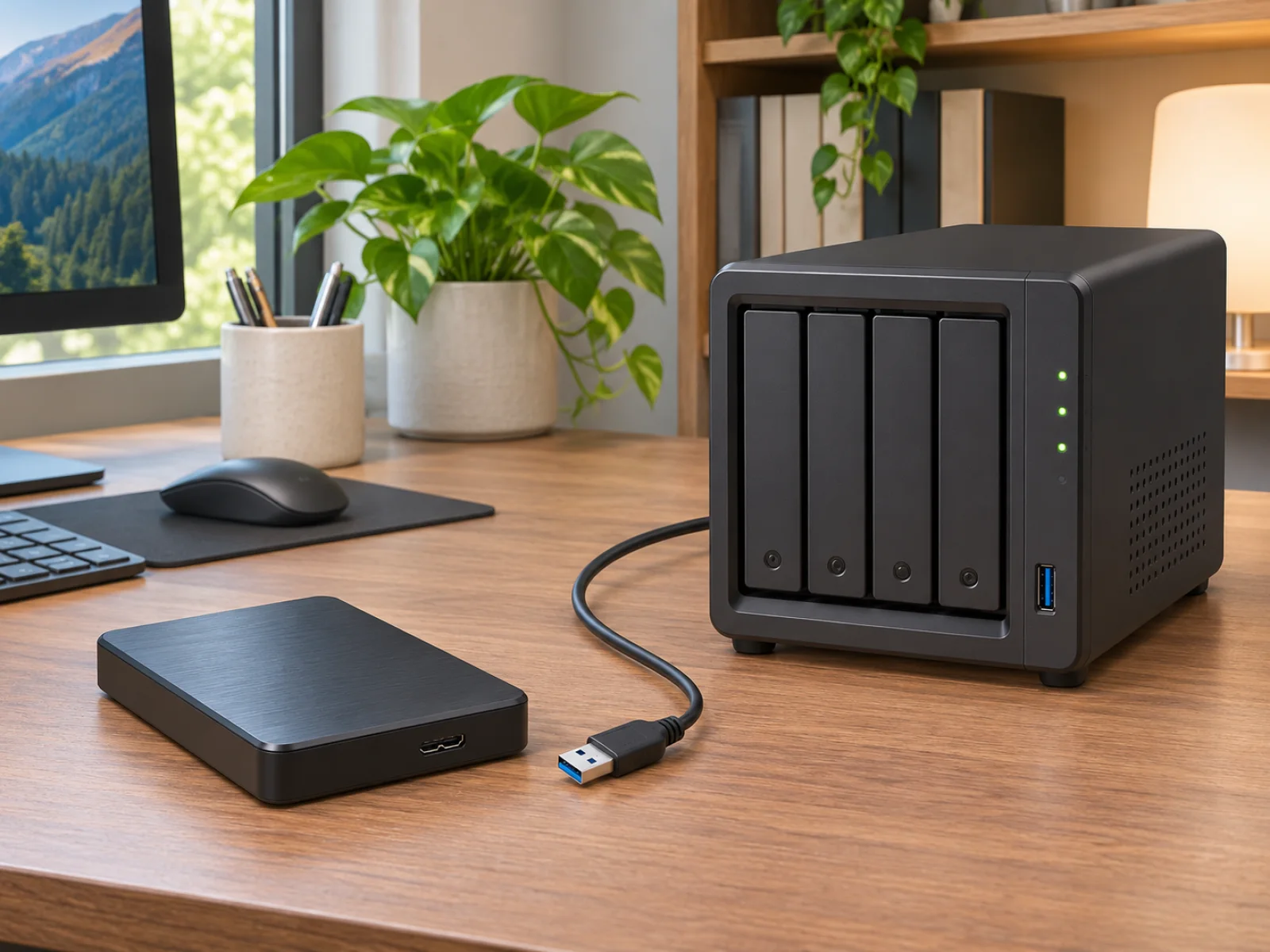
For a home office, an example could be: (1) active shared folders on the NAS, (2) versioned backup to a USB disk that is disconnected after the job, and (3) a second backup to a separate NAS at another location or a reputable cloud backup destination. If the internet connection is slow or cloud retention is costly, a rotated drive stored somewhere else can be part of the off-site copy. Encrypt portable media and store its recovery key separately.
Do not count RAID, a mirrored volume, or a snapshot on the same NAS as an independent backup copy. RAID can keep a volume available after some drive failures, depending on its layout and state. A snapshot can help roll back changes. Both still rely on the NAS, its access controls, storage pool, power, and physical location. Deletion, theft, a destructive event, or an administrator compromise may affect more than one layer.
Choose destinations by failure domain
Make each copy survive a different kind of incident
| Copy | Useful role | What it does not solve alone | Check before relying on it |
|---|---|---|---|
| Live NAS files | Shared work and fast access | Deletion, ransomware, NAS theft, pool failure | Separate user accounts, updates, disk health, and access logs |
| Snapshots or local versioned backup | Quick recovery from edits or recent deletion | Loss of the NAS or administrator access | Retention, capacity, snapshot permissions, and whether versions can be deleted by an attacker |
| Disconnected USB disk | Low-cost copy with a useful offline window | Fire, theft, or damage if stored next to the NAS | Rotation schedule, file system, encryption, safe eject, and restore access |
| Remote NAS or cloud backup | Off-site recovery after a local disaster | Bad credentials, accidental retention gaps, provider or subscription limits | MFA, separate account, immutable/versioned retention, egress and restore time, and total cost |
Decide what to protect and how often
List the folders, applications, and configuration needed to resume work. Separate irreplaceable records and current projects from caches, downloads, and files that can be recreated. Record approximate size, daily change rate, who owns each dataset, and the longest acceptable period of lost work. A backup every night may be enough for an archive that changes rarely; active project files may need more frequent versions. The interval should match the amount of work the office can afford to recreate.
Set retention deliberately. Keeping many versions helps recover from corruption discovered later, but it consumes space and may increase cloud cost. A practical policy might keep frequent short-term versions plus less frequent monthly copies, adjusted for the sensitivity and change rate of the data. Verify the NAS software’s versioning, retention, and deletion behavior; product names and menus differ by model and firmware version.
Protect the backup account as carefully as the files. Use a unique strong password and multifactor authentication where available. Avoid using the NAS administrator account for everyday file access. Give backup software only the rights it needs, and consider a destination that cannot be freely rewritten or deleted from the source NAS. Offline or immutable versions reduce the chance that one compromised login can erase every copy.
Estimate storage, bandwidth, and restore time
Do not buy capacity based only on the current used space. Version history, growth, temporary snapshots, and the backup tool’s retention method all affect the requirement. Check the vendor’s capacity calculator if available, then allow room for expected growth and a recovery test. For a cloud target, estimate the initial upload time using the actual upstream bandwidth, and check whether the provider charges for retrieval or data transfer.
Recovery time matters as much as upload time. A small document set may be restored from cloud quickly; a multi-terabyte project archive might take days on a slow connection. Keep a local recovery copy for urgent files if the office cannot wait. Write down who can access the provider account, where encryption keys are stored, and how to restore data if the primary NAS is unavailable.
Compare NAS backup options, features, and pricing
The best options depend on the NAS brand, the available backup packages, and whether the priority is quick local recovery or an off-site copy. Synology documents several tools for its own systems; other brands have their own packages and compatibility limits, so confirm support for the exact model and software version before choosing.
| Option | Useful features | Limits and cost to check |
|---|---|---|
| Hyper Backup | Scheduled NAS data backup to supported local folders, external devices, file servers, cloud services, or another Synology NAS. | Destination capacity, cloud subscription or transfer charges, retention, encryption, and restore time depend on the destination and plan. |
| Snapshot Replication | Point-in-time local or remote snapshots on supported configurations can help recover earlier file states. | Support depends on the NAS, volume, and package; snapshots still need a separate backup destination and retention plan. |
| USB Copy or an equivalent external-drive tool | Copies selected NAS data to attached removable storage for rotation or offline storage. | Check model support, scheduling, safe removal, file-system limits, encryption, and who can physically access the drive. |
| Cloud Sync or a cloud backup service | Moves or synchronizes selected files with supported cloud destinations. | Sync can propagate changes; confirm versioned backup, retention, account recovery, storage limits, and retrieval fees rather than assuming sync alone is a backup. |
Package availability and bundled licensing vary by NAS model and firmware. Compare the total cost of additional disks, a second appliance, cloud storage, support, and data retrieval instead of comparing software names alone. If the NAS already includes a supported package, the larger expense may be destination capacity and maintenance.
Build the first backup in a controlled sequence
Set up, run, and verify one recovery path at a time
- Inventory data and owners. Confirm which shared folders and application data are in scope, then identify data that the NAS package cannot back up directly.
- Update and secure the NAS. Use the manufacturer’s supported update path, enable MFA for administrative access, and remove unused accounts or exposed services.
- Choose independent destinations. Create one versioned local copy and one off-site or offline copy. Check that the target does not share the NAS’s only power, account, or physical location risk.
- Configure scope and retention. Select files, schedules, versions, and exclusions from the vendor’s current guide. Be cautious with broad exclusions and make sure encryption is enabled where appropriate.
- Run an initial backup and review its report. Confirm completed folders, warnings, skipped files, destination capacity, and the timestamp of the newest usable version.
- Test a restore. Restore a few sample files to a separate test folder, open them, and compare their names and contents. Then test a full folder or a documented system recovery path without overwriting live data.
- Record the runbook. Store the schedule, account recovery steps, key location, device model, support links, and restore sequence somewhere accessible when the NAS is down.
Keep the off-site layer separate
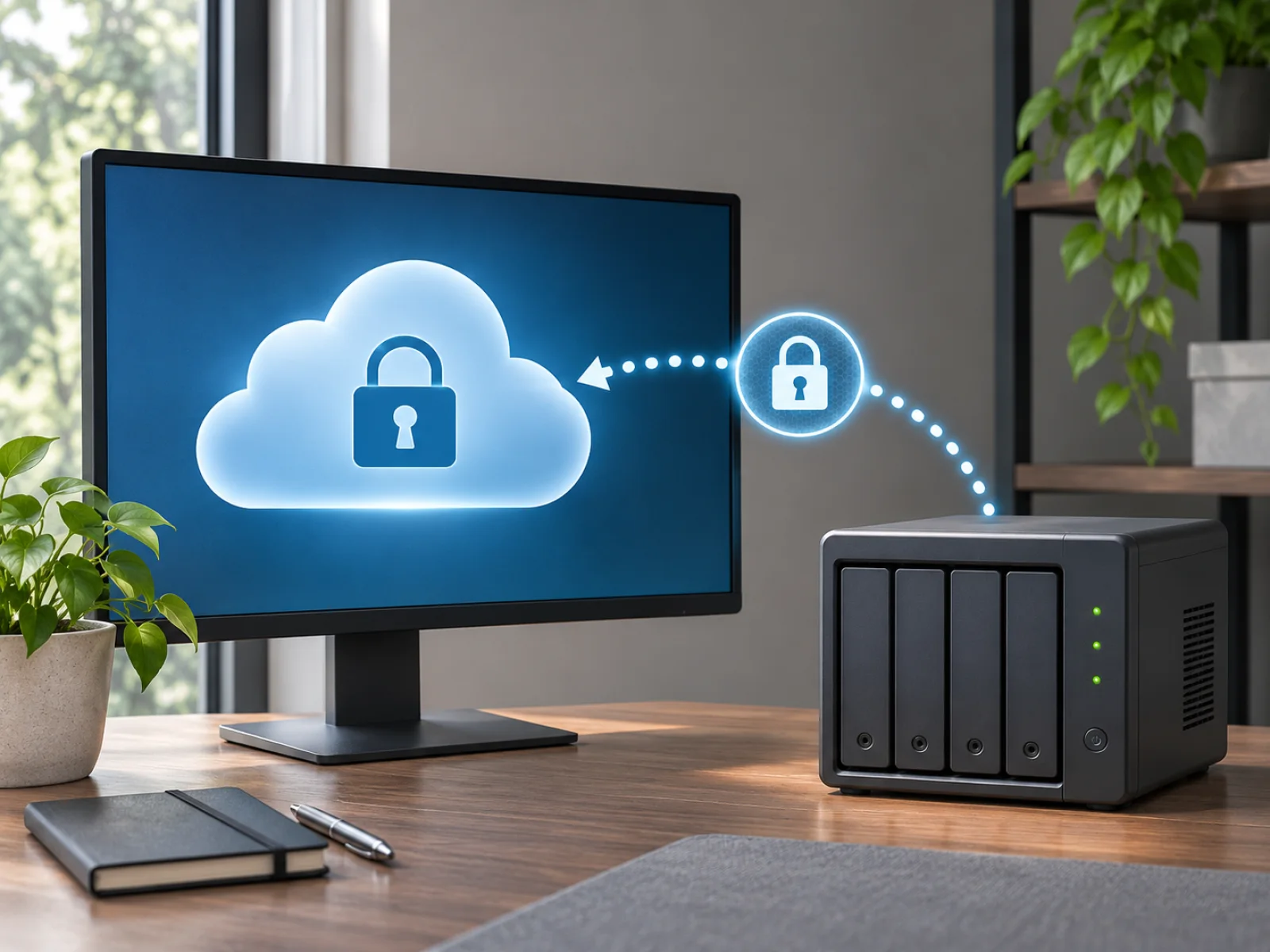
A remote NAS can provide fast transfer over a private connection, but it introduces another device to maintain. Restrict inbound access, use the vendor’s documented secure connection method, keep firmware current, and use a separate backup account where the platform supports it. Do not expose administrative services directly to the internet just to make a backup task work; follow the vendor’s supported network design.
Cloud storage avoids maintaining a second appliance, but compare retention, version recovery, account security, encryption, storage limits, cancellation behavior, and download charges. Sync services are designed to keep folders aligned across devices; depending on the service and settings, a deletion or corrupted file can synchronize too. Confirm that the selected service has a versioned backup or recovery feature that matches your recovery needs instead of assuming ordinary sync is a backup.
Make restore tests part of normal operations
A green dashboard is evidence that a job ran, not proof that the business can recover. Put a recurring restore check on the calendar. Test one recently changed file, one older version, and one folder with its expected structure. Record how long the restore took and whether permissions, timestamps, and names were preserved where they matter. For critical workloads, practice a larger recovery using a spare device or isolated location.
After changing a NAS, backup package, account, or destination, rerun a test. Keep a second route to the recovery instructions in case password management or the main email account is unavailable. Treat failed jobs, missing versions, and unknown encryption keys as actionable gaps rather than warnings to dismiss.
A concise plan for a small home office
- Keep the NAS for shared live files and fast local access.
- Use a versioned second device for recent file recovery; disconnect or protect it between jobs where practical.
- Maintain an off-site copy through a remote NAS, cloud backup, or rotated media stored separately.
- Use separate credentials, MFA, and a documented encryption-key recovery path.
- Test individual files and a folder on a schedule, and update the runbook after every meaningful system change.
This design will not eliminate every risk, and the exact steps depend on the NAS model, software, data sensitivity, and recovery-time needs. The important check is independence: can you still reach a clean, usable copy if the main NAS, its administrator account, or the room is unavailable?
Related reading: Windows backup software options, where to look for a BitLocker recovery key, and first response to a ransomware incident.
Frequently Asked Questions
What does the 3-2-1 backup rule count?
It means three copies of important data in total, stored across two different kinds of media or devices, with one copy kept off-site. The live files count as one copy.
Does a NAS or RAID array replace a separate backup?
No. A NAS or RAID can improve access or availability, but it does not by itself protect against deletion, ransomware, theft, or loss of the whole unit.
Are snapshots on the NAS enough?
Snapshots can help recover recent changes, but snapshots stored on the same NAS share its failure and administrator risks. Keep an independent copy in another failure domain.
How do I know the backups can be used?
Restore representative files from each backup using its documented recovery process, then open and compare them. A successful copy job alone does not prove that recovery works.
Sources
- CISA, Data Backup Options (3-2-1 model and backup destination considerations; consulted November 10, 2026).
- CISA, StopRansomware Guide (offline backups and restore testing; consulted November 10, 2026).
- Synology Knowledge Center, How to back up a Synology NAS (backup destinations and 3-2-1 options; consulted November 10, 2026).
- Synology Knowledge Center, Back up data to a remote NAS or file server (consulted November 10, 2026).
Be the first to leave a comment.