Keyboard ghosting, key blocking and ordinary typing mistakes can look similar: you press several keys, but the game or test page shows fewer keys than expected. A laptop test should answer a narrow question: does the same key combination consistently fail on this keyboard, and does the failure follow the keyboard when the software or connection changes? A browser can show only the keyboard events it receives. It cannot inspect the switch matrix or prove the laptop’s electrical design. This guide uses a repeatable comparison rather than promising that one online test can certify a keyboard.
ElectronixLab’s keyboard test highlights key events delivered to the page. It is useful for a first check, but its own limitations matter: browser shortcuts, Fn controls and operating-system handling can prevent a physical key from reaching the page. The existing test page explicitly does not certify ghosting or N-key rollover. Treat it as an observation surface, then compare the combination in another application and, when practical, with another keyboard.
Three different problems that players often call ghosting
Ghosting is an unintended key event that appears while a certain combination is held. Blocking means one or more intended keys do not register as part of a combination. Key rollover describes how many simultaneous key presses a keyboard can report under the conditions stated by its maker. N-key rollover (NKRO) is a capability claim, not a guarantee that every key, modifier and operating-system shortcut behaves identically in every game.
These words describe different observations. A key that does not appear on a web page is not automatically blocked by the keyboard. The page may have lost focus, the browser may reserve the key, a system shortcut may have intercepted it, or the operating system may deliver a different event. Similarly, an extra character might come from a key repeat, a stuck switch, a macro or a second input device. Record what you pressed and what appeared before assigning a cause.

What an online keyboard test can and cannot observe
A browser page receives keyboard events after the operating system and browser have handled the input. The W3C UI Events specification defines keyboard events exposed to web pages, while Microsoft’s Raw Input documentation describes a lower-level Windows input path for applications that request it. Those sources explain why a web tester is not a direct electrical probe. If the page records a keydown, it confirms that an event reached the page at that moment. It does not identify the keyboard matrix, scan rate, switch condition or maximum rollover capability.
Some keys are routinely captured before the page sees them. Fn combinations often control firmware or hardware functions. Escape can leave fullscreen. Browser and operating-system shortcuts may switch tabs, open menus or perform a system action. Media keys may change volume without generating a normal character. A web page may also receive a different key when the keyboard layout, input language or modifier state changes. A blank key on a visualizer is evidence about that event path, not a diagnosis.
Open the keyboard test or its French version from a normal browser tab. Keep the page focused, use the on-screen instructions and start with ordinary letter keys. The page listens locally for key events; still, do not type passwords, private messages or shortcuts that could trigger an unintended action during a test.
Prepare a repeatable test
Before testing, write down the laptop model, keyboard layout, operating-system version, browser, input language and the application where you notice the problem. Note whether you use the built-in keyboard, an external keyboard, a dock, remapping software, a gaming profile or an accessibility feature. Do not change those settings yet. Testing under the original conditions makes the first observation useful.
Choose the exact combination that fails during normal use. For example, if a game uses W, Shift and Space together, test that combination first. Do not assume a familiar WASD sequence is a universal stress test; the same keyboard may behave differently across combinations. Press the keys normally and hold them together briefly. Add one key at a time so you can identify which addition changes the result. Keep hands relaxed and avoid striking the keys hard.
Close applications that could react to the test keys. Do not use keys that could delete work, submit a form or launch a shortcut. Use a blank test page or an unsaved document, and never run a test while entering sensitive data. If a key is physically loose, hot, wet or damaged, stop pressing it and arrange an appropriate repair.
Test one combination at a time
- Connect the laptop to its usual power source and open the keyboard test in a desktop browser. Click the page’s test area or press a plain letter once to confirm that the page has focus.
- Press each key in the chosen combination separately. Confirm that the visualizer registers each one. Release all keys and wait for the page to clear or reset.
- Press the first two keys together. Then repeat while adding the next key. Hold only long enough to observe the highlighted keys; do not repeatedly hammer the switches.
- Release every key fully, then repeat the same sequence three times. Record missing events, unexpected events and whether the result is consistent.
- Repeat with a second combination used in the same game or workflow. A single successful combination does not establish NKRO across the whole keyboard.
- Open a simple text editor without saving and test ordinary character combinations there. Do not type into a field that can send or publish information.

For the purpose of comparison, note which keys were held, the order in which you added them, which keys the page displayed and whether any extra key appeared. “It failed” is too vague to reproduce. A short table or handwritten note is enough. Do not report a rollover number unless you tested the stated number of keys, the combination, the operating environment and the manufacturer’s defined conditions.
Read the result without overcalling it
| Observation | What it suggests | Next comparison |
|---|---|---|
| The test page misses a key, but a text editor receives it | The page, focus state or browser may be involved. | Reload the page, restore focus and try another supported browser. |
| The same key is absent in several apps, but only in one combination | A combination-specific input limit or keyboard behavior is possible. | Repeat the exact combination and compare an external keyboard on the same laptop. |
| An unexpected key appears only while a particular group is held | Ghosting, a stuck key or software mapping may be involved. | Check for macros/remapping and repeat with another app or operating environment. |
| One key fails alone in every app | A key, connection or firmware issue is more plausible than rollover. | Use the laptop maker’s diagnostics and support guidance for the exact model. |
| The browser changes tabs or opens a system feature | The shortcut may have been intercepted before reaching the page. | Choose safe, ordinary keys; do not try to defeat system shortcuts. |
The table separates observation from cause. It does not identify a defective component. A web visualizer has no access to switch contacts, keyboard firmware logs or the internal matrix. The USB-IF HID Usage Tables describe how keyboards represent usages such as key positions to hosts; they do not tell you how a particular laptop routes every physical switch internally. The laptop maker’s model-specific documentation takes precedence over assumptions based on another keyboard.
Compare the internal keyboard with another input path
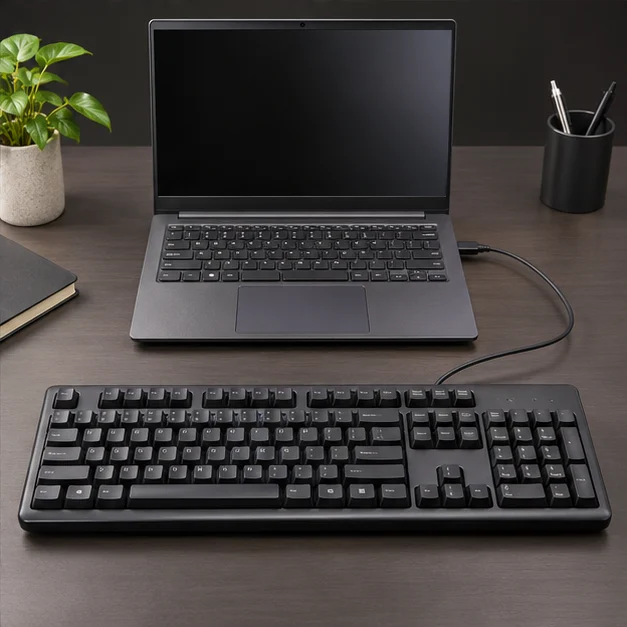
If the same combination repeatedly fails in the browser and in a local text editor, connect a known-good USB keyboard directly to the laptop, without a dock if possible. Repeat the exact sequence, using the same apps and settings. If the external keyboard works while the built-in keyboard does not, the difference follows an input path. It may involve the internal keyboard, its firmware, a connector, a setting or model-specific behavior; the comparison does not prove which one.
If both keyboards fail in one application but work elsewhere, investigate that application’s key bindings, overlays, accessibility options and input mode. If the external keyboard works in the browser but not in a remote desktop, virtual machine or cloud game, the remote path may be the point of failure. If a test behaves differently after changing the layout, browser or remapping profile, change only one factor at a time and record it. Restore the original setting if the change has no effect.
When supported by the manufacturer, compare the behavior in firmware diagnostics or another operating environment. Use only steps documented for the exact model. Do not enter the BIOS just to test keys if you are unfamiliar with its controls, and do not alter firmware settings. Fn, brightness and media controls are often handled differently from ordinary keys, so their behavior should be assessed using the laptop’s own manual.
Rollover claims and marketing labels
Keyboard makers may state a rollover capability or anti-ghosting behavior for a named product or a group of keys. Check the exact model page and the conditions attached to the claim. Some specifications refer to a limited set of gaming keys rather than every key on the keyboard. A number shown in marketing copy may describe an input report format, a tested zone or an operating condition. Do not transfer a specification from a desktop keyboard to a laptop keyboard with a similar brand name.
A home test can confirm that a selected combination appears or disappears in your current setup. It cannot certify that all possible combinations work, quantify latency, measure key debounce, or establish the laptop’s maximum rollover capability. USB HID documentation standardizes usages exchanged between a device and a host; it is not a test certificate for a particular keyboard. If you need a guaranteed capability for a game or accessibility requirement, ask the laptop manufacturer to confirm it for the exact model.
When to stop and ask for support
Stop troubleshooting if the keyboard is wet, swollen around the deck, unusually hot, physically damaged or repeatedly disconnecting. Do not remove keycaps or open the laptop unless the maker’s instructions say it is user-serviceable and you can follow them safely. A persistent missing key, a key that repeats without being pressed, or failure across multiple applications deserves model-specific support rather than increasingly forceful tests.
When contacting support, provide the full laptop model, operating-system build, keyboard layout, the exact combination, what the page showed, results in a local editor, and whether an external keyboard behaved differently. Include a short video only if it shows the sequence clearly and contains no personal data. This record helps support reproduce the symptom. It does not require sharing passwords, private messages or unrelated system information.
Frequently asked questions
Can a browser test prove that my laptop has keyboard ghosting?
No. It shows keyboard events that reach the web page. A missing or extra event can also come from focus, browser shortcuts, operating-system handling, remapping software or an application. Compare the same combination in another app and with another keyboard before suspecting hardware.
How many keys should I press to test NKRO?
There is no universal number that proves every keyboard combination. Test the exact combinations that matter to you and check the manufacturer’s specification for the exact model. One successful six-key pattern does not prove unlimited rollover.
Why does the Fn key not appear in the tester?
Many laptops handle Fn and its combinations in firmware or hardware. The browser may never receive a normal key event. Check the laptop manual instead of interpreting the missing browser highlight as a failed switch.
My external keyboard works. Is the built-in keyboard broken?
Not necessarily. The comparison narrows the issue to a different input path, but that path includes the keyboard, firmware, connector and settings. Use the maker’s diagnostic steps before arranging a repair.
Sources and further checks
Consulted 6 November 2026: W3C UI Events describes keyboard events exposed by user agents; Microsoft Raw Input documentation explains a Windows input path used by applications; the USB-IF HID Usage Tables define usages exchanged with hosts. For the exact keyboard specification, consult the laptop maker’s product support page. The ElectronixLab keyboard test is a local event visualizer, not a hardware certification tool.
Soyez le premier à laisser un commentaire.