Do not replace a robot vacuum battery simply because the robot is sitting on its dock without charging. First separate three problems: the station has no power, the robot has not made electrical contact, or charging has started and is being refused or interrupted. Those observations lead to different checks. This guide uses external connections, approved contact cleaning and the model's own indicators. It does not describe opening a charger, bypassing battery protection or applying power directly to a battery.
Establish whether this is charging or docking
A robot that cannot find its station has a navigation or approach problem until electrical contact is established. A robot that reaches the station but repeatedly moves away may have poor seating or a model-specific docking issue. A robot that clearly announces charging, then reports a fault, has provided different evidence. Note the exact voice message or error number and the model of both the robot and its dock. Similar-looking stations are not necessarily compatible.
Do not rely on a single light. On some Roborock models the dock lamp goes out when proper contact is established; other products have different sequences or switch lights off after a delay. Use the description for the actual model rather than assuming that a dark dock is broken. Check the robot's charging indication too, and distinguish “battery low”, “offline” and “charging error”: an offline app does not by itself prove an electrical charging fault.
Stop before testing if there is damage or abnormal heat
Disconnect the dock at a safely accessible dry mains plug if the casing, cable or connector is damaged, smells burnt or shows heat damage. Do not reconnect a water-damaged station to see whether it dries itself. A swollen, leaking, hissing or unusually hot battery requires stopping use and charging, and manufacturer advice on safe handling. Do not squeeze the housing, puncture a pack or put it in household waste. If there is smoke or fire, keep clear and use local emergency assistance.
For routine inspection, switch off the robot as directed and unplug the dock before touching charging contacts. A station with washing and water tanks needs particular care to keep electrical areas dry. Remove only user-removable water or accessory parts when the instructions require it. Do not bridge the two charging terminals with metal, probe inside the power adapter, or treat the accessible pads as a place to connect an improvised charger.
Check the station's supply before its electronics
- Inspect the normal power route. Follow the lead from the wall socket to the supplied adapter, if external, and then to the dock. With power disconnected, reseat accessible detachable plugs fully. Do not force a damaged connector or confuse an empty accessory socket with the power input.
- Confirm the outlet is available. Check a switched socket or switched power strip. If the socket is dry, intact and otherwise safe, verify it using a suitable known-working appliance or move the dock to another suitable known-working outlet. A tripping or damaged outlet belongs to an electrician, not a repeated reset test.
- Read the specified dock indication. Observe it with and without the robot, following the manual. A light that should change but does not is useful evidence; a light whose behaviour is unknown is not.
- Use only the specified power unit. A barrel connector fitting the socket does not establish correct voltage, polarity, power rating or charging compatibility.
- Try the documented power restart if appropriate. Unplug for the interval specified for that dock, reconnect and observe again. Roborock's error-13 guidance gives a roughly two-minute dock disconnection for the products it covers; it is not a universal factory-reset procedure.
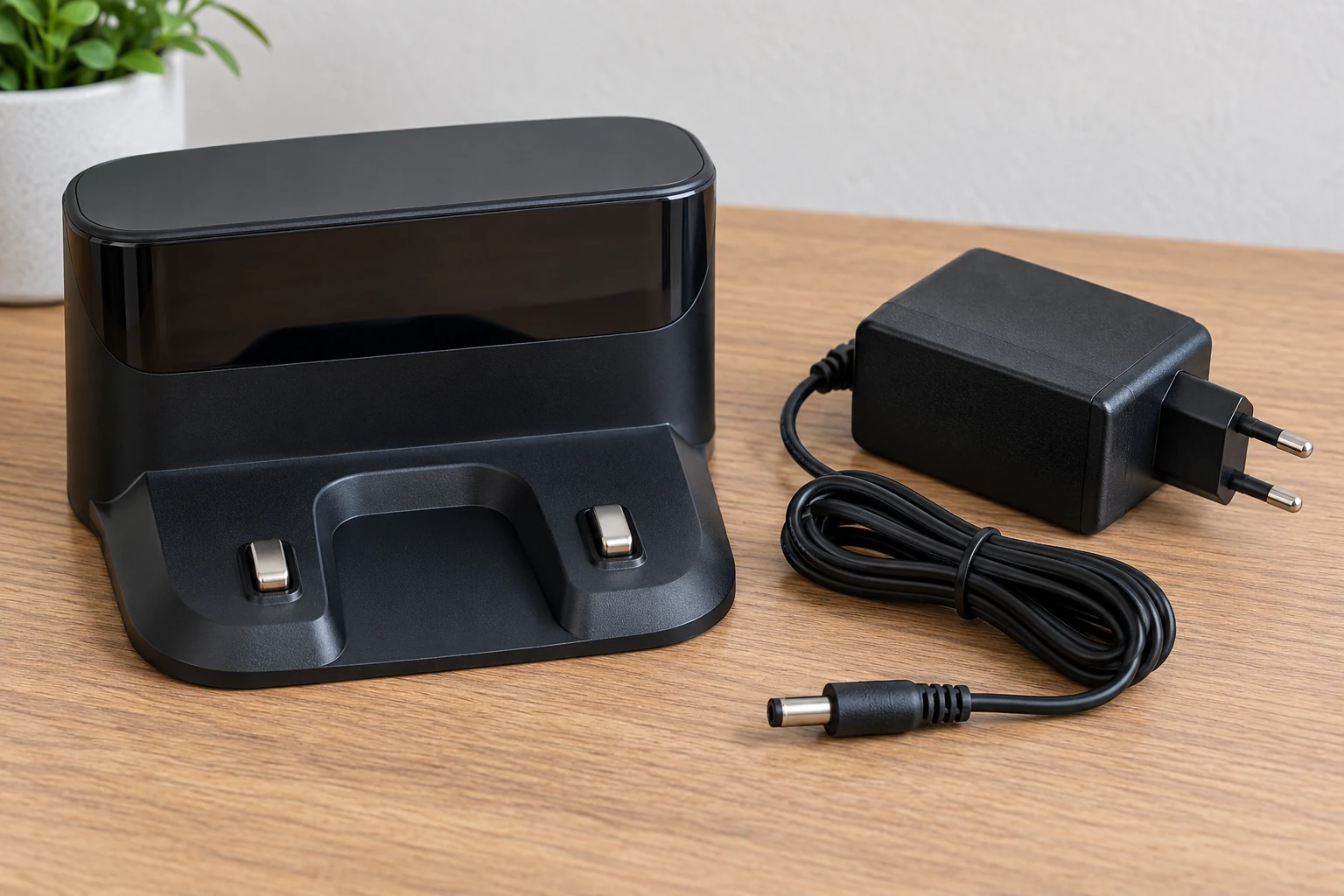
If the outlet works but the required station indication never appears, an external lead, adapter or dock fault remains possible. No light alone identifies which. Unless the manufacturer supplies a user test with safe accessible test points, do not measure inside a live adapter or open the station. Report the observation and the exact power-supply part number to support.
Inspect both sets of contacts, not only the robot
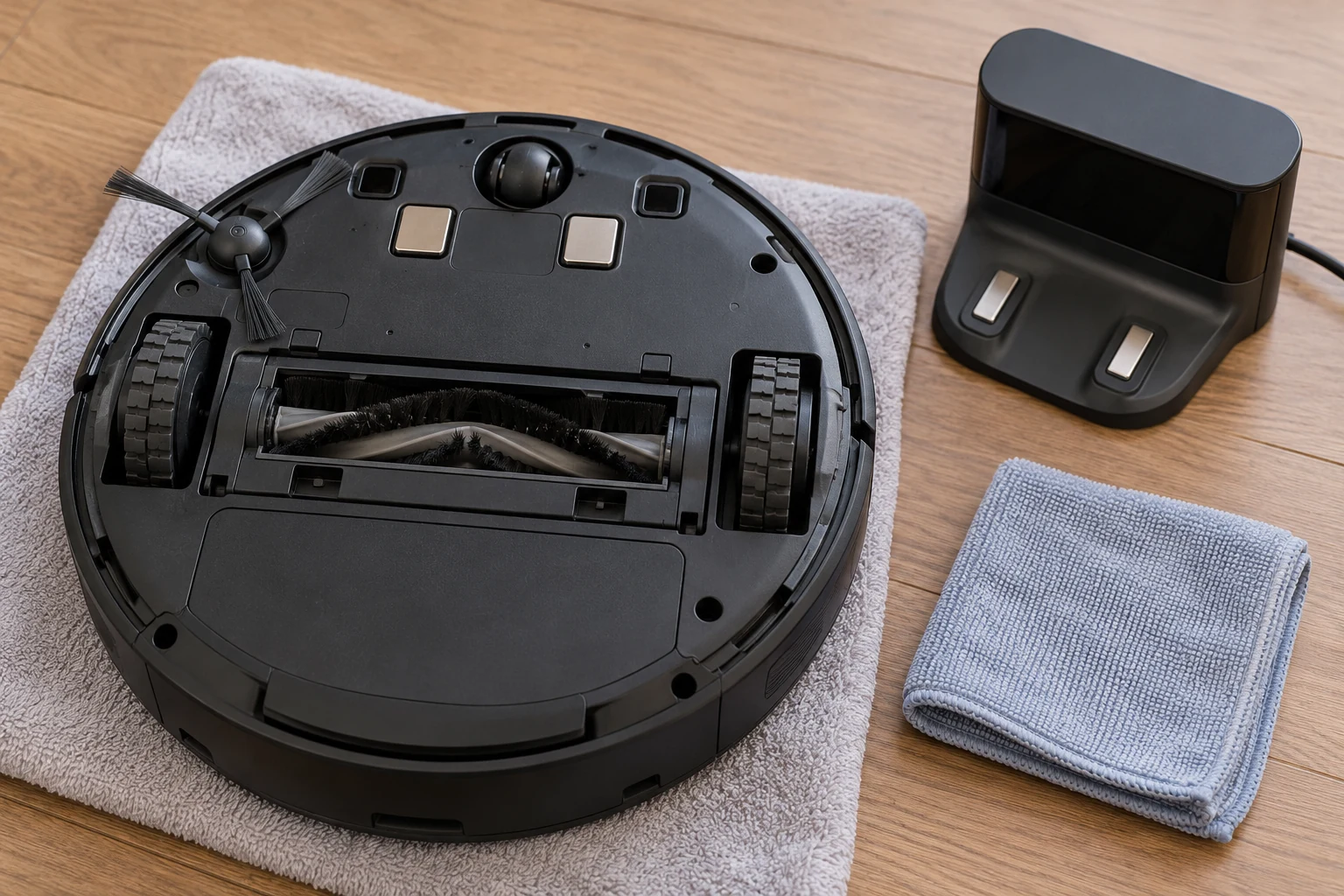
The charging path crosses a pair of contacts on the robot and a corresponding pair on the station. Dust, surface contamination, damage or misalignment at either end can interrupt it. Position the robot only as the manual allows, on a surface that protects its top sensors and housing. Some models have underside contacts; others use rear contacts. Identify the metal charging pads from the product diagram rather than rubbing every shiny surface or sensor window.
Cleaning methods are not interchangeable between brands
Start with the cleaning instructions for the exact model. For example, Kärcher's RCV 5 instructions specify dry cleaning of dock charging contacts. Some Roborock guidance permits a dry cloth or a cloth lightly moistened with alcohol; particular iRobot series have their own approved method. That variation is why this article does not recommend one solvent, abrasive or eraser for every robot. Do not pour liquid on a dock or spray cleaner directly into it.
Use only the permitted material, with power disconnected, and let any authorised damp cleaning dry completely before reconnection. Do not sand away plating, file a pad, bend a contact to increase pressure or scrape corrosion until bare metal appears. Pitting, dark heat marks, broken plating or a contact that does not return normally should be photographed and referred for service. Cleaning cannot restore missing metal or a broken spring mechanism.
Make sure the robot is physically seated
Put the station on the flat, stable surface and against the support described in the installation instructions. Clear the approach to the specified distances; the required space differs by station and should not be guessed from another model. Check for a cable under the dock, a thick rug at its edge, an obstacle under a wheel or an incorrectly fitted mop accessory that changes the robot's height.
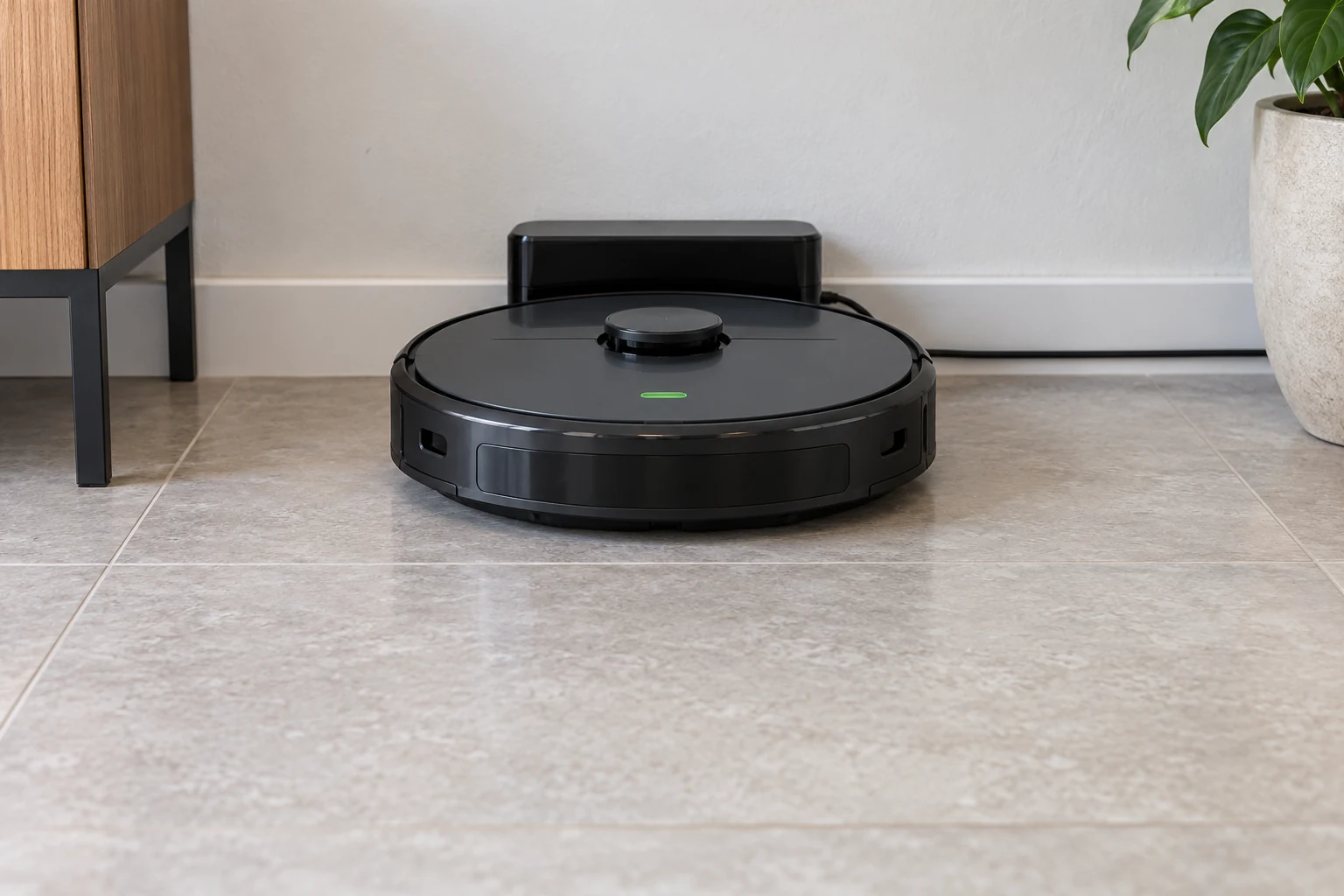
Manually position the robot only in the manner permitted by its manual, and observe whether the expected charging indication appears without holding it down. Do not push beyond its normal stop. If charging occurs only while you press the robot or tilt the dock, the contact is not reliably restored. Remove the hand and stop using that arrangement; tape, weights and improvised wedges are not a repair.
Separate poor contact from an approach problem
| Observation | Useful interpretation | Next step |
|---|---|---|
| Charges when placed correctly, but cannot return by itself | Navigation, approach or station placement needs investigation | Check the dock location and the model's guidance for finding its base |
| Dock has its normal power indication, but robot never acknowledges contact | Seating, pad contamination or contact damage remains possible | Inspect both contact sets and alignment |
| Charging starts and stops when the robot moves slightly | Intermittent contact is plausible | Check stable seating; request service if pressure is needed |
| Robot announces a charging-temperature error | Temperature protection may be preventing charge | Allow natural return to the model's permitted charging conditions |
| Charges to the expected level but runtime is much shorter | Battery capacity or increased cleaning load is a separate question | Compare the same mode and load before assessing replacement |
| No expected station indication at a known-working socket | The station's supply path needs service assessment | Record adapter and dock references; do not open them live |
Use error messages to decide whether the battery is implicated
Look up the exact code for the model and region. iRobot describes charging error 8 on the Roomba/Braava products in its support article as a battery communication problem; it does not mean every robot's number 8 identifies the same thing. A contact problem, temperature refusal and battery communication issue must not be collapsed into a generic “dead battery” diagnosis.
If the robot has been stored in a cold car, placed near a radiator or just worked in unusually hot conditions, let it return naturally to an appropriate indoor temperature before the documented retry. Do not warm a battery with a hair dryer, put it on a heater or cool it in a refrigerator. iRobot's guidance for errors 6 and 7 specifically discusses charging that is blocked by a battery that is too hot or cold. Follow the permitted range and recovery procedure for your own robot rather than applying a universal temperature figure.
A flat battery after storage is not a reason to bypass protection
After long storage, follow the manufacturer's normal charging and wake-up procedure and its expected observation time. There is no safe generic instruction to “boost” an unknown lithium pack from a bench supply. Battery protection, balancing and temperature sensing are part of the charging system. A pack that normal approved charging cannot recover needs assessment, not an improvised voltage applied to its terminals.
Replace a battery only with the approved type and using an expressly user-authorised procedure. If the battery is not user-removable, seek service. Matching a printed nominal voltage alone is insufficient: connector layout, chemistry, protection and communication can differ. Record the original pack reference without opening the cells or cutting wires. Keep an old or damaged pack for the appropriate collection route advised by the manufacturer.
Do a controlled confirmation, not repeated resets
After correcting one identified external cause, reconnect the dry intact station and place the robot normally. Check the charging acknowledgement, then the battery status after the interval specified in the manual. A single announcement proves only that charging was recognised at that moment; a later increase in the displayed level is better evidence of progress, although the display is not a capacity measurement. Avoid moving the robot repeatedly during this observation.
Do not start with a factory reset that deletes maps or schedules when the station has no power. A documented reboot and a factory reset are different operations. If a software action is actually indicated, note any settings it removes before using it. Wi-Fi can be investigated separately with the relevant manufacturer's connectivity guide; an app reconnect alone cannot repair a burnt contact.
When to request a dock or battery assessment
Escalate if the supplied power unit remains inactive at a suitable outlet, charging requires pressure on the robot, contacts are damaged, or the same model-specific error persists after authorised maintenance. Provide the robot and dock references, original adapter details, exact message and the observed charging sequence. Those details help decide whether the station, contact system, robot or battery needs testing without buying all of them.
A short runtime after apparently successful charging is different from never starting charge. Report the cleaning mode, floor conditions and changed load, such as tangled brushes, alongside the runtime comparison. Do not claim a battery capacity loss from one unusually demanding run. If a separate household vacuum also has pickup trouble, our guide to a running vacuum with weak suction explains the airflow branch rather than charging electronics.
Sources and scope
Consulted 1 November 2026: Roborock: error 13 and dock checks; iRobot: charging error 8 and battery communication; iRobot: temperature-related errors 6 and 7; Kärcher RCV 5 instructions for model-specific charger compatibility and dry contact care. The decision sequence is not a report of measured charger output or a completed battery repair. All photographs are generated illustrations of generic intact equipment.
Be the first to leave a comment.