Choosing backup software for Windows 11 starts with a more useful question than “Which app is best?”: what must you be able to restore after a stolen laptop, a failed SSD, accidental deletion, or ransomware? Windows Backup and OneDrive can make selected files and settings available on another PC. File History can keep versions on an external drive or network location. A system image tool can capture Windows and applications. A cloud backup service can keep an off-site copy. These tools solve different problems, so a strong setup often combines two destinations.
This comparison focuses on individual Windows 11 users and small home offices. It uses the vendors’ own documentation, not a hands-on speed or recovery test. Product features and subscription prices can change; check each provider’s current plan and terms before paying. The practical recommendation is simple: keep one disconnected or separately protected local copy, add cloud protection for important files if your connection and budget allow it, and test a restore before trusting either.
First decide what “backup” must restore
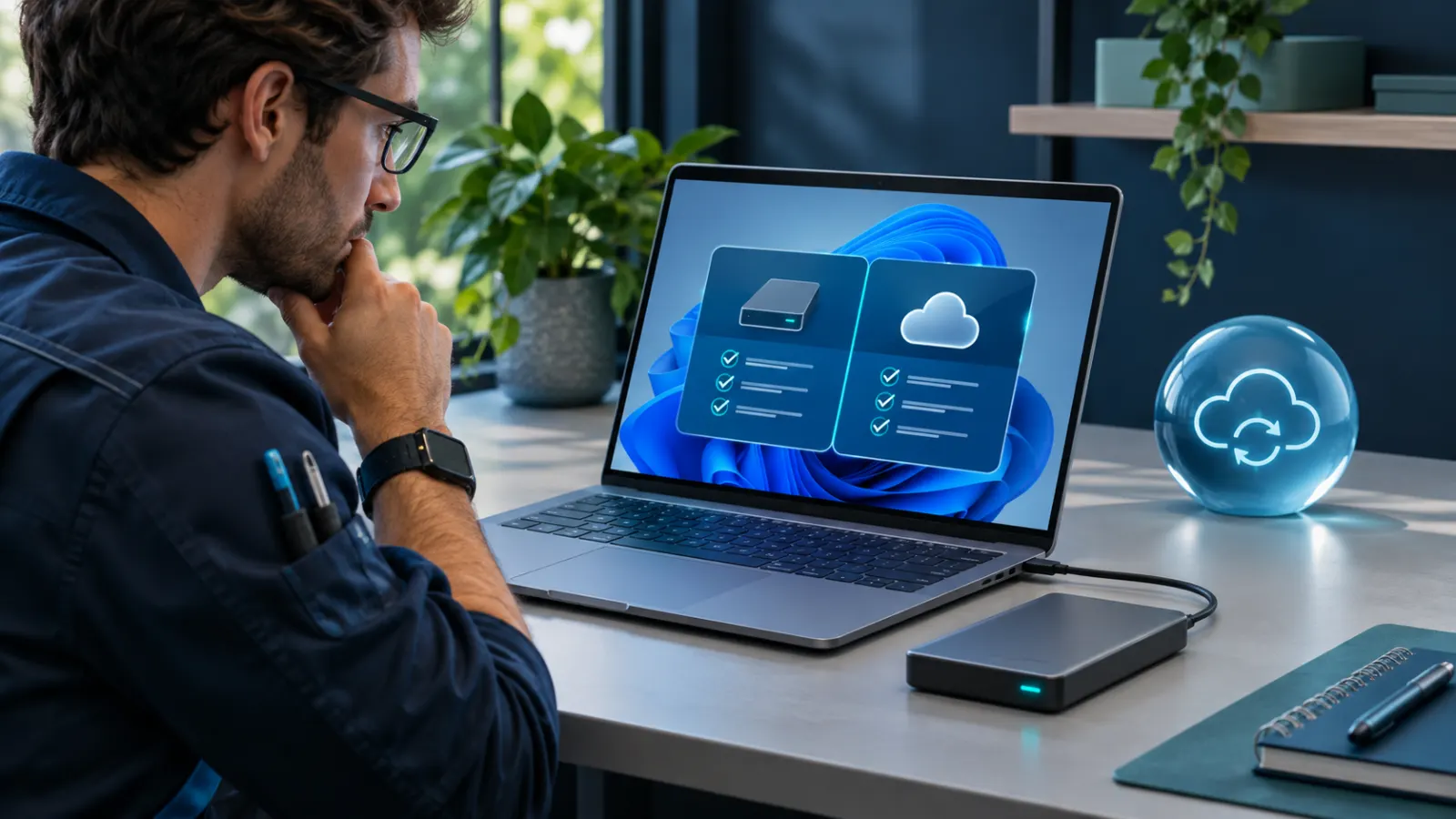
File synchronization is not always a complete backup. A synced deletion or unwanted edit can propagate to other devices, and a cloud folder may depend on account access, retention rules, and available storage. A file backup should give you a way to retrieve an earlier copy. A system image goes further by capturing partitions or a whole device so you can rebuild Windows, but it needs a compatible recovery process and enough destination space.
Write down the files and recovery outcome you care about before comparing apps:
- Documents and photos: restore selected folders or previous versions.
- Windows and installed programs: restore the machine image or reinstall the operating system and apps.
- Fast local recovery: restore from a USB hard drive or network storage without downloading everything.
- Off-site protection: retrieve data after theft, fire, or damage to the backup drive.
- Several PCs: manage and restore more than one device under one account or console.
Windows 11 backup options compared
Windows Backup and OneDrive: convenient for files and settings
Microsoft’s Windows Backup experience is designed to help bring selected files, settings, credentials, and app information to a new Windows PC when you sign in with the same Microsoft account. The settings catalog describes the specific items that can be selected. OneDrive folder backup can sync supported folders such as Desktop, Documents, and Pictures. This is useful when you want familiar files to follow your account across devices and do not want to manage a separate backup program.
Its convenience has boundaries. It is not a byte-for-byte image of the installed PC, and it does not mean every application, local database, game save, or custom configuration will be restored exactly as it was. The free Microsoft account storage allowance is limited; check the current quota and how much space your files require. If OneDrive reports that storage is full or synchronization is paused, the newer files may not have reached the cloud. Open the OneDrive status and Windows Backup settings and confirm the folders and last successful sync before relying on them.
OneDrive is a cloud sync service with recovery features, not the only copy you should keep. Review the service’s version history and recycle-bin retention for your account type, and do not assume those controls replace a separate offline backup. For confidential work, assess account security, multifactor authentication, sharing settings, and any organization policy before syncing.
File History: a local versioned copy
File History is built into Windows and can save versions of selected personal folders to an external drive or network location. Microsoft’s setup guide describes choosing the destination and restoring files from a prior version. It is a practical no-subscription option if you already have a suitable drive and want to recover an earlier file without downloading it.
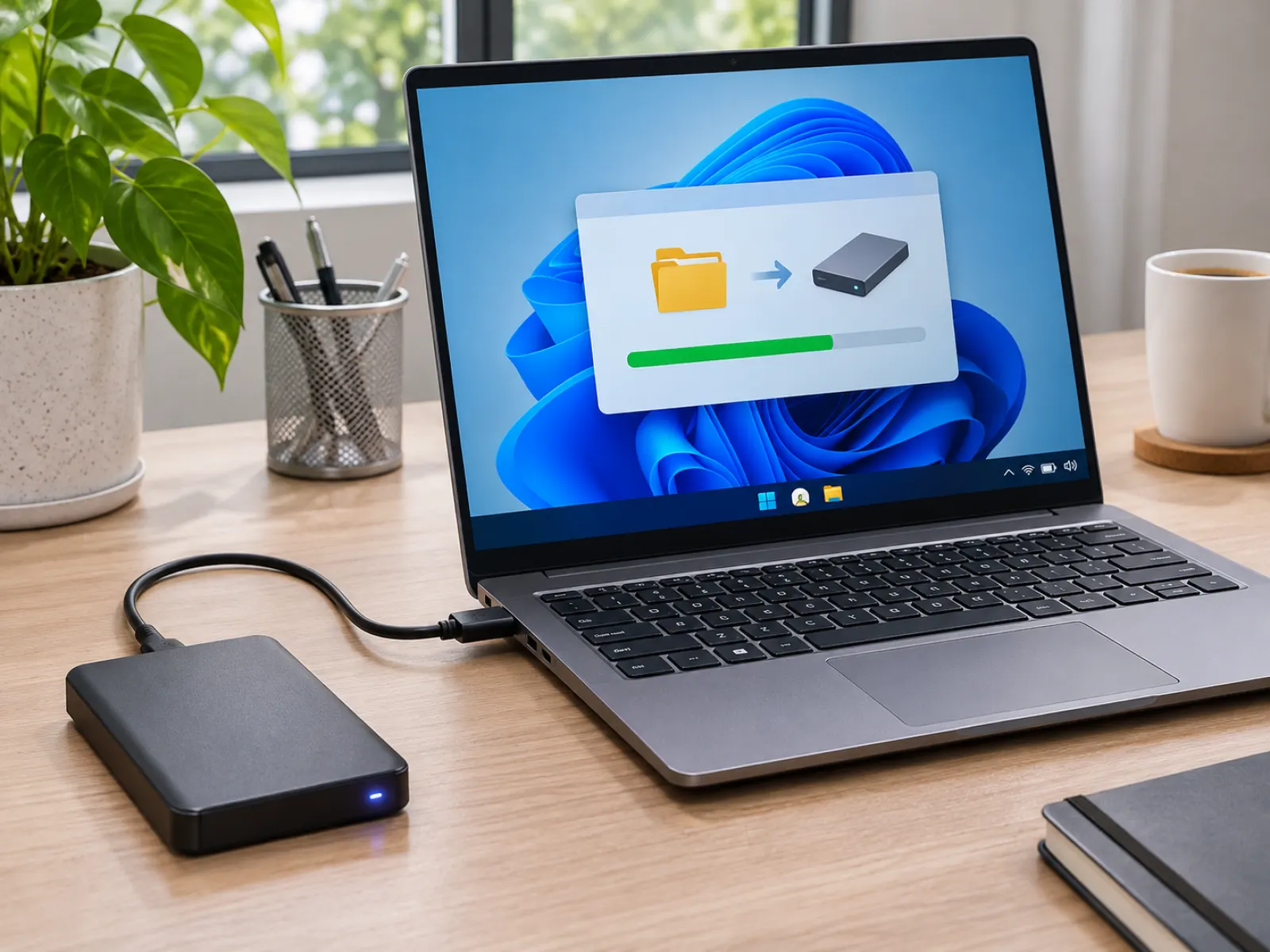
A local drive can be fast and private, but it shares physical risks with the PC if it stays attached. Disconnect it when the backup is complete if the workflow permits. A network destination can stay in another room, though it can still be affected by account compromise, power events, or malware with write access. Check that File History is actually running, that the target has free capacity, and that the files you need are in included folders. A backup label or a connected disk alone does not prove a recent usable copy exists.
Third-party imaging and cloud tools
Paid backup software is worth comparing when you need system images, multiple backup schedules, centralized monitoring, encryption controls, retention policies, or direct cloud replication. Evaluate the exact edition, not just a product’s headline feature list. Confirm whether it can back up the Windows version and storage layout you use, whether it supports file and full-image recovery, how bootable rescue media is created, what destinations are allowed, and whether the license covers one PC or several.
For example, Acronis True Image advertises local and cloud backup options and additional capabilities that vary by plan. Backblaze Computer Backup is a cloud-first service whose vendor lists unlimited personal computer backup and a monthly or annual plan; that model may be simple for a single computer with a large data set, but the provider’s current device, external-drive, retention, restore, and subscription rules matter. Neither service should be selected from a marketing claim alone. Check current US pricing at checkout, trial or refund terms, supported operating systems, and what happens to stored copies if a subscription ends.
Image-based tools also introduce a restore procedure to learn. Create rescue media if the product requires it, store it somewhere accessible, and confirm that the PC can boot from it. Read the vendor’s recovery instructions before a failure. A backup file that cannot be opened by the available recovery environment is not a useful recovery plan.
How to choose: a short decision path
- You mainly need personal folders on a new PC: start with Windows Backup and OneDrive, then check the synced folder list, storage quota, and sign-in recovery options.
- You want prior versions without a recurring fee: configure File History to an external or network destination and confirm its schedule and included folders.
- You need to rebuild the whole PC: compare image backup products by supported restore scope, rescue media, destination options, licensing, and restore instructions.
- You need protection away from home: add a reputable cloud backup with enough capacity, then test a small download and understand the provider’s retention and cancellation terms.
- You cannot afford a single point of failure: use two independent destinations, ideally one disconnected or access-controlled local copy plus a cloud or off-site copy.
Set it up, then prove that it restores
- List the folders, application data, and recovery outcome that matter. Include files outside the standard user folders if an application stores them elsewhere.
- Choose a destination with enough usable space for the first backup and version history. Leave headroom; a nearly full drive can stop future copies.
- Enable the selected folders or volumes and run the initial backup while the PC is on power and connected to the destination or network.
- Check the application’s status, date of the last successful run, and any warning or excluded-file list. Resolve errors instead of assuming the schedule will fix them.
- Restore a harmless sample file to a different folder or device. Open it and check its contents. For system imaging, read and rehearse the product’s recovery process on a noncritical device if possible.
- Repeat after major configuration changes and periodically check the destination, account access, and retention.
Security and ransomware considerations
Backups help only if an attacker cannot erase every copy at the same time. Use unique account credentials and multifactor authentication where available. Limit write access to network backup locations, keep an offline copy disconnected between runs when practical, and retain versions that let you go back before unwanted changes. Cloud sync alone may synchronize encrypted or deleted files, so learn the service’s recovery options and maintain another copy for critical data.
If ransomware is suspected, isolate the affected PC from networks and shared storage, avoid connecting clean backup drives to the infected system, and follow a trusted incident-response process before restoring. Do not overwrite the only backup while trying fixes. For a data-loss emergency involving a failing drive, see our external hard drive recovery guide before formatting or initializing it.
Common buying mistakes
- Paying for “unlimited” storage without checking which devices, drives, file types, and retention periods qualify.
- Assuming OneDrive folder backup protects every folder or preserves every version indefinitely.
- Choosing a system-image feature without checking how to make rescue media and restore to replacement hardware.
- Keeping every copy under the same Windows login or permanently attached to the same PC.
- Never testing recovery, then discovering that the account, key, drive, or backup format is unavailable.
FAQ
Is Windows Backup enough for a Windows 11 PC?
It can be enough for selected files and settings when those are the only things you need and the account sync is current. It is not a full-disk image. Add a separate method if you need broader recovery or an offline copy.
Is local or cloud backup better?
Local backup is usually convenient for large restores and can work without an internet connection. Cloud backup adds an off-site copy but needs bandwidth, enough quota, and a healthy account. Using both protects against more kinds of failure than choosing one destination.
How often should backup software run?
Choose a schedule based on how much recent work you can afford to lose. Files that change daily need a more frequent copy than an archive that rarely changes. Confirm that the schedule succeeds rather than relying on its configured interval alone.
What does backup software cost?
Windows includes backup features at no separate software charge, though cloud storage beyond an account’s included quota may require a paid plan. Third-party prices vary by device count, storage, edition, and billing period. Compare the current checkout total and renewal terms; the article does not treat a snapshot price as permanent.
Missing test info: no specific computer model, backup set, restore duration, or hands-on product result was supplied or tested for this guide. The comparison is based on official vendor documentation checked November 9, 2026.
Official sources
- Microsoft Support: Back up and restore with Windows Backup (consulted November 9, 2026).
- Microsoft Support: Windows Backup settings catalog (consulted November 9, 2026).
- Microsoft Support: Backup and restore with File History (consulted November 9, 2026).
- Microsoft Support: Choose a backup solution in Windows (consulted November 9, 2026).
- Microsoft Support: Back up your folders with OneDrive (consulted November 9, 2026).
- Backblaze: current personal computer backup pricing (consulted November 9, 2026).
- Acronis: True Image plan comparison (consulted November 9, 2026).
Soyez le premier à laisser un commentaire.