If a microphone passes a browser test but fails in the Discord desktop app, the microphone capsule is less likely to be the first place to look. The two clients can use different permissions, selected input devices, processing modes and push-to-talk behavior. A successful browser test also applies only to the browser profile, website permission and device chosen there. Use it as evidence that one route works, then compare the failing Discord route without changing several settings at once.
Confirm the microphone reaches Windows
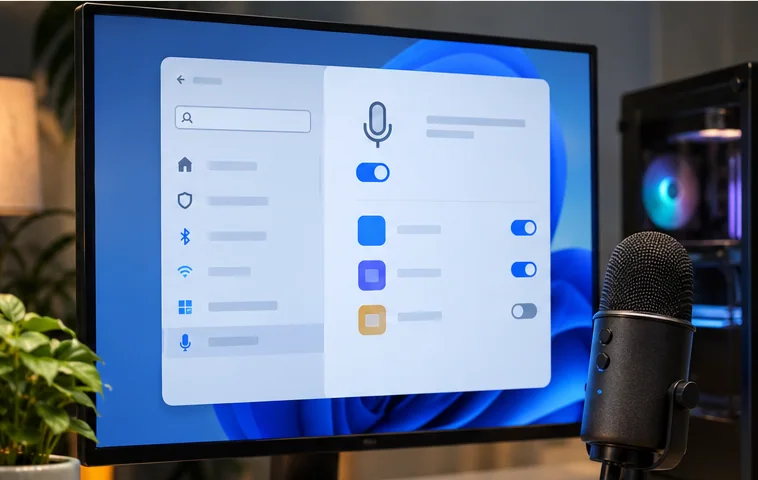
Open Windows Settings → System → Sound → Input. Select the intended microphone and speak at a steady distance. Check that the input meter moves, the device is not muted and its input volume is not set near zero. If the meter does not respond, the issue is below Discord: check the physical mute, USB connection, headset switch, Bluetooth connection or the manufacturer’s driver. Test the same microphone in the browser only after confirming that it selected this device.
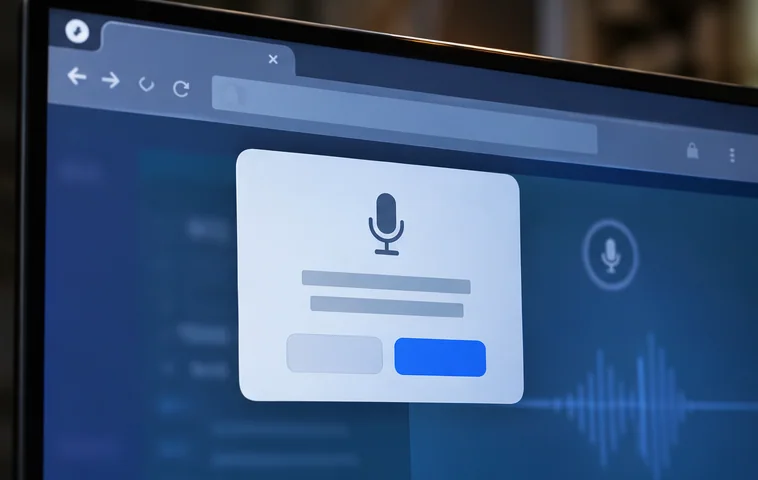
In Privacy & security → Microphone, confirm microphone access for the device and apps is enabled. Discord’s installed desktop client is a desktop app; verify that “Let desktop apps access your microphone” is on. Windows may not show every desktop app as an individually selectable Store app, so the broad desktop-app switch matters. The browser has its own site permission as well, which explains why a browser can work while the desktop client is blocked.
Select the same input in Discord
Check Voice & Video before resetting anything
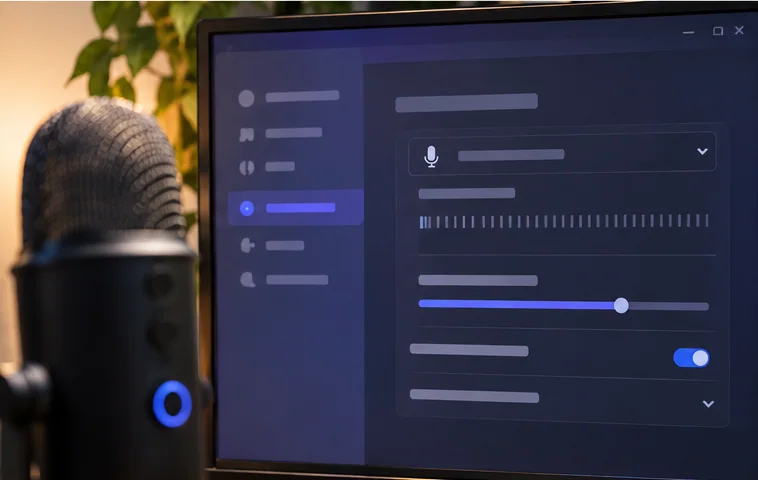
In Discord, open User Settings → Voice & Video. Set Input Device explicitly to the microphone that moved the Windows input meter. Avoid “Default” during diagnosis if multiple microphones are connected; a webcam, monitor or Bluetooth headset may become default later. Speak and watch Discord’s input indicator or run its Mic Test. If Discord shows no level while Windows does, the difference narrows the fault to app selection, permission or app processing.
Check Input Mode. Voice Activity should transmit when the input passes its threshold; Push to Talk transmits only while its assigned key is held. Confirm the key binding and that Discord has focus where relevant. If Voice Activity is selected, use the input sensitivity test and ensure a fixed manual threshold is not suppressing quieter speech. Check that the local mute icon is off and that you are not deafened or muted in the channel.
Separate input capture from channel transmission
If Discord’s Mic Test plays your voice back but other people do not hear you, capture works; investigate the selected channel, server permissions, mute state and the active voice mode. If the test shows no input at all, keep the focus on device selection, Windows access and Discord’s audio subsystem. Ask one trusted participant to confirm whether they see a speaking indicator, but do not use a public server as a microphone test.
Close other conferencing apps for one comparison because another program or audio utility may change the active device or apply processing. Unplug and reconnect a USB mic directly to another port if Windows itself loses it. Avoid disabling Windows security controls or granting microphone access to unrelated software. Keep the permissions limited to the apps you intend to use.
Use a short, reversible sequence
- Verify the Windows Input meter with the exact microphone.
- Enable Windows microphone and desktop-app access, then fully quit and reopen Discord.
- Select that named microphone in Discord Voice & Video; run Mic Test and check mute state.
- Compare Voice Activity with Push to Talk and review sensitivity or the key binding.
- If still broken, use Discord’s Reset Voice Settings option, restart the app, and retest before changing drivers.
- Update audio or USB drivers only through Windows Update or the computer/microphone maker’s support page for the exact model.
Resetting Discord voice settings is narrower than reinstalling the app and preserves a clear comparison. If the browser and Windows meters both work but Discord still has no input after reset, note Discord version, Windows version, selected device name and whether Mic Test detects a signal. If Windows input fails in all apps, focus on hardware, privacy settings or the supported audio driver instead.
| Test result | Most relevant layer | Next action |
|---|---|---|
| Windows meter is flat | Device, mute, connection or driver | Check hardware path and Windows Input |
| Windows works; Discord has no Mic Test level | Discord input, privacy or processing | Select device and verify desktop access |
| Mic Test works; channel hears nothing | Mute, input mode or channel permissions | Check Voice Activity/PTT and channel state |
| Browser works; desktop app alone fails | Different permission and app routing | Enable desktop access and select named input |
When to escalate
If Windows stops detecting the microphone across applications, test a different port or device only if available and use the manufacturer’s diagnostic process. If the microphone works in Windows and other apps but not Discord after the sequence above, use Discord’s official support materials and include the exact test results. Do not infer a hardware failure merely from one app’s level meter.
Keep the browser test comparable: select the same physical microphone and speak at the same distance and level. A browser’s permission prompt is scoped to the website and browser profile; Discord’s desktop client follows a different application path. If Discord in a browser works but the installed client does not, that points toward the desktop permission or client settings, not necessarily a bad server account. If both Discord versions fail while Windows input moves, inspect Discord’s selected endpoint and mute/input mode first.
Sources
- Microsoft Support: microphone permissions
- Microsoft Support: set up and test a microphone
- Discord: Voice and Video troubleshooting
- Discord: Mic Test
- Discord: input modes
Sources consulted 6 November 2026. App labels can change; no microphone or Discord call was tested for this article.
Soyez le premier à laisser un commentaire.