An NVMe drive can be missing from the firmware storage list, missing only from the boot menu, or visible before Windows but absent inside Windows. Those are different faults. A blank new drive may be detected yet have no bootloader, so it will not be a boot option. A drive missing from all firmware storage pages is not a drive-letter problem.
Check M.2 protocol compatibility first
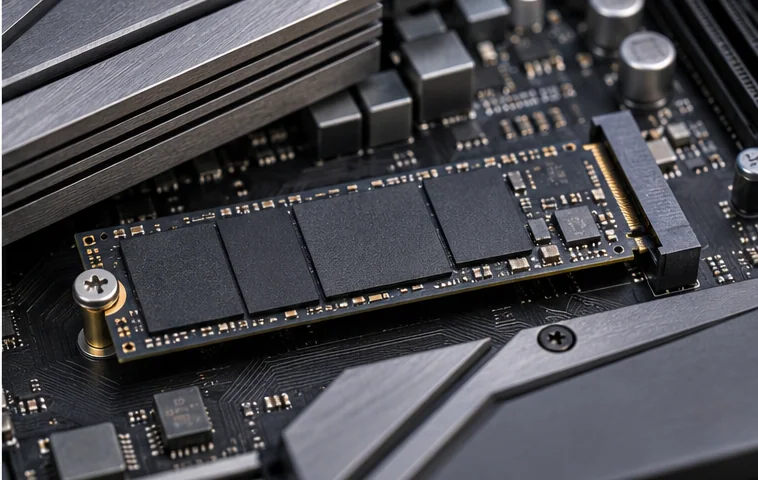
M.2 names a form factor and connector family, not one storage protocol. M.2 drives may use PCI Express/NVMe or SATA; an M.2 socket may accept one or both. Compare the exact SSD model with the computer or motherboard manual. Confirm the supported protocol, card length, keying, generation and socket restrictions. A drive can physically fit yet remain electrically incompatible.
Read the manual’s lane-sharing table. Some sockets share resources with named SATA connectors or PCIe slots; adding a drive can disable a different port. This behavior depends on the specific board, so do not infer it from socket color or position. Also distinguish the storage inventory from the boot menu: firmware may recognize a drive that has no operating system bootloader.
Check the full firmware storage pages
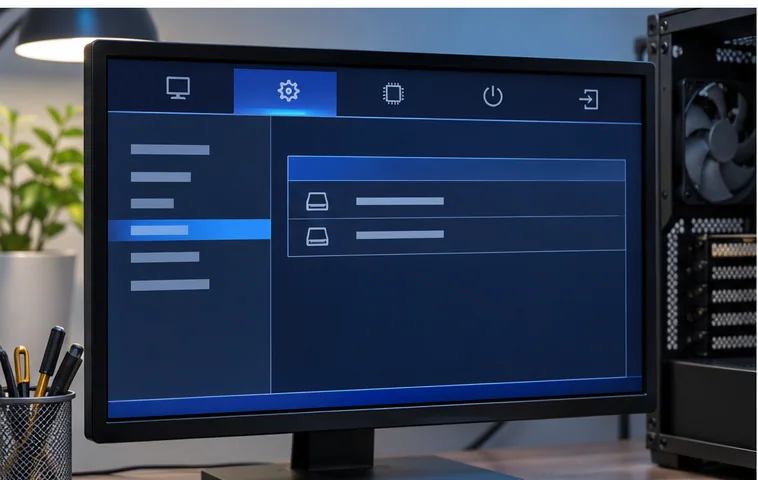
Enter setup using the key in the computer manual. Look under NVMe, PCIe, storage or system information, not just the simplified start screen or boot order. Record any model and capacity shown. ASUS notes that some older simplified BIOS views do not show a PCIe M.2 SSD in their storage summary, so inspect the full pages and manual before calling it undetected.
Do not casually reset or change UEFI/CSM, RAID, Intel VMD, Secure Boot or storage-controller mode. Record current values and check their effect on the installed operating system first. Windows installed while VMD or RAID was enabled may stop booting if the mode changes. BitLocker can request a recovery key after firmware changes. Have the key and a backup available before touching boot or storage settings.
Inspect the card only if the computer is serviceable
Reseat carefully with power removed
For a desktop or user-serviceable laptop, shut down, switch off and unplug the power supply, and follow the service manual’s electrostatic precautions. Remove the heat spreader as directed. Verify that the drive is fully inserted at the intended angle, rests on the correct standoff and is secured flat without bending. Do not overtighten the small screw or hot-plug an internal M.2 SSD.
Do not open a sealed or warranty-covered laptop just to experiment. Use model-specific service instructions or an authorized repairer. Stop if the drive is visibly damaged, smells burnt or becomes unusually hot. A generic image cannot identify the correct slot for your computer.
Isolate the drive, slot and firmware
- Restore the original configuration and recheck the complete firmware inventory. Note whether a cold start changes intermittent detection.
- Use another M.2 socket only after the manual confirms it accepts this drive’s protocol and length.
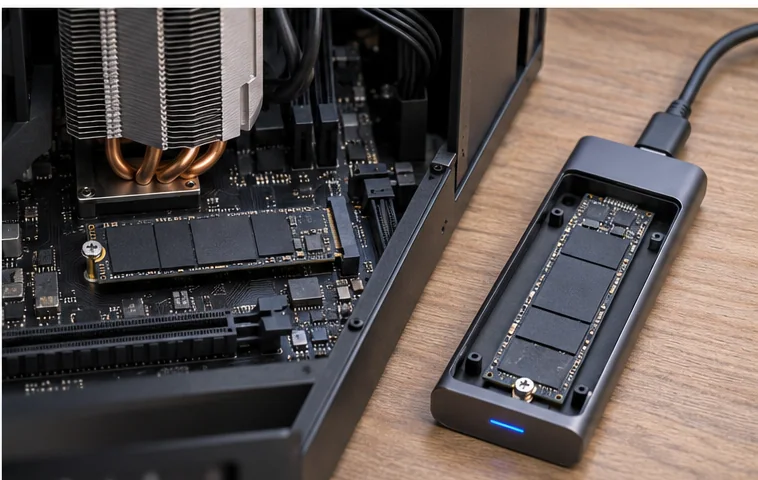
- If available, test the SSD in a known-compatible NVMe enclosure or second computer without formatting. An enclosure must support NVMe, not merely SATA M.2. This checks the drive but not the original motherboard socket.
- Try a known-good compatible NVMe drive in the original socket. If it also vanishes, the slot, firmware or board is more suspect. If it works, investigate the first drive and its compatibility.
Check manufacturer release notes for an update that specifically addresses storage detection on the exact system. Do not flash an arbitrary BIOS image or interrupt the update. Avoid changing PCIe generation or voltage as a generic fix; such settings are model-specific. If a firmware update is warranted, use stable power and follow the vendor procedure.
If firmware sees the drive but Windows does not
When UEFI lists the SSD, it is being enumerated at that time. Check Device Manager and Disk Management. A blank disk may be offline or uninitialized. Initialization writes partition metadata, while formatting or creating a volume may make old files inaccessible. If the drive contains needed data, do not initialize, format, run repair tools or accept a setup prompt. Stop and plan recovery first.
On systems using Intel VMD or RAID, Windows Setup may need the manufacturer’s storage-controller driver to show an NVMe drive the firmware already detects. That is different from a drive absent in firmware. Use the computer maker’s driver package; do not disable VMD without confirming Windows does not depend on it. A Windows driver cannot make firmware enumerate an absent drive.
| Observation | Likely area | Safe next step |
|---|---|---|
| Absent from firmware storage pages | Protocol, seating, slot or drive | Check manual, then one compatible cross-test |
| Storage listed, boot option absent | Blank SSD or missing bootloader | Preserve partitions; inspect boot setup |
| Firmware sees it; Windows installer does not | VMD/RAID driver or controller mode | Use vendor driver; preserve present mode |
| Windows sees it, Explorer does not | Offline state, partition or drive letter | Inspect Disk Management; do not initialize if data matters |
Know when to stop
If the SSD is absent in several compatible systems, repeatedly disappears or reports errors, stop repeated power cycles and contact its manufacturer. If it works elsewhere but no compatible SSD works in the original socket, the computer needs service. Keep the exact computer and drive models, firmware version, storage-page observation and test results for support. Do not post serial numbers publicly.
Before contacting support, compare the SSD model with the computer compatibility list and the manufacturer specification. Capacity alone does not identify interface or protocol. If the drive was newly installed, keep the old boot drive and record the original slot. If it contains important files, avoid scans that write metadata. Firmware visibility is useful evidence but not a health certificate: a failing drive can appear briefly and vanish. A cross-test should change one component at a time and use a compatible socket or enclosure. Record results so support can distinguish a drive fault from a host connection problem.
Sources
- Intel: SSD not detected in BIOS
- Intel: NVMe M.2 not detected in BIOS
- ASUS: M.2 and NVMe compatibility
- ASUS: motherboard storage detection
- Microsoft Learn: initialize disks
Sources consulted 6 November 2026. Slot support and menus vary by model; no hardware test is claimed.
Soyez le premier à laisser un commentaire.