A mouse polling-rate test usually estimates how often movement events reach an application while you move the pointer. It can be a useful comparison, but a browser does not read the mouse’s electrical reports directly. The operating system, USB or wireless connection, driver, browser event model, page load and display cadence all affect the events the page sees. Treat an online result as an observation of this complete input path, not a certified measurement of the sensor.
Polling rate, also called report rate, is expressed in hertz (Hz): it describes how frequently a device can send updates. A rate of 125 Hz corresponds to a nominal 8 ms interval between reports; 500 Hz corresponds to 2 ms; 1,000 Hz corresponds to 1 ms. Those intervals are simple reciprocals of the nominal rate. They are not the same as click latency or end-to-end response time. A click still passes through the switch, firmware, connection, operating system, application and display.
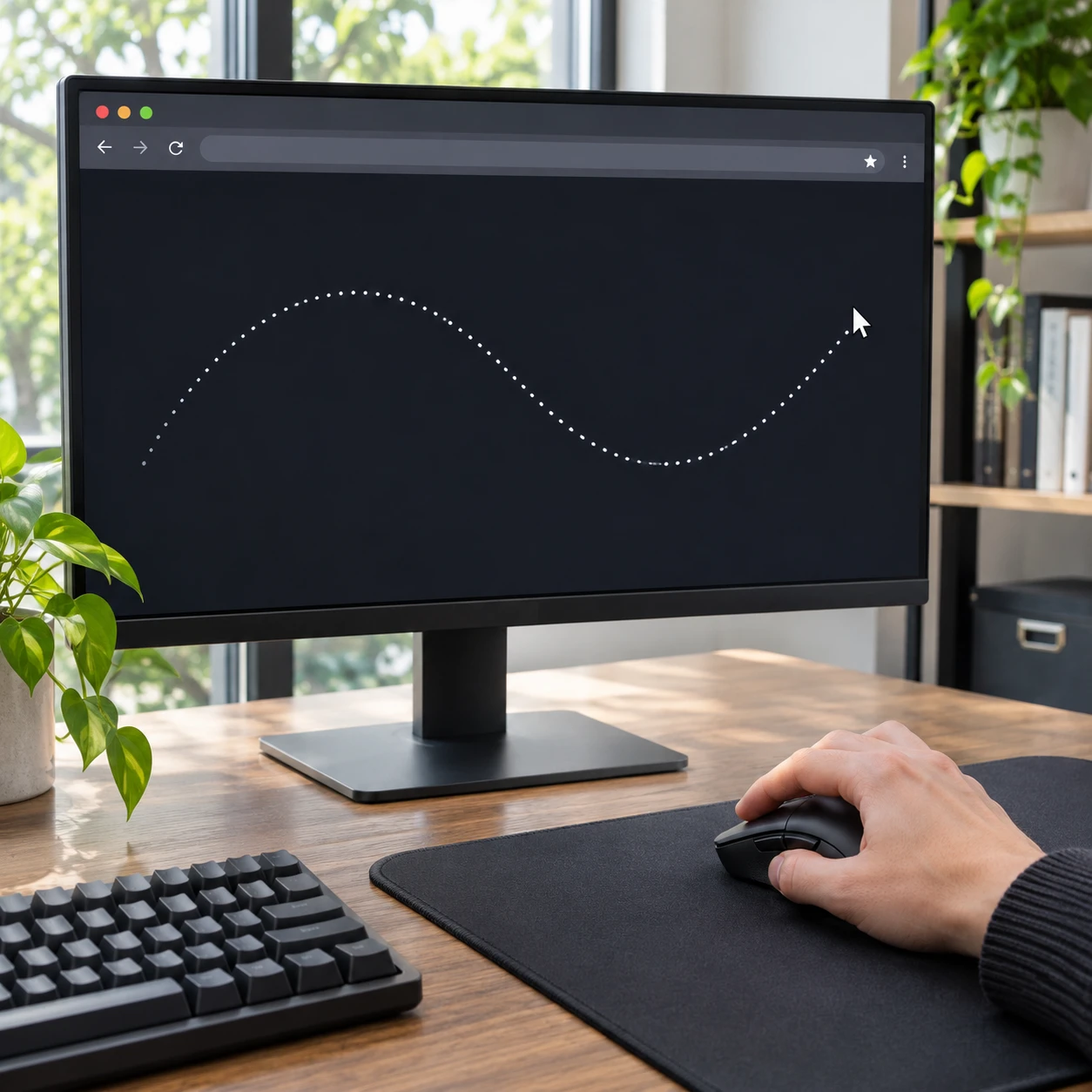
What the number means—and what it does not
Logitech’s overview describes polling rate as how often the mouse reports its position and button state to the computer, with available settings depending on the mouse. Microsoft’s Raw Input documentation notes that high-frequency mouse events can accumulate between application message-loop iterations. This illustrates why a normal application may receive events in groups rather than one perfectly spaced callback per hardware report.
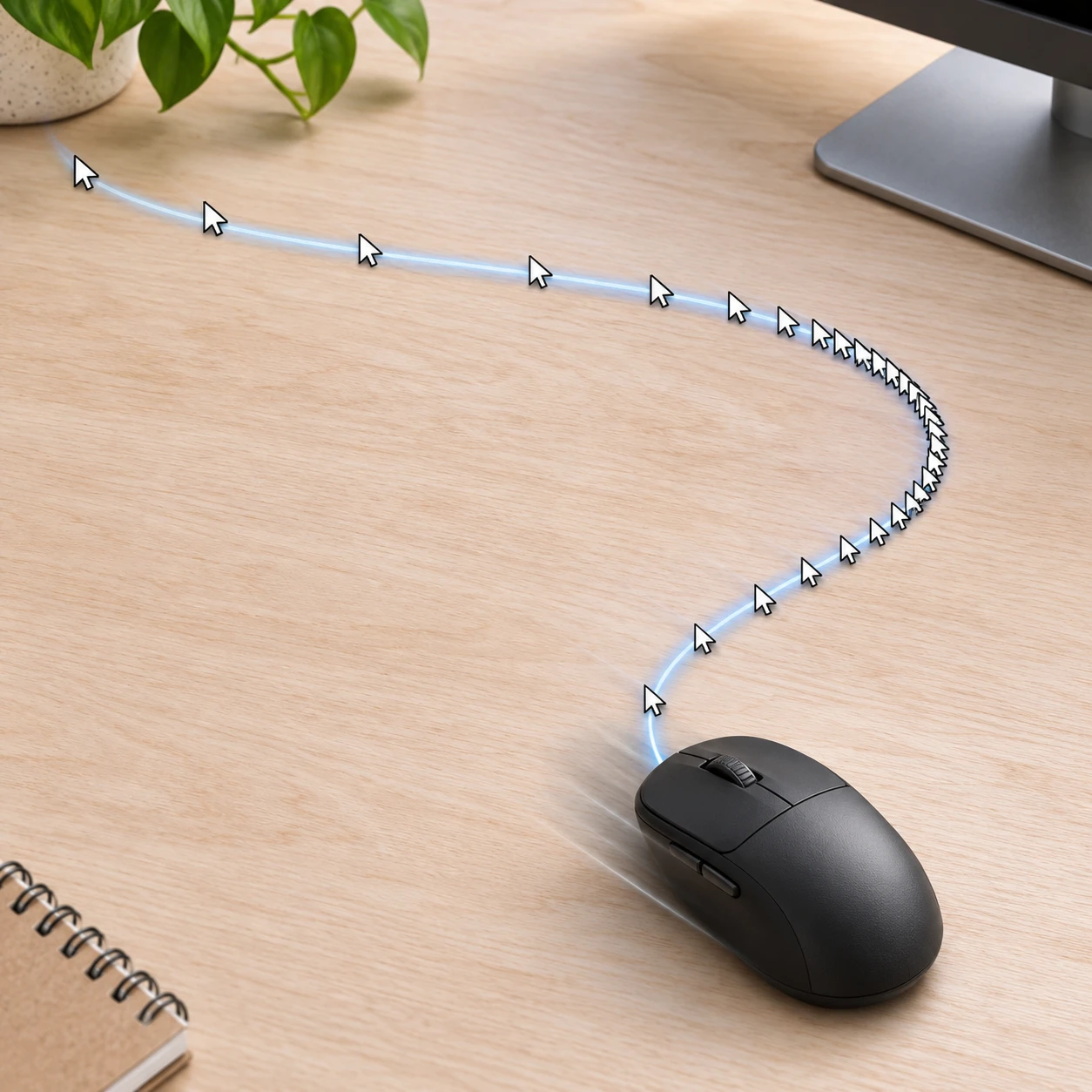
A browser test may use pointer or mouse events and calculate time differences between callbacks. Those callbacks are shaped by browser scheduling and operating-system input processing. Pointer movement events can be coalesced or delivered according to the page and device path. If you move slowly, move in tiny steps, stop, switch tabs, or have a busy computer, the measured intervals may not represent the selected device rate. A high number does not prove low click latency; a lower browser estimate does not automatically prove a faulty mouse.
Set up a fair test
- Use a clean mouse surface and a stable USB port or the receiver recommended by the manufacturer. Keep the wireless receiver close enough to avoid avoidable interference.
- Open one polling-rate test in a current browser. Keep the tab visible, close demanding background work, and allow the page to finish loading.
- In the mouse manufacturer’s software, note the active report-rate setting for the connection mode you are using. Some mice store separate wired, receiver and Bluetooth profiles.
- Move the mouse in a steady, continuous pattern for several seconds. Make multiple passes rather than one short flick; repeat the same movement after resetting the test.
- Record the reported average or range, the selected setting, connection type, browser, and whether the result was stable across repeats.
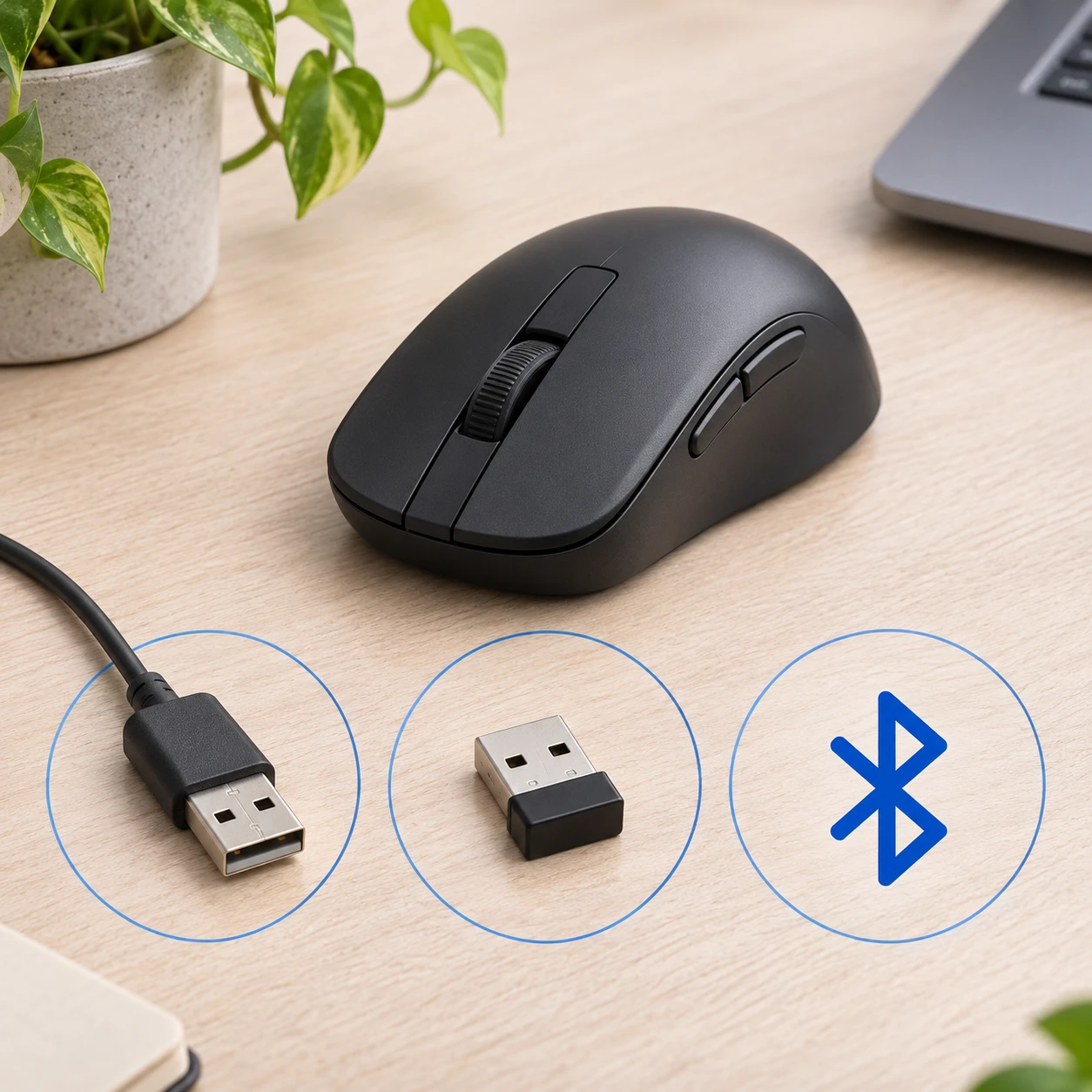
Why the same mouse can show different results
Connection mode: A wired USB connection, a proprietary wireless receiver and Bluetooth are separate paths. The mouse may offer different rates for each, and Bluetooth devices commonly use different timing behavior. Check the exact model manual rather than assuming every mode supports its maximum advertised setting.
Movement and surface: The sensor reports position changes when it detects movement. Very slow movement, abrupt starts, lift-off, a reflective surface or a low-sensitivity test area can produce fewer useful movement events. A test based on cursor movement cannot count reports when no detectable position change occurs.
Browser and operating system: Browser scheduling, event coalescing, pointer acceleration, remote desktop software, accessibility tools and CPU load can change the stream observed by the page. Display refresh is another stage: a pointer may be sampled by the browser more often than the monitor visibly draws a new frame, but the on-screen animation can still be limited by the rendering path.
Firmware and software profile: The manufacturer utility may apply a different setting for an onboard profile, a connected receiver or a particular application. After changing a rate, reconnect or restart the test if the manufacturer instructions require it. Avoid running multiple remapping or input-filtering utilities at once while comparing.
| Browser observation | Possible reason | Next check |
|---|---|---|
| Result is below the configured rate | Event coalescing, browser scheduling, slow movement, system load or a different connection profile | Repeat with the tab visible, steady movement and the correct profile |
| Reported intervals vary widely | Irregular movement, input batching or page rendering delays | Make longer repeat passes and compare another browser only if needed |
| Wired mode differs from wireless | Separate device profiles, receiver placement, battery state or mode-specific limits | Check the model manual and compare each connection independently |
| Very high rate causes no obvious difference | Refresh mode, application frame rate, task or personal sensitivity may limit the visible benefit | Choose a stable supported setting based on your workload |
When a lower result is a reason to troubleshoot
First confirm the active setting in the manufacturer’s utility and the correct connection type. Use a direct port on the computer as a comparison, remove an unnecessary hub or dock, and ensure the receiver is not hidden behind metal or far from the mouse. Charge or replace the battery if the maker recommends it for the device. Try another surface and repeat the same path. Change one item at a time so the result remains interpretable.
If the mouse behaves erratically in ordinary applications as well as in the browser, update firmware only from the manufacturer’s official tool, check for cable or receiver damage, and test another port or computer if practical. Do not assume a polling-rate page can establish a hardware failure or warranty defect. For a double-click or button symptom, the separate ElectronixLab mouse double-click test observes click intervals; it does not measure movement polling rate.
Should you always use the highest setting?
No. A higher report rate may help certain fast pointer or gaming workflows, but its practical effect depends on the whole system and application. It can also increase processing work and may reduce battery life on some wireless devices. If the pointer already feels consistent, compare settings in the applications you actually use rather than optimizing for one browser number. Prefer a stable, supported mode over a maximum value that introduces glitches or power trade-offs.
Frequently asked questions
Is 1,000 Hz the same as 1 ms input lag?
No. A 1,000 Hz nominal report interval is 1 ms between reports in an idealized rate calculation. End-to-end input latency includes many other stages and cannot be inferred from the polling-rate number alone.
Why does an online test show less than my software setting?
The browser sees events after the device and operating system process them. Event coalescing, page scheduling, movement pattern, display rendering and background load can lower or vary the observed rate. Confirm the selected device profile first.
Can Bluetooth reach the same polling rate as the receiver?
It depends on the exact mouse and mode. Check manufacturer specifications for that model and connection; do not assume a wired or receiver setting also applies to Bluetooth.
Does a higher rate always feel smoother?
No. The benefit depends on the application, display and motion task. Compare supported settings in your normal use and consider stability and wireless battery impact.
Sources
Consulted 6 November 2026: Microsoft Raw Input overview explains application delivery and buffering of high-frequency mouse data; Logitech: mouse polling rate describes device report rate and available settings; the USB HID class specification defines HID report and interrupt transfer behavior; the W3C Pointer Events specification defines browser pointer-event behavior.
Be the first to leave a comment.