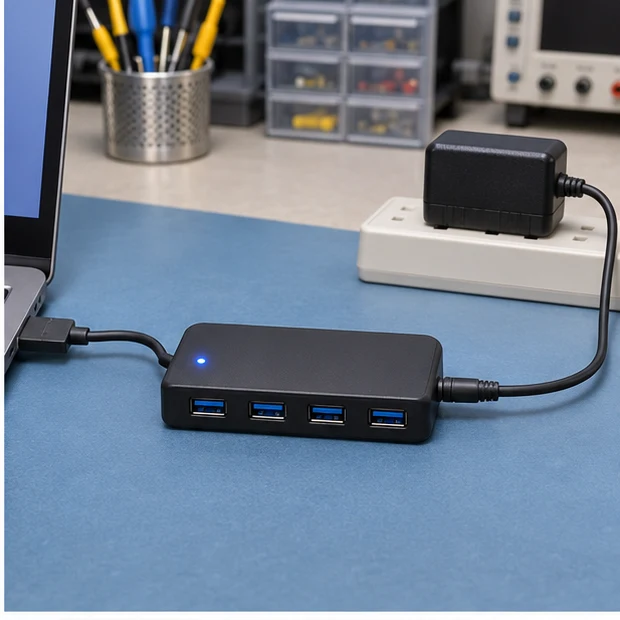
When Windows or a connected device reports that a USB hub does not have enough power, the message is a clue about the power path, not a diagnosis of a failed laptop port. A bus-powered hub receives its operating power through the upstream USB connection and shares a limited budget with its own electronics and downstream devices. A powered hub has a separate supply, but only if that adapter is correct, connected, and supported by the hub. Start by identifying which design you have, then change one load at a time.
First protect storage and identify the message
If a USB disk, camera, or audio recorder disconnects, stop writes before experimenting. A sudden loss of power during a file transfer can corrupt data. Close applications that are using the device, eject storage when possible, and make a backup once the link is stable. Do not format a drive just because a hub warning appeared; power and file-system faults are different problems.
Write down the exact warning, the device that triggered it, the hub model, and which other devices were attached. Note whether the hub is connected directly to a computer, through a monitor or dock, or through another hub. Each extra hop adds another device and cable to the path. A hub can also have separate ports with different charging or data behavior, so the label beside the port matters.
Check the hub itself. If it has a DC input and a supplied adapter, compare the adapter's voltage, polarity, connector, and current rating with the hub label or manual. A matching plug alone is not enough: the wrong voltage or polarity can damage equipment. Do not try an arbitrary adapter, and do not open the hub. If the enclosure, adapter, or cable is hot, cracked, buzzing, or smells burnt, unplug it and stop using it.
Understand the hub's power budget
A bus-powered hub cannot create extra energy. Its upstream port supplies the hub and the downstream load within the limits of the applicable USB mode and configuration. USB standards distinguish states, port types, negotiated configurations, and connector capabilities; a simple rule such as “every USB port gives the same current” is inaccurate. USB-IF compliance material, for example, lists different unit-load values for USB 2.0 and USB 3.2 contexts. USB-C Power Delivery and charging ports introduce additional negotiation and product-specific behavior. Do not infer an available current from the connector shape or a blue plastic insert.
A hub's total downstream capacity may be shared. Several devices can each work alone and still fail together, especially during startup or when motors, spinning disks, radios, or bright LEDs draw a brief peak. The hub's controller, indicator lights, and attached cables also consume power. The practical limit depends on the hub design, host port, USB generation, device declarations, cable loss, and the adapter, if present.
Self-powered does not mean “unlimited.” The adapter and hub have a rated total output and may impose per-port limits. Some hubs pass data while a power adapter is missing but cannot operate higher-load devices reliably. Others do not accept power from an arbitrary charger at all. Read the exact manufacturer's specifications rather than applying a generic number from another hub.
Use a one-device-at-a-time test
1. Establish a direct baseline
Disconnect the hub. Connect the problem device directly to a computer port with a known-good data cable, if the device uses one. Try a second computer port without changing the device or cable. If it fails directly too, the hub is not yet isolated as the cause; check the device, cable, driver, or port separately.
2. Remove every downstream load
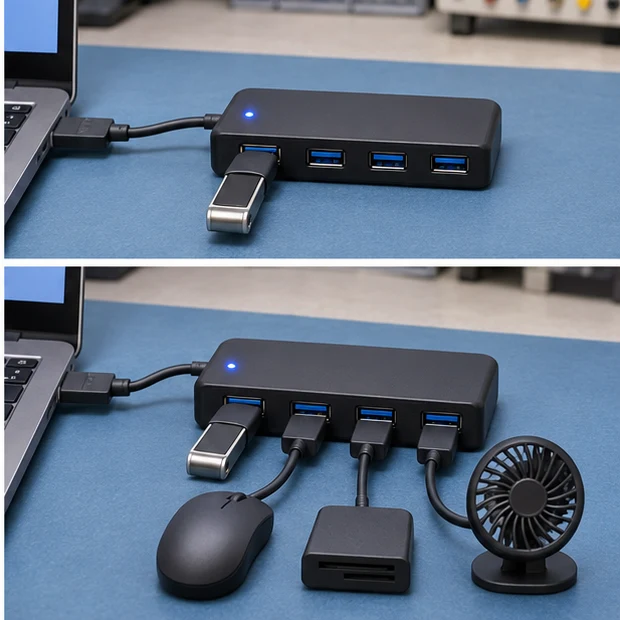
Reconnect the hub with nothing attached. If it is externally powered, connect only its specified supply. Then attach the problem device alone. Observe whether it enumerates, stays connected, and performs its ordinary task. This tests the hub with the smallest downstream load.
3. Add devices in a controlled order
Keep the problem device connected and add one other peripheral at a time. Record which addition changes the behavior. If the failure appears only when a particular pair is present, that is evidence of a combined load, not proof that either device is defective. Repeat the comparison with a different port only if the manual indicates the ports have equivalent functions.
4. Compare the same hub with and without its adapter
Do this only if the hub is designed to accept the specified external supply and its documentation permits the comparison. Power down or disconnect the devices before changing the adapter. If behavior improves with the correct adapter, the upstream bus budget or hub's external supply path is implicated. If there is no change, continue to cable, port, compatibility, and data-path checks.
5. Check the upstream path
Use the hub's original upstream cable where possible. Inspect both plugs for bent shells, debris, looseness, or strain. Connect directly to the computer rather than through a monitor, dock, or second hub. A longer or damaged cable can increase voltage drop and can also cause data errors, so a disconnect is not automatically a power-only symptom.
Interpret what you observe
| Observation | What it supports | Next check |
|---|---|---|
| Device works directly but fails on an empty bus-powered hub | The hub, upstream cable, host port, or compatibility is suspect | Try a known-good hub or the hub maker's support procedure |
| Device works alone on the hub and fails after another load is added | Combined power demand or a load interaction is plausible | Check hub total/per-port ratings and test a powered hub |
| Correct adapter changes the result | Upstream power budget or the hub supply path may be involved | Verify adapter and hub ratings; do not substitute a random supply |
| Only one cable or port combination fails | Contact, cable, port capability, or signal integrity may differ | Repeat with a known-good data cable and direct host connection |
| Same device fails on several computers and hubs | The device or its own cable may be faulty | Use the device maker's diagnostics or service channel |
Windows Device Manager can help establish whether the device enumerates and whether an error code is present. It cannot measure current available at a hub port. A displayed “power” property or a USB tree view is useful context, but it is not a calibrated electrical test. Microsoft also recommends trying a direct connection and an external power source when a device's power needs exceed what the connection provides; follow the device and hub instructions for the particular model.
When a powered hub is the right test
A properly specified self-powered hub is a useful comparison when the device manual permits hub operation and the failure tracks the number or type of attached loads. Choose a hub whose downstream port type, total output, per-port rating, and adapter match the device requirements. A powered hub does not fix a damaged cable, unsupported data mode, defective port, or incompatible device. Do not plug a charging-only adapter into a hub's DC input unless its manufacturer explicitly specifies that adapter.
Some high-demand peripherals require a direct host connection or a dedicated supply even when a powered hub is present. Examples can include bus-powered hard drives during spin-up, capture equipment, radio transmitters, and devices with a specified host-port requirement. The product manual overrides a general troubleshooting tip. If reliability matters, avoid daisy-chaining hubs and keep high-load devices on separate supported power paths.
What not to do
- Do not assume a USB-A, USB-C, or blue-colored port guarantees a particular current.
- Do not use a random power adapter based only on connector fit.
- Do not short USB pins, probe adjacent contacts with exposed metal tips, or place a meter in current mode directly across a supply.
- Do not disable USB over-current protection or repeatedly reconnect a device that triggers a protection warning.
- Do not format, initialize, or repair storage until important data is backed up and the power problem is resolved.
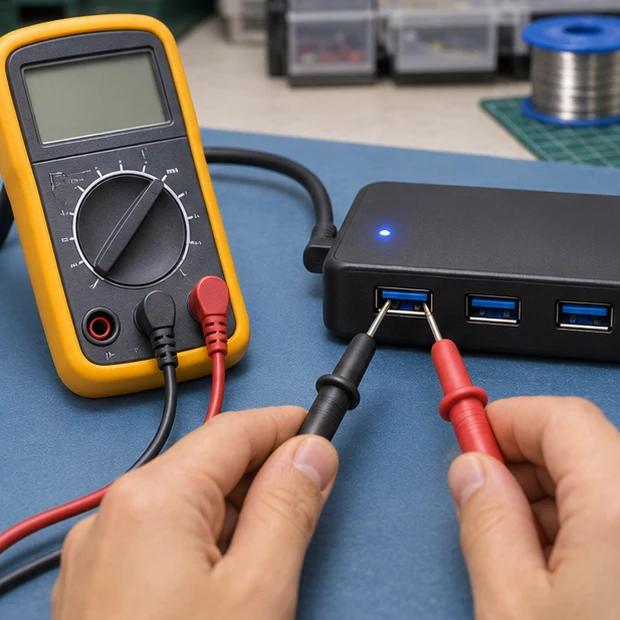
A voltage measurement at an accessible port can reveal a gross drop, but measuring it safely requires the correct breakout fixture and care not to bridge contacts. It does not prove that a port can deliver a specified current or that a brief startup transient is acceptable. For a user-level diagnosis, the controlled substitution steps above are safer and usually more informative.
When to stop and request support
Stop if the adapter or hub heats abnormally, the plug is damaged, the computer reports repeated over-current protection, or the device contains irreplaceable data that disconnects during access. Contact the hub or device manufacturer with the model numbers, exact warning, direct-connection result, adapter label, and which combination of devices reproduces the failure. This evidence is more useful than reporting only that “the hub has no power.”
For Windows USB over-current messages, see our guide to locating a faulty USB port. If the device repeatedly disconnects even when connected directly, compare the cable and host path using the USB disconnect diagnosis.
Why the warning can appear only intermittently
Some devices draw a brief peak when a motor starts, a storage drive spins up, or an internal capacitor charges. A brief drop may be shorter than a meter display refresh, so a steady-looking voltage reading after the event does not rule it out. The operating system may also report the fault only after enumeration or a load change. Compare the same startup event with a direct port and with the hub adapter connected, and record whether the error occurs at plug-in, during data transfer, or when another peripheral wakes.
Different behavior between ports is useful evidence only after checking that the ports really share the same design. A port marked for charging may have a separate controller or power path; a USB-C dock can use negotiated power that differs from an ordinary USB-A hub. Do not move a device between ports while it is writing data or performing a firmware update. First close the application and safely stop the operation.
For storage, a power warning and a disappearing drive can happen together, but the drive may also have an independent cable or controller fault. Keep the evidence separate: does the device remain in Device Manager, does its capacity still appear, and does it only disappear during heavy access? If the drive becomes unstable, protect the files and use the manufacturer's recovery or service process rather than repeatedly reconnecting it.
Questions to answer before buying another hub
Check the device's rated input and whether it already has a separate power connector. Confirm the hub's maximum total output, any per-port limit, the adapter specification, and whether the host supports the required USB data mode. A powered hub whose adapter is undersized can fail the same way as a bus-powered hub. A higher advertised current cannot compensate for a poor data cable, damaged connector, or device that requires a direct host port.
If the issue affects several high-draw devices, compare their combined needs with the exact hub documentation and avoid a chain of hubs. If one low-power keyboard alone triggers the warning, a general power-budget explanation is less likely; inspect that keyboard's cable, port, and firmware as well. This simple distinction prevents unnecessary purchases and keeps the troubleshooting focused on the combination that actually fails.
Sources and further reading
- USB-IF: Upstream-Facing-Port-Powered Hub white paper — illustrates how USB unit loads differ by specification context.
- USB-IF Compliance Updates — power requirements and compliance notes.
- Microsoft Support: Fix USB-C problems in Windows — direct connection, hub, power, and Device Manager checks.
- Sony Support: USB hub power exceeded — example of the warning caused by a bus-powered hub's connected load.
Sources consulted 6 November 2026. USB power depends on the applicable specification, device configuration, hub design, and adapter; this guide does not claim a universal current limit or report physical test measurements.
Be the first to leave a comment.