“Connected” only means Windows and the headphones have a Bluetooth link; it does not guarantee that sound is routed to them. Windows may still send audio to built-in speakers, a monitor, a dock or an application-specific output. Start by checking where sound is absent: all system audio, one app, or only the microphone/voice-call mode. If music plays but voice calls sound muffled, the headphones may have switched to a hands-free profile that prioritizes the microphone.
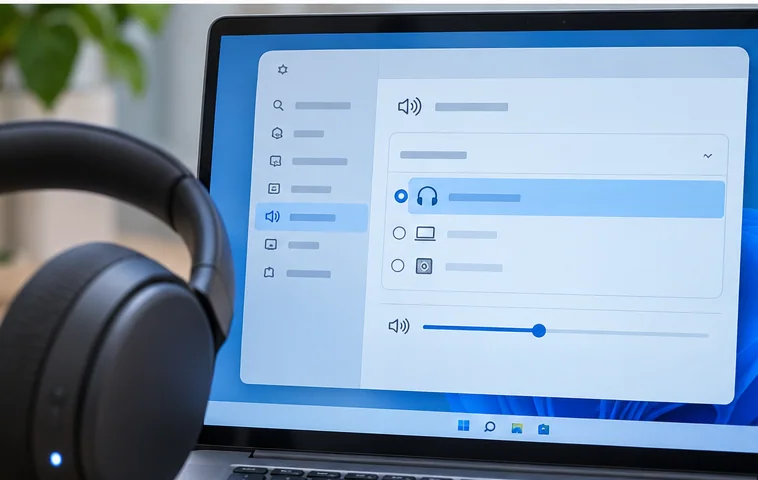
Route Windows audio to the headset
In Windows 11, open Settings → System → Sound. Under Output, select the Bluetooth headphones explicitly, then check that the device and system volume are not muted. Also check the taskbar sound flyout because a quick selection can change when a monitor, dock or headset reconnects. Play a familiar system sound or a local audio file to separate Windows routing from a streaming-service issue.
If the headphones appear twice—often once as headphones and once as a headset—test the stereo playback entry for music. In a call, Windows may expose a hands-free endpoint so the headset microphone can be used. This profile change can lower fidelity or alter routing; it is not necessarily a broken Bluetooth radio. If you need high-quality playback during a call, try the laptop’s built-in microphone while leaving the headphones selected for output, if the app permits it.
Check the app’s own output and volume
Compare system sound with one application
When system sounds work but one program is silent, inspect that app’s audio output and Windows Volume mixer. Some programs remember a device selected before the headphones connected. Close and reopen the app after selecting the headset. In a browser, check the tab mute state and the site’s player volume. A successful sound test in one browser does not confirm that another program uses the same output.
Also check whether the headphones are simultaneously connected to a phone, tablet or second PC. Multipoint devices may route audio to the last active host or pause a second source. Temporarily disconnect the other host and play a local sample. If this restores sound, adjust the headphone maker’s multipoint settings rather than repeatedly removing the Windows pairing.
Check format and connection state
Confirm that the headset is connected for audio, not merely listed as paired. Turn the headset off and back on, check its battery, and verify that no physical mute or touch control is active. If sound is intermittent, bring it closer to the computer and temporarily move away from USB 3 hubs, wireless transmitters or other sources of congestion. These are comparisons, not proof of radio interference.
For Windows 11, Microsoft documents checking the output selection and, where available, the device’s advanced sound properties. Keep the default format at a value supported by both the device and Windows; a common stereo format such as 2 channels, 16-bit, 48 kHz is a diagnostic baseline, not a universal requirement. Do not force unusual sample rates or install unofficial codec packs to solve a routing issue.
Repair pairing only after routing checks
- Confirm the correct Output endpoint and check the app’s device and mixer volume.
- Test another local audio source and disconnect any second paired host.
- Toggle Bluetooth off and on, then restart Windows and the headphones.
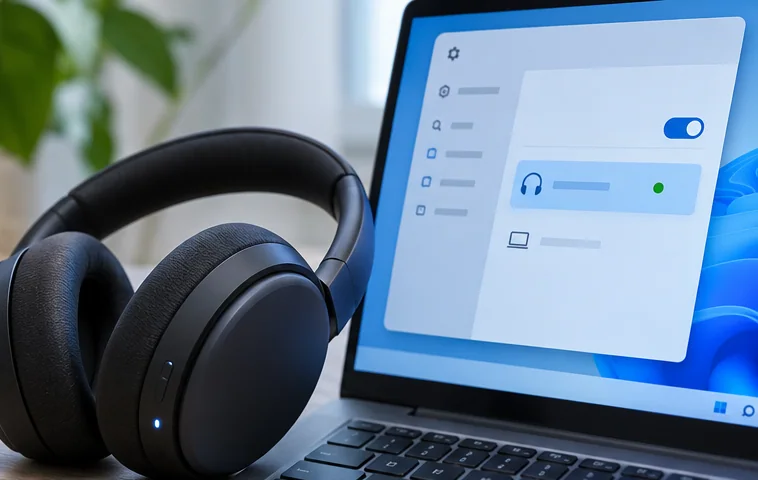
- If the device still connects without audio, remove it from Bluetooth & devices, put the headset into pairing mode using its manual, and pair it again.
- Use Windows Get Help Bluetooth/audio troubleshooters and install a Bluetooth driver only from Windows Update or the computer maker’s support page for the exact model.
Unpairing and pairing can erase device-specific settings, so do not start there. Avoid deleting random driver files or changing registry entries. If other Bluetooth devices also fail, focus on the computer’s adapter and supported driver. If only this headset has no sound across multiple hosts, check its manual, firmware and support options.
| Observation | Likely cause area | Next step |
|---|---|---|
| All Windows sounds come from speakers | Default output selection | Select headphones under System → Sound → Output |
| Only one app is silent | Per-app endpoint, volume or mute | Check Volume mixer and app audio settings |
| Music works; calls sound poor | Hands-free microphone profile | Use another mic or verify headset profile options |
| Headphones silent on multiple hosts | Headset state, battery or fault | Follow the maker’s reset and support instructions |
When to stop troubleshooting
If the headset becomes unusually hot, the battery swells, it smells burnt or its controls are damaged, stop using it and contact the manufacturer. Do not open a sealed rechargeable headset. For persistent silence, record Windows version, Bluetooth adapter model, headset model, selected output name and whether another host plays audio. That information helps distinguish a Windows route from a headset fault.
Check the output meter while playing audio: movement shows that Windows is sending a signal to the selected endpoint, but does not guarantee that the headset speaker is producing sound. Raise the headset’s own volume buttons as well as Windows volume. If the device exposes separate playback and call controls, make sure the current app is not using an inactive communications endpoint. Test one source at a time, and restore the usual output after the comparison so later calls do not silently route to a different device.
If the Bluetooth control disappears from Quick Settings, investigate the adapter separately from the headphone output. If Bluetooth remains connected but only audio is silent, avoid resetting the whole network stack; that broader action does not target sound routing and can disrupt unrelated connections.
Sources
- Microsoft Support: Bluetooth connected but no sound
- Microsoft Support: no sound from headphones in Windows
- Microsoft Support: Bluetooth troubleshooting
Sources consulted 6 November 2026. Device modes differ by manufacturer; no headset was physically tested.
Soyez le premier à laisser un commentaire.