If Bluetooth disappeared after a Windows 11 update, first determine whether Windows has lost the Bluetooth adapter or whether a paired accessory simply will not connect. A missing Bluetooth toggle, a grayed-out control, or no radio in Device Manager points to an adapter, driver, firmware, or hardware-detection problem. If Bluetooth is still available but headphones or a mouse will not pair, the cause is more likely pairing mode, range, battery, or the accessory’s saved connection.
Use the steps below in order. Start with Microsoft’s built-in troubleshooter and a full shutdown, then check the device and install the computer maker’s driver. A missing Settings control is not by itself proof that the Bluetooth card has failed, and a Windows update may have changed which driver is loaded.
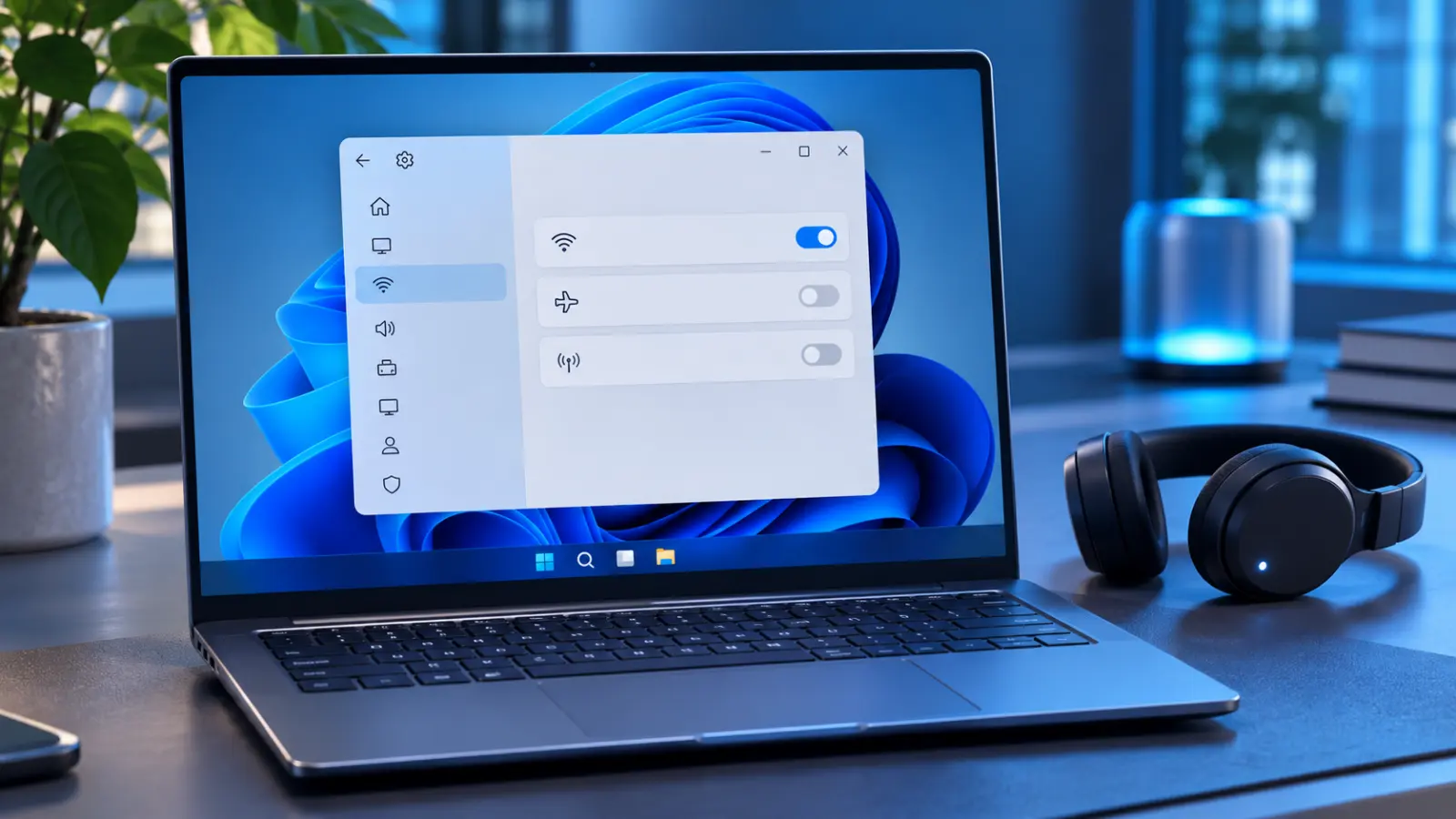
Bluetooth disappeared after a Windows 11 update: identify the symptom
This comparison of missing controls versus failed pairing helps choose the right troubleshooting fix before driver changes.
Open Settings → Bluetooth & devices and look for the Bluetooth switch. Then open Device Manager and inspect the Bluetooth category. The adapter name may include “Bluetooth” or “Radio.” If the category or adapter is missing, choose View → Show hidden devices and check whether it appears dimmed. Also check Network adapters when the laptop has a combined Wi-Fi/Bluetooth module. Record any warning icon and the exact Device status code.
If Bluetooth appears and can be switched on but one accessory is missing, this is not the same as a disappeared adapter. Put the keyboard, mouse, or headset into pairing mode, move it close to the PC, charge it, and remove then re-add that accessory in Settings if it is listed but will not connect. Test a second accessory if available. Do not reinstall the Bluetooth adapter just because one headset has a pairing problem.
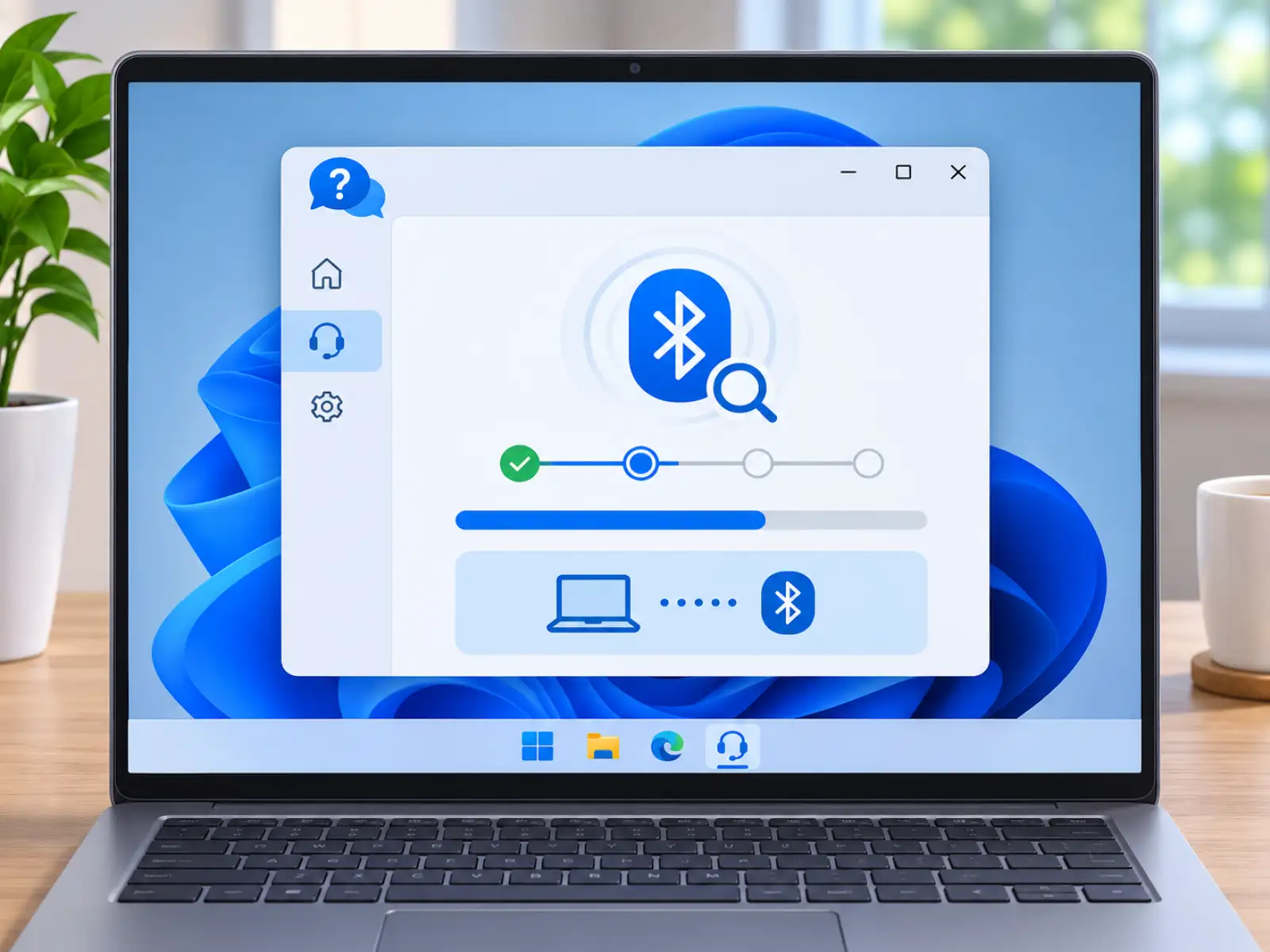
Run Bluetooth troubleshooting and restart the PC
- Run Get Help and note what the diagnostic reports.
- Perform a complete shutdown, then check the Bluetooth controls again.
- Inspect the radio status and code in Device Manager.
- Install the exact PC maker driver, then reinstall only if needed.
1. Run the Windows 11 Get Help troubleshooter
Open the Get Help app from Start, search for Bluetooth troubleshooting, and run the Bluetooth diagnostic. Follow the prompts and let it apply a proposed fix only if it matches the problem. Microsoft recommends this automated troubleshooter for Windows 11 Bluetooth issues. After it finishes, restart if requested and check whether the Bluetooth switch and adapter have returned.
2. Perform a complete shutdown
Microsoft’s missing-Bluetooth guidance recommends a full power-off: hold Shift while selecting Start → Power → Shut down, wait about one minute after the PC turns off, then start it again. This can clear a temporary hardware power state that survives a quick restart. Save open work first. If the setting returns, check again after sleep/wake; note whether the problem happens only after an update or sleep.
Check the adapter, driver, and update history
3. Inspect Device Manager
In Device Manager, expand Bluetooth, right-click the radio, and open Properties. If it is disabled, choose Enable device. If a code is shown, record it before changing anything: Code 22 means disabled, while other codes can indicate a driver or device-start issue. If the adapter is hidden or absent, scan the hardware after checking the computer maker’s driver and firmware guidance. A driver reinstall cannot fix an adapter that the system does not detect electrically.
Compare Bluetooth and Wi-Fi status if the computer uses a combined wireless module. Wi-Fi working while Bluetooth is missing does not prove a specific part is broken; they use separate functions and drivers. On the other hand, both disappearing after the same update can make the computer maker’s chipset, wireless, or BIOS notes especially relevant.
4. Install the correct computer maker driver
Run Settings → Windows Update → Check for updates. If driver updates are offered for the Bluetooth device, review and install the relevant one, then restart. Device Manager can also check for an automatic driver update. If Windows says the best driver is already installed, visit the PC manufacturer’s support page and search by the exact model or service tag. Download the Windows 11 Bluetooth package—and, for combo cards, the Wi-Fi package if the maker instructs—before uninstalling the current device.
If Bluetooth stopped working immediately after a specific driver update, Device Manager may offer Properties → Driver → Roll Back Driver. Use this only when available and tied to the recent change. Avoid third-party driver updater utilities; they can select a package that does not match the laptop’s radio or firmware.
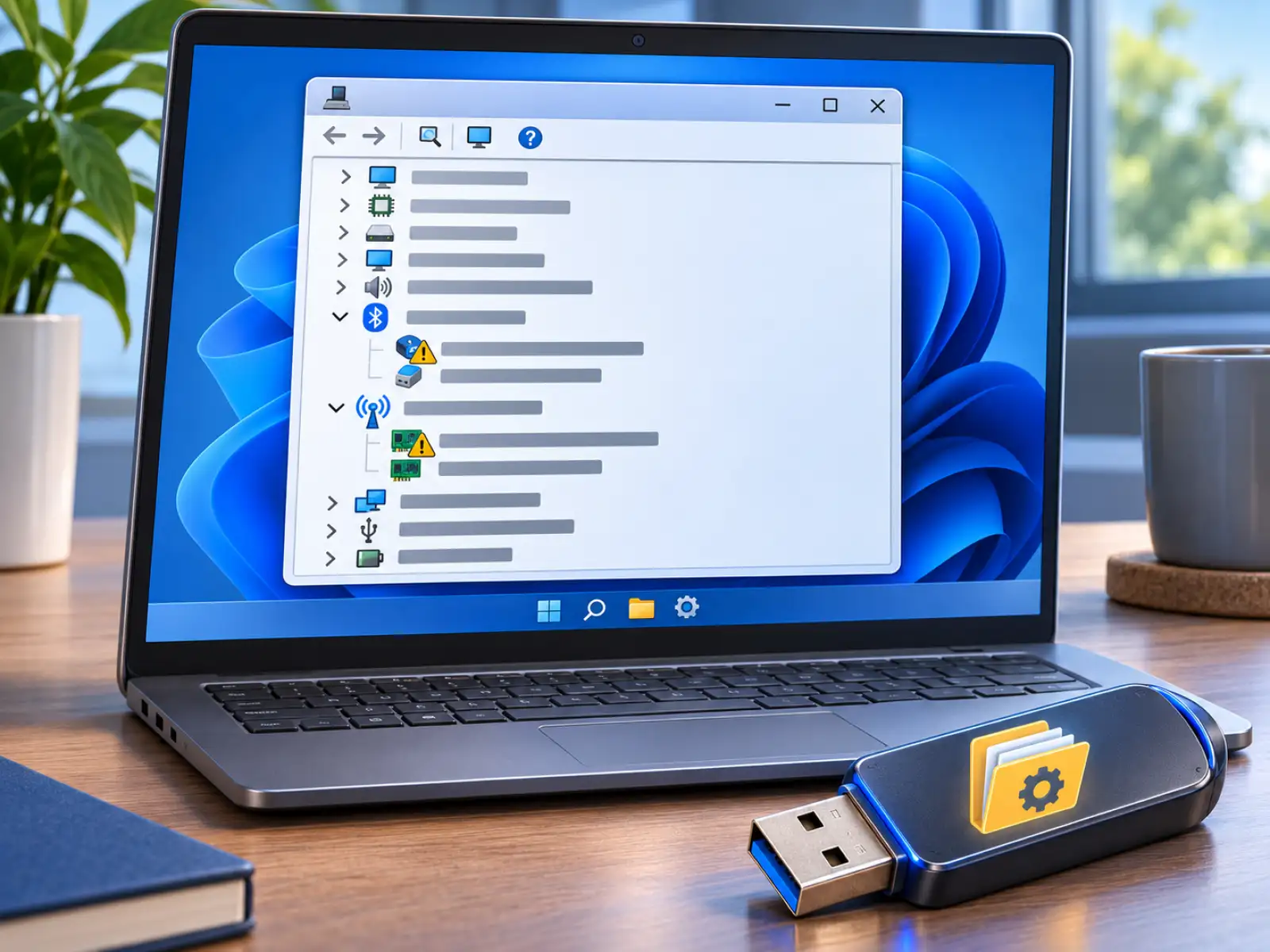
5. Reinstall the Bluetooth radio only after saving its driver
If an update does not help, download the model-specific driver first. In Device Manager, right-click the Bluetooth adapter and select Uninstall device, then restart. Windows may reinstall a built-in driver automatically. If it does not, use Action → Scan for hardware changes, then run the OEM installer you saved. Follow the computer maker’s instructions about removing driver software; do not delete the driver package unless you already have a suitable replacement ready.
Compare the next step by what Windows shows
| What you see | Next check |
|---|---|
| Bluetooth toggle is missing or grayed out | Run Get Help, full shutdown, then inspect Device Manager. |
| Adapter is present but disabled | Enable it and check Airplane mode or the laptop’s wireless key. |
| Adapter shows a warning after an update | Record the code, then use Windows Update and the model-specific OEM driver. |
| Adapter is present; one headset will not connect | Charge it, enter pairing mode, move closer, then remove and pair it again. |
| Bluetooth and Wi-Fi are both missing | Check the maker’s wireless, chipset, and firmware support for the exact model. |
When Bluetooth is still missing
Check the laptop’s physical wireless key and the manufacturer’s BIOS/UEFI instructions to make sure Bluetooth is not disabled there. Do not change firmware settings or update BIOS without reading the exact model’s instructions, connecting reliable power, and knowing how to restore any custom settings. If the adapter is absent from Device Manager after a full shutdown and a correct OEM driver installation—or returns with the same error—contact the computer maker. It can check platform firmware, radio compatibility, and hardware service options.
If the failure began with a Windows update, record its date and the driver version. Avoid uninstalling security updates or resetting Windows as an early fix. A restore point or system reset can affect apps and settings; back up important files and use the manufacturer’s recovery guidance before trying one. On a work-managed computer, ask IT before removing drivers or changing BIOS settings.
For a Bluetooth adapter code 10 on a specific Intel AX201 system, see our Intel Wi-Fi 6 AX201 Code 10 troubleshooting guide. For a pairing issue where the radio is visible, Microsoft’s Bluetooth troubleshooting guide covers connecting accessories.
Frequently Asked Questions
Does a missing Bluetooth switch mean the radio has failed?
No. Windows may not currently detect the adapter, or a driver or power-state issue may hide it. Check Device Manager and record any status code before changing drivers.
What if Bluetooth is available but one headset will not pair?
Treat that as a pairing issue first. Check the accessory’s charge, pairing mode, range, and saved connection rather than reinstalling a radio that Windows still detects.
What does Code 22 mean for a Bluetooth adapter?
Code 22 indicates that the device is disabled. If the adapter appears in Device Manager, enable it there and check the laptop’s wireless control.
What should I do if Bluetooth is still missing after a full shutdown?
Check the computer maker’s driver and model-specific firmware guidance. Do not change BIOS settings or update firmware without reading the exact instructions and preparing reliable power.
Sources and testing scope
- Microsoft: fix Bluetooth disappeared in Windows
- Microsoft: fix Bluetooth problems in Windows
- Microsoft: update Bluetooth drivers
- Microsoft: Windows troubleshooters in Get Help
Testing note: No specific Windows 11 PC or Bluetooth accessory was supplied for hands-on testing. Steps and driver names vary by computer model; use the manufacturer’s support instructions for firmware and hardware service.
Be the first to leave a comment.