Quick Fix — Try This First
- If Windows 11 audio is not working after an update, select the intended speaker or headset in Settings → System → Sound → Output.
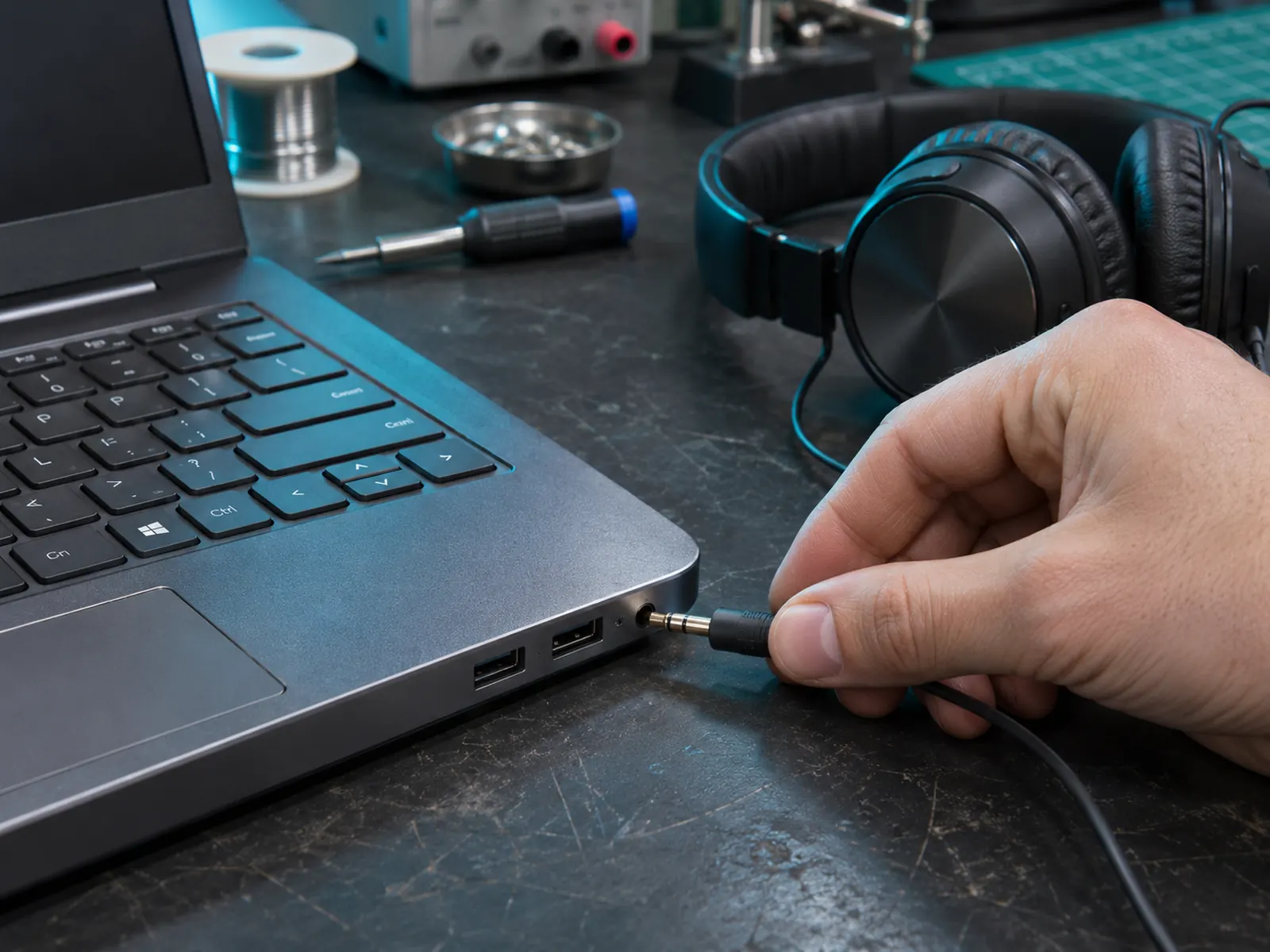
- Check the device’s physical volume, mute switch, cable, power, and any inline controls; reconnect one wired device directly for a clean comparison.
- Play a known local sound, then test a second output device. Do not change drivers until you know which output path fails.
- If the issue began immediately after a driver update, check Device Manager → Sound, video and game controllers → device Properties → Driver for an available rollback.
When Windows 11 audio is not working after an update, first separate a wrong output selection from a driver or device failure. An update may coincide with a changed default device, a headset connected to a different output, a muted external speaker, or a driver regression. The sequence below starts with reversible checks and reserves driver rollback for a failure that began after a sound-driver update.
Symptoms and diagnosis
The guide covers no sound from speakers or headphones, sound coming from the wrong device, or output that disappeared after Windows Update. It does not assume the update damaged hardware. If only one app is silent while system sounds play, check that app’s output and volume separately before changing Windows drivers.
| Symptom | Likely cause | Next action |
|---|---|---|
| Sound plays through a monitor or dock | Windows selected another output | Choose the intended speakers or headset in Sound → Output. |
| Headphones are silent but laptop speakers work | Wrong jack, headset mute, cable, or device profile | Reconnect the headset and test it on another output. |
| All outputs show no sound after a driver update | Driver change, audio service state, or device issue | Run Windows audio troubleshooting, then inspect the audio driver. |
| Only one app is silent | App-specific output or volume setting | Check that app’s audio device and mixer level. |
Restore sound without changing drivers first
1. Pick the output Windows should use
Open Settings → System → Sound. Under Output, select the device you expect to hear from: the laptop speakers, a wired headset, a USB headset, a monitor, or another named output. Disconnecting a dock or monitor temporarily can reveal whether Windows had routed audio to that device. If you use HDMI or DisplayPort, the monitor may appear as an audio output even when it has no speakers.
Use the output volume control and confirm that mute is off. Then play a short, familiar audio clip. When the output device offers a Test control, use it to distinguish a system output problem from an app-specific one. Do not raise volume sharply on a headset during the test.
Check: the selected device produces the expected sound. If it did not: select each available output once and continue with the physical checks below.
2. Check the output path and the app
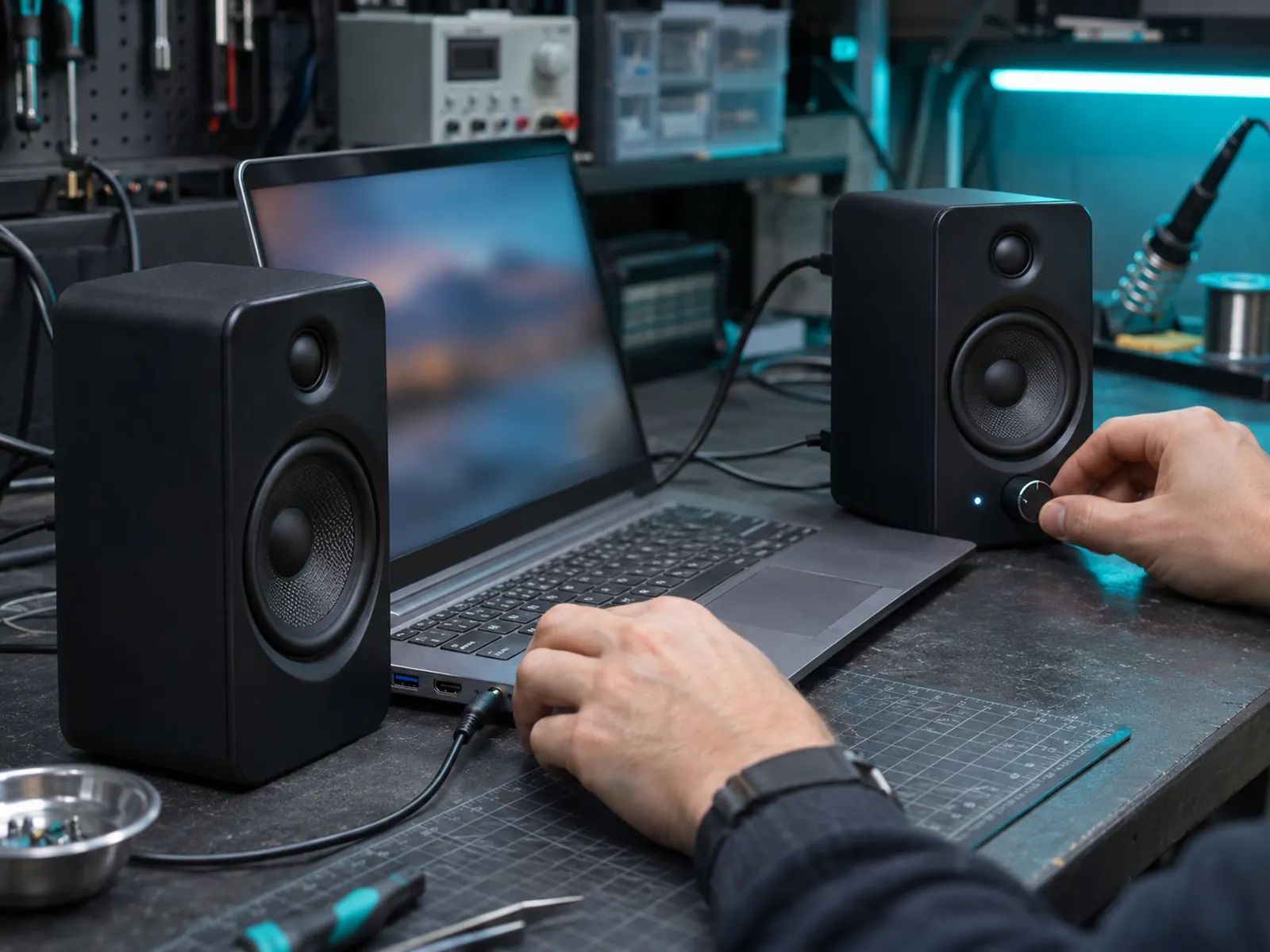
For powered desktop speakers, confirm their power light is on, their volume knob is above minimum, and the cable is in the speaker output rather than a microphone input. For a wired headset, reconnect the plug fully and check for a mute control. For a USB headset, connect it directly to a different port for this comparison. For Bluetooth headphones, confirm that the correct output device is selected; the Bluetooth connection alone does not prove that Windows is sending sound to that headset.
If system sounds work but one game, browser, or call app is silent, keep the Windows output unchanged and open that app’s audio settings. Check its selected output and in-app volume. Some apps keep a device selection from before the update and do not follow a later Windows default-device change until the app is restarted.
Check: a second output works, or the failing app now uses the selected device. If no output works: continue to Windows’ built-in audio troubleshooter.
3. Run Windows audio troubleshooting
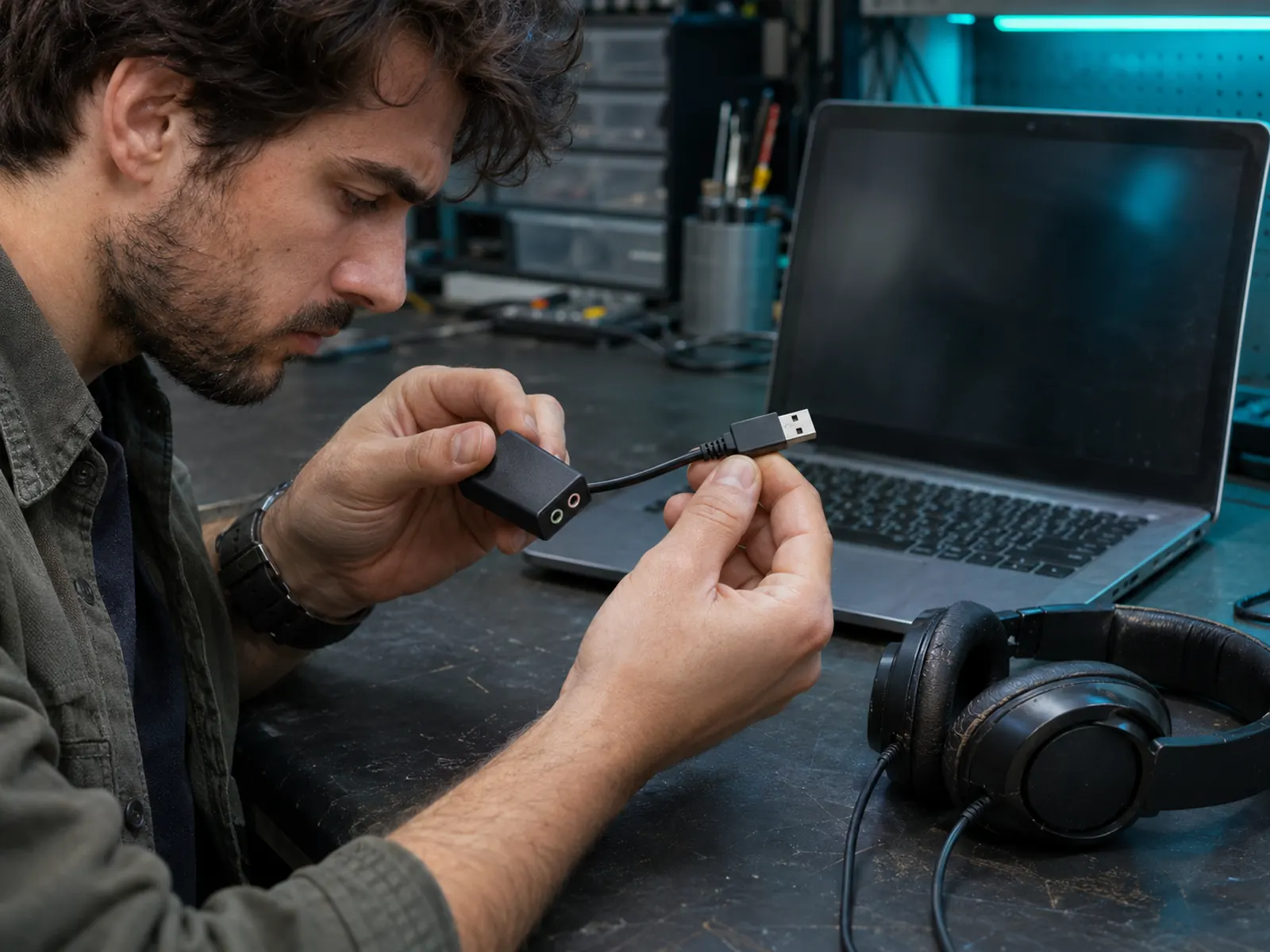
Open Settings → System → Sound and use the audio troubleshooting option for the output device, if shown. Windows may open its Get Help troubleshooter. Follow only the prompts for the affected output and note any specific device or driver it identifies. A troubleshooter result is a clue; it does not prove that the last update caused the fault.
Restart once after a suggested repair, then select the intended output again. If the sound is still absent, open Device Manager and inspect Sound, video and game controllers. Look for a warning icon or a device that disappeared. Do not download a driver from a third-party “driver updater.” If a driver is needed, use Windows Update or the PC or audio-device manufacturer’s support page for the exact model.
Check: the device appears without a warning and audio returns. If it did not: review update history and consider rollback only when the timing matches a driver update.
4. Roll back only the recently changed audio driver
Press Windows key + X → Device Manager. Expand Sound, video and game controllers, right-click the audio device that stopped working, and open Properties → Driver. If Roll Back Driver is available and the problem began immediately after that device’s driver update, use it and choose a reason when asked. Restart Windows and retest the same output.
The rollback button may be unavailable when Windows has no previous driver package to restore. In that case, do not remove a working device blindly. Check Settings → Windows Update → Update history to identify what changed, then obtain the correct audio driver from the computer manufacturer or use Windows’ offered driver update. Avoid BIOS updates or broad Windows rollback for a single silent output unless the device maker’s instructions specifically require it.
Check: sound returns after the restart and stays on the intended output. If rollback is unavailable or changes nothing: reinstall only the model-specific driver supplied by the PC maker, or compare with a USB or Bluetooth output to isolate the built-in audio path.
Common mistakes
- Assuming that “connected” means “selected as output.” Windows can route sound to a monitor, dock, headset, or speaker independently.
- Rolling back or uninstalling every sound device when only one app is silent.
- Installing a generic driver package from an ad or third-party updater, which may select the wrong hardware revision.
- Changing several audio settings before testing one known sound and one alternate output.
Troubleshooting if it still fails
- No output device appears: reconnect one wired or USB output and refresh Device Manager. If it remains absent, check Windows Update and the PC manufacturer’s exact audio-driver support page.
- A device appears but every app is silent: recheck mute, volume, output selection, and any external speaker power. Then use Windows’ troubleshooter and compare a second output device.
- The issue returns after each restart or update: record the driver provider, version, and update date from Device Manager → Properties → Driver. Compare the matching model’s manufacturer package and avoid installing a driver for a different PC revision.
Compare the evidence before replacing hardware: whether a second output works, whether Windows lists the missing device, whether only one app fails, and whether the driver rollback changed the result. A monitor or Bluetooth headset working normally points away from a total Windows audio failure, but does not identify a specific failed component by itself.
When to stop
Stop using an audio device if its cable or connector is damaged, it becomes unusually hot, or it smells burnt. Disconnect it without opening the computer. If the laptop’s built-in audio remains missing from Device Manager after the manufacturer’s supported driver steps, use the manufacturer’s hardware diagnostics rather than opening a powered laptop.
Related guides
- Fix Bluetooth headphones connected but producing no sound.
- Check left and right speaker output with the stereo test.
- Troubleshoot a microphone that fails in Chrome or Edge — for input problems rather than silent playback.
Next step: run the left-right speaker test after you restore a usable output. If only one channel is silent, compare the same headphones or speakers on a second device before replacing them.
FAQ
Why did my Windows 11 sound stop after an update?
The update may have changed the audio driver or coincided with a changed output selection. Check the selected device and app volume first, then compare the driver date with Windows Update history.
How do I roll back an audio driver in Windows 11?
Open Device Manager → Sound, video and game controllers → the affected device → Properties → Driver → Roll Back Driver. The option appears only when Windows has a previous driver package available.
Why does sound play through my monitor after an update?
Windows may have selected the monitor’s HDMI or DisplayPort audio output. Open Settings → System → Sound → Output and choose speakers or headphones instead.
Should I uninstall the audio device if there is no sound?
Do not start by removing every audio device. First check output selection, mute, cables, the app’s device, and Windows troubleshooting; use a driver reinstall only when the device manufacturer’s instructions match your model.
Sources
- Microsoft Support: Fix audio issues when no sound plays from speakers or headphones
- Microsoft Support: Update drivers through Device Manager in Windows
Last updated: November 11, 2026.
Be the first to leave a comment.