Quick Fix — Try This First
- If your Windows 11 microphone is not working in a browser, start in Settings → System → Sound → Input; choose the intended microphone and confirm its meter moves as you speak.
- Open Settings → Privacy & security → Microphone. Turn on Microphone access and Let desktop apps access your microphone.
- In Chrome, open Settings → Privacy and security → Site settings → Microphone; in Edge, open Settings → Cookies and site permissions → Microphone. Allow the affected site and select the intended input.
- Reload the site, close other apps that may be capturing audio, then test again. If Windows’ input meter also stays still, troubleshoot the device before changing browser permissions.
If your Windows 11 microphone is not working in a browser even though it works in another app, separate the problem into three layers: Windows privacy access, the browser’s permission for that website, and the input device selected by the page. Change one layer at a time. A site can be blocked while Windows and the microphone are both working normally.
Symptoms and quick diagnosis
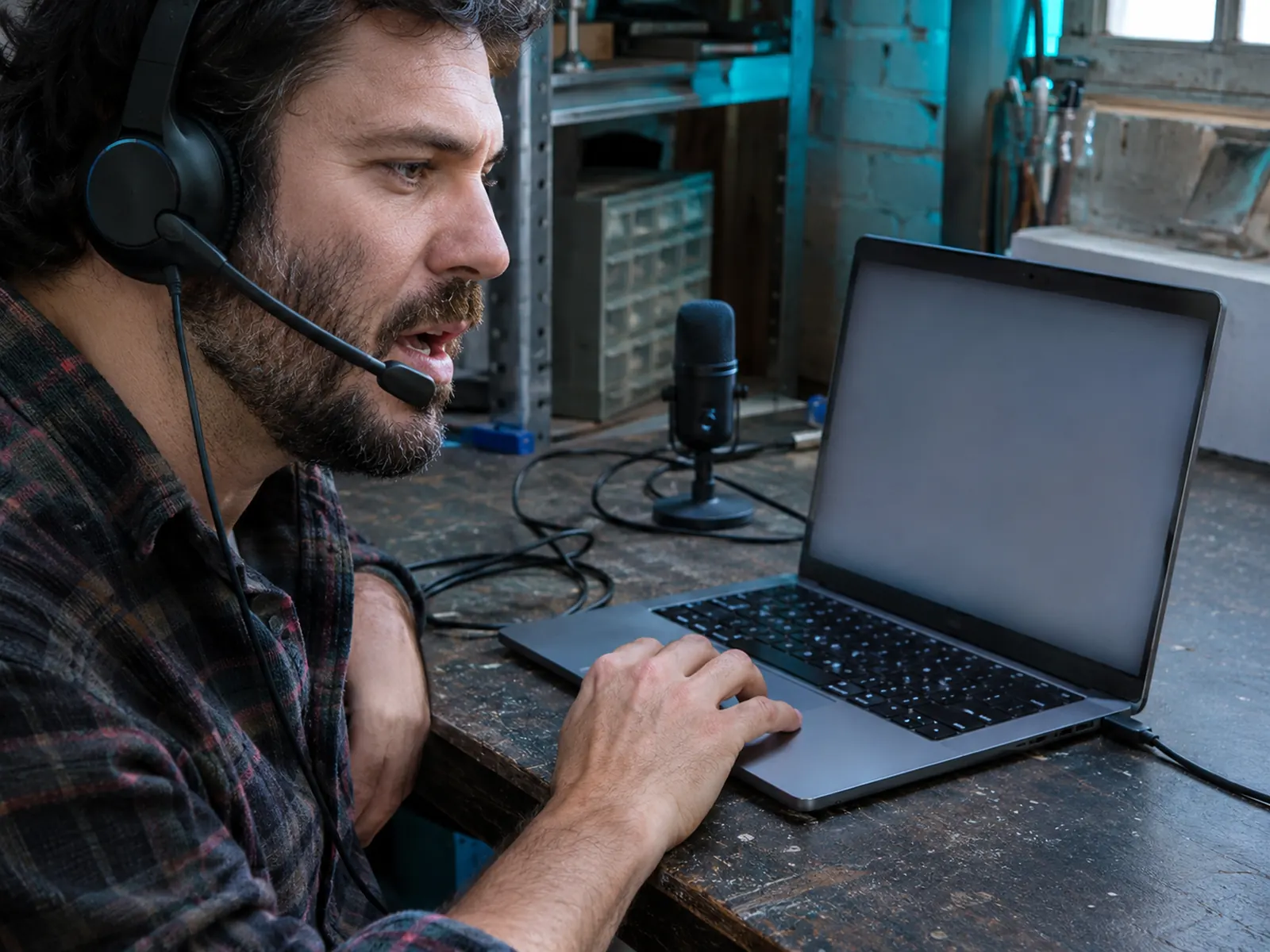
This guide applies when the microphone is absent, silent, or stuck on the wrong input in a browser-based call, recording page, or voice tool. It does not diagnose a microphone that fails in every Windows app. A browser may show a permission prompt, show no prompt because the site was previously blocked, or list a device that is disconnected or muted.
| Symptom | Likely cause | Next action |
|---|---|---|
| Windows input meter does not move | Mute, connection, device selection, or Windows-level access | Check the physical mute and selected input in Sound settings first. |
| Windows meter moves; one website is silent | Site permission, wrong browser input, or tab state | Allow the site, select the correct input, and reload the tab. |
| One browser works; another does not | Different site permission, profile, or browser input selection | Compare the failing browser’s site-specific microphone settings. |
| Device is missing in the browser list | Windows privacy access, device disconnect, or browser started before connection | Enable desktop-app access, reconnect the device, then restart the browser. |
Fix the browser microphone in order
1. Confirm that Windows receives microphone audio
Open Settings → System → Sound → Input. Under Choose a device for speaking or recording, select the actual headset, USB microphone, or built-in microphone you are using. Speak at a normal distance and watch the input meter. If several devices have similar names, select each one briefly and use the meter to identify the active input.
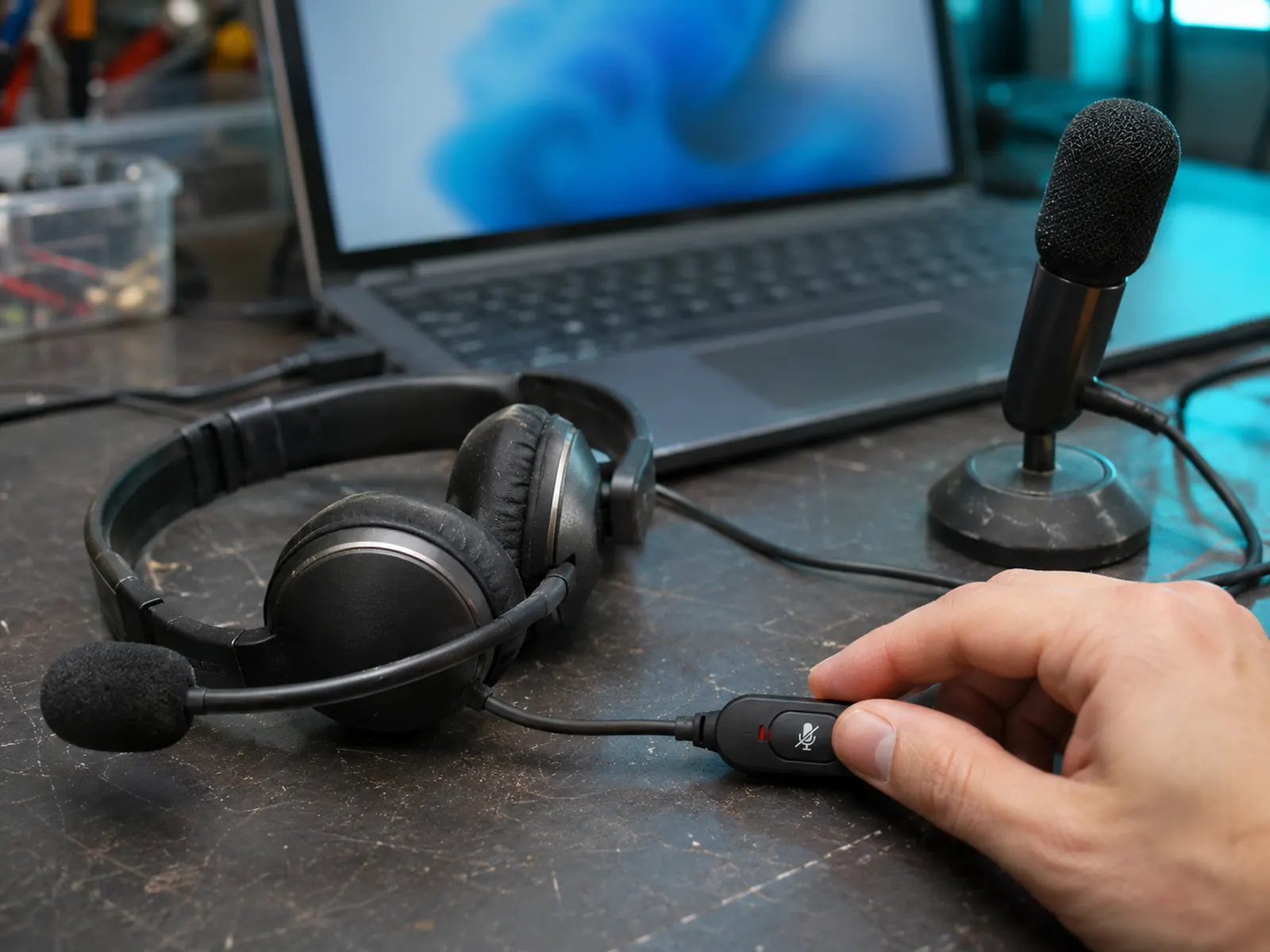
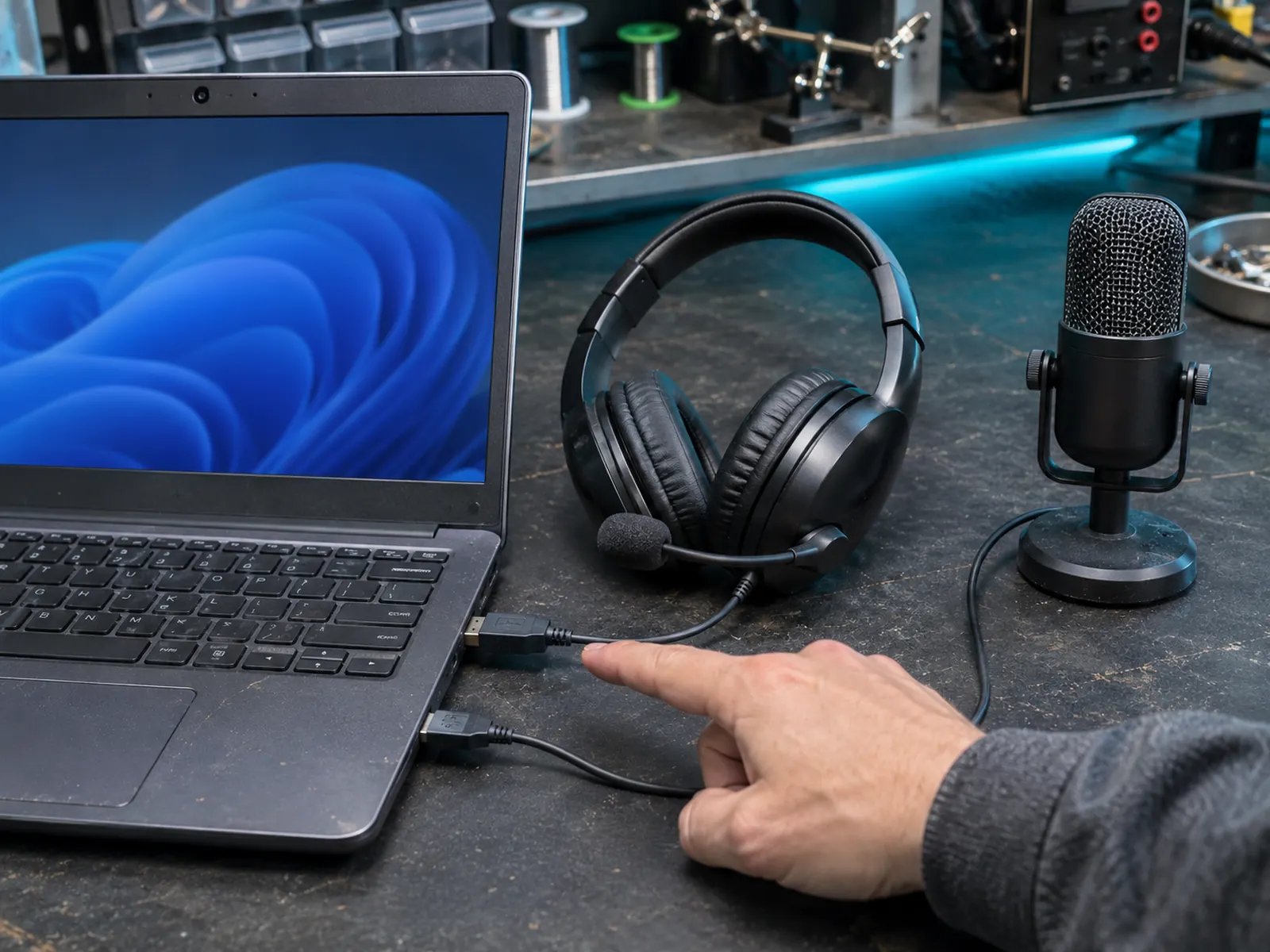
Check the headset’s inline mute switch and any mute button on a USB microphone. For a USB device, reconnect it directly to another available port instead of a hub for this test. For Bluetooth, confirm Windows lists the headset as connected and selected as the input; a Bluetooth headset can be selected for output while a different microphone remains selected for input.
Check: the Windows input meter responds to your voice. If it did not: select a different listed input, inspect the device’s physical mute, and follow Microsoft’s audio troubleshooting guide. Do not continue changing site permissions until Windows can receive audio.
2. Allow microphone access in Windows 11
Open Settings → Privacy & security → Microphone. Turn on Microphone access and Let desktop apps access your microphone. Chrome and Edge are desktop applications, so the desktop-app control matters. If your device is managed and the setting is unavailable, do not try to bypass the management policy; use another authorized device or ask the device owner to restore access.
Close and reopen the browser after changing this control. A browser that was already running may not pick up a newly changed privacy setting until it starts a fresh microphone session.
Check: the browser can now request or use the microphone. If it still cannot: keep Windows access enabled and check the individual website permission next.
3. Check the affected site’s permission
In Chrome, open Settings → Privacy and security → Site settings → Microphone. Review the default behavior and the list of sites that are not allowed. Remove the affected site from the blocked list or change its microphone access to Allow. Chrome’s help page also explains how to manage camera and microphone access for a site.
In Edge, open Settings → Cookies and site permissions → Microphone and allow the site. You can also open the site’s permission controls from the icon to the left of its address, then change Microphone to Allow. Browser wording can vary by version, so use Settings search for “microphone” if the menu label differs.
Allow only the site that needs microphone access. A site permission does not mean every page has access, but it does authorize that origin to request the device. Reload the page after changing the permission; a tab opened before the change may retain its previous state.
Check: the site asks for access or displays the microphone as available. If the permission is already allowed: remove and re-add that site’s permission, reload, and compare with a trusted second site.
4. Select the same input in the browser and the page
Use the browser’s microphone selector to choose the device whose Windows meter responded. Then check the site’s own call or recording controls. Many web apps have a separate device menu, and changing the Windows default does not always change a device already selected inside an open call.
If the device was plugged in after the browser opened, close the call, reconnect the microphone, restart the browser, and select it again. Avoid changing audio formats, installing driver utilities, or resetting every browser setting before this simple selection test; those actions do not establish whether the site was merely using a different input.
Check: the browser and web app both name the intended microphone and the site’s input indicator responds. If the indicator remains silent: test the microphone in another site and browser profile, then compare those results with the Windows meter.
Common mistakes
- Allowing Windows microphone access but leaving the website blocked. These are separate permission layers.
- Choosing the speakers or headset output while assuming that it is also the microphone input.
- Leaving a muted headset switch or the web app’s own mute control enabled.
- Testing the same blocked origin in a second tab and treating it as an independent test. Use a separate trusted site or a clean browser profile instead.
Troubleshooting if it still fails
- Windows input is silent: the mute, cable/port, selected input, or device itself is still the leading suspect. Test one other microphone or port; if no input responds, use Microsoft’s Windows sound troubleshooting steps.
- Windows works but one site fails: the site’s permission or its own device selector is the likely boundary. Clear that site’s permission, reload it, and allow access again when prompted.
- Windows works but both browsers fail: check the Windows desktop-app microphone control and close other active recording calls. Restart both browsers after reconnecting the device; if another Windows app also fails afterward, return to Windows Sound settings and device troubleshooting.
Keep a short record of what each test proves: whether the Windows meter moved, whether a second site worked, and which browser input was selected. This isolates the failure without resetting the browser profile or installing unverified driver packages.
When to stop
Stop software troubleshooting if a USB connector is physically damaged, the device heats unusually, there is a burning smell, or liquid has entered the microphone or computer. Disconnect a damaged wired device without opening the computer. For a built-in microphone that remains absent from Windows after the privacy and device checks, use the computer manufacturer’s supported hardware diagnostics.
Related guides
- Fix a microphone that works in the browser but not Discord — the reverse failure, focused on Discord’s desktop-app input.
- Check Bluetooth headset input and output selection.
- Use the stereo speaker test for a separate output problem.
Next step: after Windows and site permissions are set, open the online microphone test to check whether the browser receives input. The tool processes audio in your browser; do not enter private recordings or sensitive speech into an unfamiliar page.
FAQ
Why does my microphone work in Windows but not Chrome?
Windows access and Chrome’s permission for each website are separate. Confirm the Windows input meter moves, then allow the exact site in Chrome’s microphone settings and reload the page.
Where is microphone permission in Windows 11?
Open Settings → Privacy & security → Microphone. Check Microphone access and Let desktop apps access your microphone; Chrome and Edge use the desktop-app permission.
Why is my microphone missing from a browser’s device list?
The browser may lack desktop-app access, or it may have started before the microphone was connected. Reconnect it, confirm it appears under Settings → System → Sound → Input, then restart the browser.
Can a website use the microphone without asking again?
A site can retain an Allow or Block choice in that browser profile. Review the site-specific permission and remove access for sites that do not need it.
Sources
- Microsoft Support: Fix sound or audio problems in Windows
- Google Chrome Help: Use your camera and microphone in Chrome
Last updated: November 11, 2026.
Be the first to leave a comment.