Flicker at 144 Hz may look like a brief black screen, horizontal corruption, brightness pulsing, or flashing only in a game. The timing matters: does it happen at the desktop, only at 144 Hz, only with variable refresh rate, or only in one app? A display can support 144 Hz at one resolution and connection mode but not every combination of HDR, color depth and adaptive sync. Diagnose the exact mode in use instead of assuming that “144 Hz” is one fixed signal.
Map the symptom before changing settings
Write down the monitor model, graphics card, selected resolution, refresh rate, connection type, HDR and adaptive-sync state. Note whether the monitor reports “No signal” or remains lit with visible artifacts. A full loss of picture points toward a link interruption; brightness pulses without link loss can instead involve the monitor’s backlight or variable refresh behavior. This description is not a diagnosis, but it helps keep the next comparisons useful.
Open Task Manager while the flicker is visible. Microsoft recommends this as a separation check: if Task Manager flickers too, a display driver is more likely; if it stays steady while another window flickers, an incompatible app may be involved. Also compare the desktop with one known application. Avoid changing several driver, cable and display settings at once.
Lower the signal demand as a controlled test
Change only refresh rate first
In Windows, open Settings → System → Display → Advanced display and confirm the selected monitor. Select a lower supported refresh rate temporarily, such as 120 Hz or 60 Hz, leaving resolution and other options unchanged. If flicker stops, the failure is associated with the higher-rate signal path or a feature enabled at that rate; it does not prove that the cable alone is defective. Return to the desired mode only after the link remains stable.
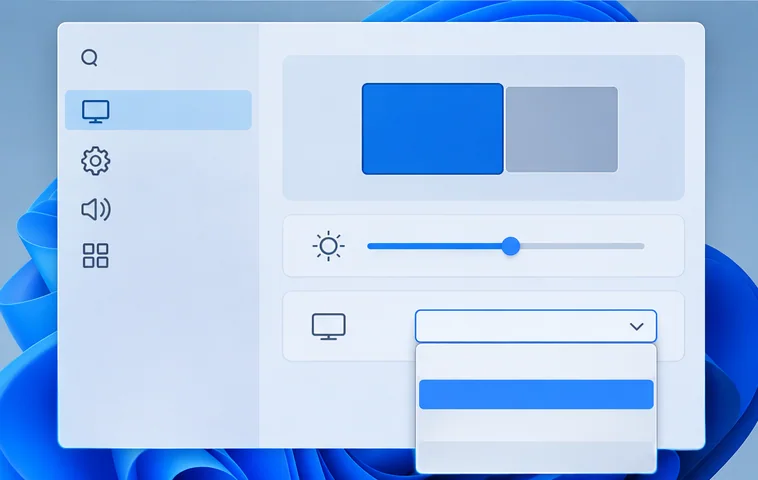
Then test one feature at a time. Temporarily turn off adaptive sync (such as G-SYNC Compatible or FreeSync) and observe; restore it if the symptom is unchanged. Separately test with HDR off or a lower color depth only if those controls are available. The GPU, monitor and connection must all support the combination. A rate listed by Windows is a mode offer, not proof that every cable, adapter, dock or monitor input can sustain it reliably.
Check the physical signal path
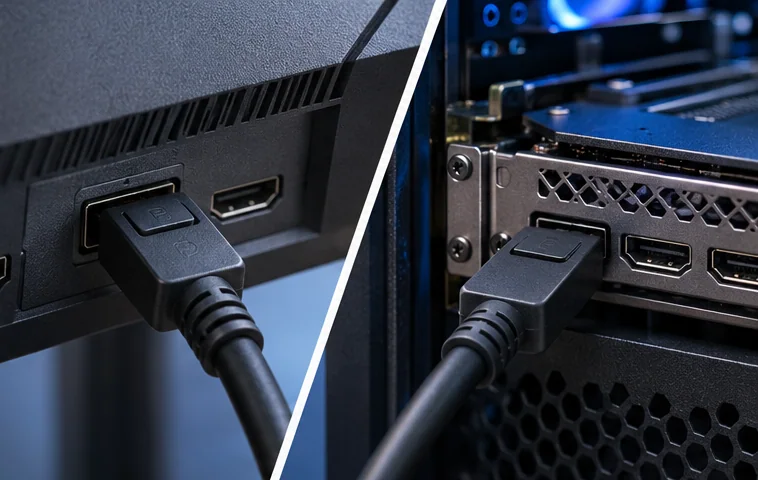
- Power down the PC and monitor before reseating a cable if the connectors are difficult to reach. Inspect for bent pins, loose latches, debris or strain. Do not force a plug.
- Connect the monitor directly to the graphics card using one short, known-good cable. Bypass docks, KVM switches, extension leads and adapters for the comparison.
- Try another input on the monitor or another output on the GPU, changing only one link at a time. Confirm the monitor’s on-screen input matches the socket being tested.
- Check the monitor manual and GPU specifications for the maximum resolution and refresh rate for that exact input. For DisplayPort, consider a VESA-certified cable suited to the supported link; the connector shape alone does not verify signal quality.
Do not assume HDMI and DisplayPort inputs on the same monitor have identical limits. Some displays expose different maximum modes per input. Long, poorly shielded or damaged cables and intermediate adapters can make a high-bandwidth link less reliable, but replacing a cable should be a controlled test rather than an automatic conclusion.
Separate a driver problem from a panel or app issue
If Task Manager flickers along with the rest of Windows, restart once and use the graphics-card vendor’s supported driver. If the problem began just after a driver update, Microsoft’s Windows guidance suggests checking the rollback option; otherwise, install the current driver for the exact GPU and operating system. Avoid third-party driver download sites. If only one game flickers, test its exclusive fullscreen, frame-rate cap and in-game sync settings individually, then compare borderless mode.
If the flicker appears in the monitor’s own on-screen menu, at startup before Windows, or with a second known-good source, software becomes less likely. If only one PC and one display mode trigger it, keep isolating the GPU output, cable and mode before concluding the panel is faulty. Stop if there is a burning smell, unusual heat, visible damage or electrical noise.
| Result | What it points toward | Next comparison |
|---|---|---|
| Stable at 60 Hz, flickers at 144 Hz | High-rate signal path or feature combination | Direct cable; then disable one optional feature |
| Task Manager flickers too | Display driver or graphics stack | Restart; update or roll back supported driver |
| Only one app flickers | App or its rendering mode | Compare fullscreen and borderless; reset app sync |
| Monitor menu flickers on multiple sources | Monitor hardware or power path | Manufacturer diagnostics or service |
Keep the evidence and stop when appropriate
Record the exact resolution and refresh combination that works, the failing input, cable model and any GPU driver change. If a direct cable and lower signal demand do not stabilize the display, or the monitor menu itself flickers across sources, contact the monitor or GPU maker. Do not open a monitor: its power circuitry can retain hazardous voltage after unplugging.
Confirm whether the operating system actually reports the selected mode under Advanced display rather than relying on a monitor advertisement or a game menu. The active signal can differ from an application’s rendering rate. A game running at fewer frames per second does not by itself cause a cable-level flicker, and an on-screen refresh indication does not establish the cause. Use the same resolution and a simple desktop view for each comparison, wait briefly after each change, and write down whether the display loses sync or only changes brightness.
Sources
- Microsoft Support: troubleshoot Windows screen flicker
- Microsoft Support: change display refresh rate
- Microsoft: refresh rate basics
- VESA: certified DisplayPort components
Sources consulted 6 November 2026. Menu names and supported modes depend on the display and graphics hardware; no physical test is claimed. If a built-in laptop screen flickers when its lid moves, see our laptop screen diagnosis guide.
Soyez le premier à laisser un commentaire.