Quick Fix — Try This First
- Find your exact printer in HP’s UPD compatibility list before downloading anything.
- Choose PCL 6 for normal Windows printing; choose PostScript only when the printer supports it and your application needs it.
- Check Windows protected print mode if Windows refuses the HP driver.
- After installation, print a Windows test page and then the document that originally failed.
The HP Universal Print Driver can simplify printing to supported HP printers, but “universal” does not mean every HP model, every Windows computer, or every printer feature. Start with compatibility, then select the printer language. Installing several packages at random makes it harder to identify which queue actually works.
This guide addresses Windows 11 users choosing between PCL 6 and PostScript. It separates a driver installation problem from an application rendering problem and explains when Windows’ newer printing system changes the decision. It is based on HP and Microsoft documentation; ElectronixLab has not carried out a printer hardware test for this article.
ContentsIdentify the symptomCheck your model and Windows packagePCL 6 or PostScript?Check protected printingInstall without losing your working queueVerify the resultFrequently asked questionsSymptoms: what is actually failing?
A printer that is absent from Windows, a rejected driver package, a stalled job and an incorrectly rendered PDF are different symptoms. Record the exact message and the point at which it appears. A driver that installs successfully has not yet demonstrated that it can communicate with the selected printer.
| Symptom | Likely cause | Next action |
|---|---|---|
| HP installer cannot add the driver | Unsupported package, architecture or protected printing restriction | Check the package release notes and protected printing setting before reinstalling. |
| Printer exists but no Windows test page prints | Queue, connectivity, device state or driver path | Compare the selected destination with the actual printer; inspect its display and job queue. |
| Windows test page prints but one application fails | Application, document or page description language interaction | Try a simple new document from another application before changing drivers. |
| PostScript output fails or contains unwanted characters | Unsupported language or wrong queue configuration | Confirm the exact model supports PostScript; use supported PCL 6 when it does not. |
| Duplex or paper options are missing | Wrong queue or capabilities not configured for the installed device | Check the physical accessories and the settings documented for that printer. |
1. Confirm compatibility before downloading
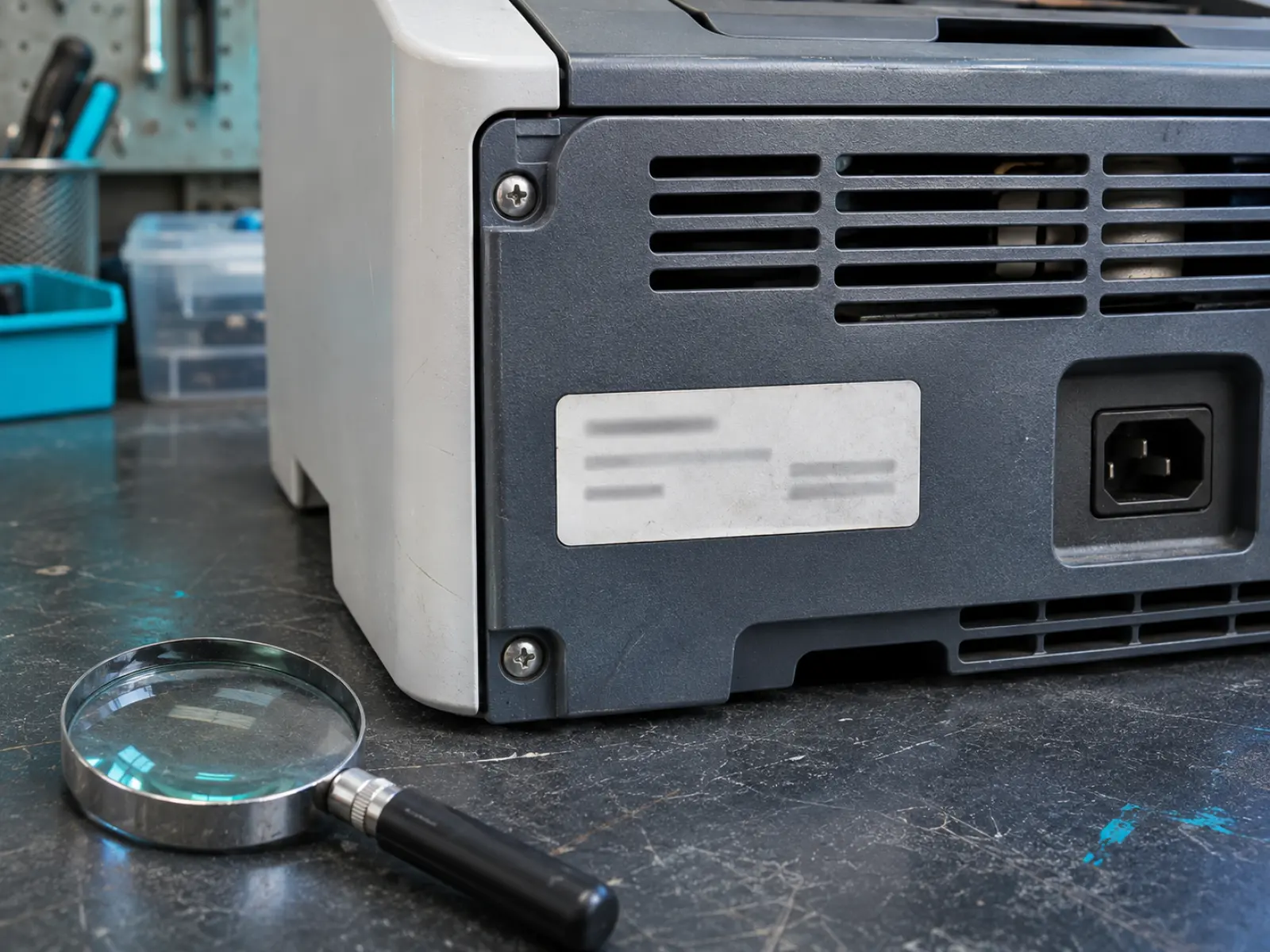
Read the full product name and model suffix from the printer label or its own information screen. A family name alone is insufficient. HP also excludes Wi-Fi Direct and Wireless Direct installations from UPD support; do not confuse either with a printer connected through your normal local network. Record the connection type as well: a directly attached USB printer, a network printer and a shared server queue do not have identical installation paths.
- Open HP’s supported-printers document from the sources below and find the exact model.
- Read the language availability columns. Being listed for one language does not establish support for another.
- Follow HP’s official download route and select the Windows package appropriate for the computer.
- Read that package’s release notes for supported operating systems and restrictions before running its installer.
Check: you can identify the printer model, supported language and matching Windows package. If it didn't work: use the exact model’s HP support page instead of forcing the universal package.
HP’s model list and the current download package answer different questions. The list establishes product coverage; release notes establish the operating systems supported by a particular release. Do not present an old compatibility table as proof that a newly released Windows build or a different CPU architecture is supported.
For example, HP lists the LaserJet Enterprise M607 and M608 families in the UPD compatibility document. These are examples to look up, not a claim that every similarly named printer works with every package. Confirm the language columns and applicable release notes for the actual device you own. Neither model was tested for this guide.
2. Choose PCL 6 or PostScript by workload
| Question | PCL 6 | PostScript |
|---|---|---|
| Everyday Windows documents? | HP’s usual starting recommendation. | Consider only when the workload warrants it. |
| Graphics-intensive applications or PostScript workflow? | Test against your real document. | HP identifies this as a relevant use case. |
| Does the printer need language support? | Yes: verify its compatibility entry. | Yes: PostScript capability is essential. |
| Will it add scanning or absent hardware? | No. | No. |
For office documents, begin with the supported PCL 6 package. For an application that specifically depends on PostScript, confirm printer support before evaluating the PS package. Avoid describing one as universally sharper or faster: document complexity, application behavior and device configuration affect the outcome.
A practical comparison changes one thing at a time. Keep the same printer, document, paper size and output settings when comparing two supported queues. Check page count, font appearance, image placement and duplex behavior. A successful single-page print does not validate every finishing or paper-handling feature.
Do not select PCL 5 simply because an old forum recommends it. HP states that UPD 6.1.0 was the last UPD release to include PCL 5. A legacy application dependency needs its own compatibility review, rather than an assumption that the latest package contains every historical language.
A useful counterexample: LaserJet P2035
HP’s UPD table lists P2035 and P2035n for PCL 5, with PCL 6 and PS marked unavailable. An ElectronixLab reader reports successful PCL 5 and PCL 6 printing on a P2035 under Windows 7, but the exact packages and versions are unknown. This is a reader report, not a reproduced test or proof of Windows 11 support. For that model, start from its own HP driver page rather than applying the PCL 6 recommendation for other supported printers.
3. Check Windows protected print mode
Microsoft’s protected printing mode restricts third-party printer drivers. If it is enabled, repeatedly running the classic HP installer does not resolve that policy conflict. Microsoft documents removal of printers using third-party drivers when the mode is enabled.
- On Windows 11, open Start → Settings → Bluetooth & devices → Printers & scanners.
- Find Windows protected print mode under printer preferences and inspect its state.
- If it is enabled, decide whether the printer can use the supported modern printing path. Check HP’s model-specific guidance before changing the security setting.
Check: you know whether third-party drivers are permitted on this computer. If it didn't work: if the setting is enforced by device policy, stop trying to override it with another installer; the printing configuration must be reviewed through that policy.
Disabling this mode changes the printing security model and may require manually reinstalling printers. It should be a deliberate compatibility decision, not a default troubleshooting step. Microsoft provides the exact enable/disable procedure in the linked documentation.
HP Print Support Application is another product. HP describes it as using Microsoft’s IPP class driver for selected supported printers, including certain Windows 11 ARM64 configurations. That does not establish ARM64 support for the classic UPD package. Match the application, device and architecture instead of treating UPD and PSA as interchangeable names.
4. Install a supported package with a clear destination
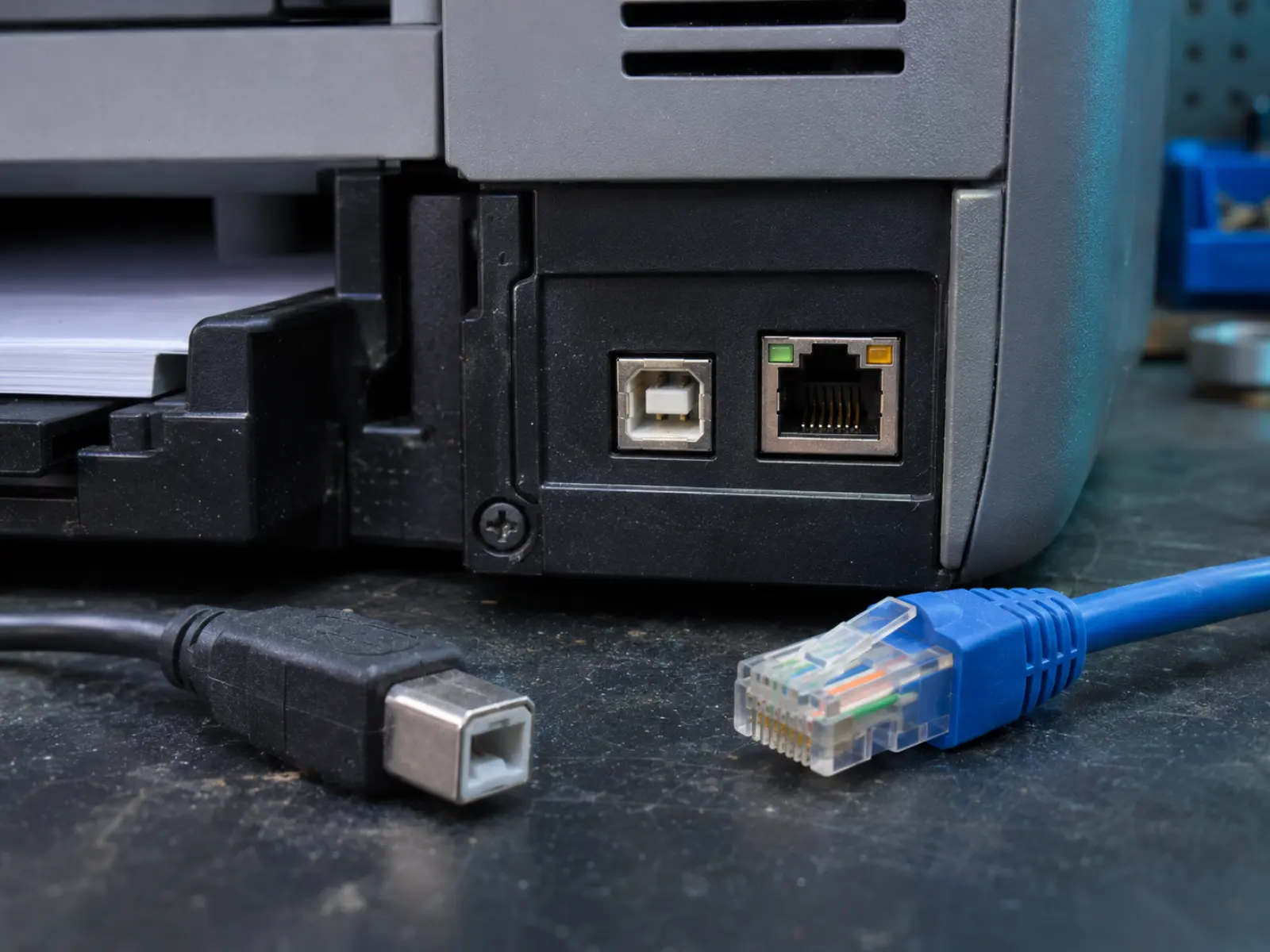
Keep a working queue until the replacement has passed verification. Note its name, connection and currently useful settings. On a shared printer, changing the server driver may affect other people; a local comparison should not become an unplanned server migration.
Download through HP’s official support site. Avoid driver collections and download managers that package unrelated software. The package name must identify the intended printer language; a download button from a search advertisement is not evidence of authenticity or compatibility.
HP documents Traditional mode for a persistent printer instance and Dynamic mode for choosing destinations. For one fixed printer, use the installation path HP documents for that persistent destination. Do not create and share Dynamic mode queues on a print server: HP’s administrator guide explicitly excludes that configuration.
The installer screens depend on the package and connection method. Follow the matching HP guide rather than borrowing menu instructions from another release. Select the destination that corresponds to your actual device. If discovery finds several printers, compare the identity with the printer’s own information rather than choosing the first result.
Check: the new queue identifies the intended printer and driver. If it didn't work: stop before removing the old queue; return to compatibility and protected printing, then record the installer’s exact error.
5. Verify printing in two separate stages
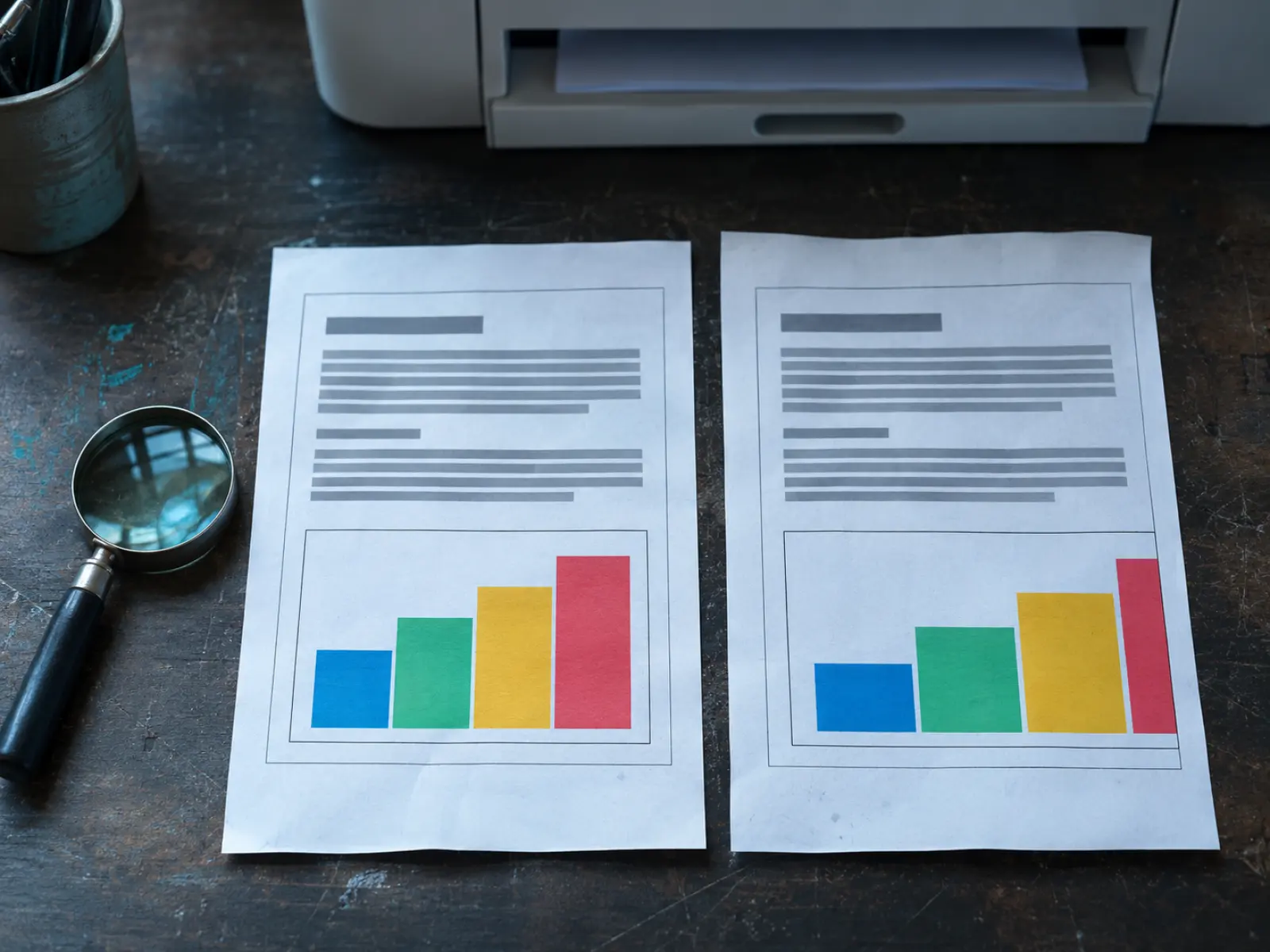
First verify the Windows printing path. Microsoft documents this Windows 11 sequence: Start → Settings → Bluetooth & devices → Printers & scanners, select the printer, open Printer properties, then select Print Test Page on the General tab.
Check: the page comes from the intended physical printer, with readable content. If it didn't work: inspect the printer’s displayed status, selected connection and queue before investigating the document application.
Next print the document that motivated the change. Use the same page size, orientation and duplex setting that the real job needs. Check both sides, page boundaries and selected tray. A Windows test page is a communication check; the real document tests the workload.
If the test page works and the original document does not, create a small new document in the same application. Then try another application. This comparison helps distinguish a document-specific failure from a wider application issue. Preserve the failing file and record the settings rather than repeatedly changing all options.
What changed in Windows printing in 2026?
Microsoft’s servicing roadmap changes driver distribution and preference; it does not say that every manufacturer installer is blocked. The roadmap sets July 1, 2026 as the point when driver ranking prefers the Windows IPP class driver. Keep this distinction separate from protected print mode, which actually restricts third-party loading when enabled.
Common mistakes
- Assuming every HP inkjet or LaserJet accepts the universal driver.
- Confusing a printer language with a connection type: PCL and PS do not repair a disconnected cable or wrong destination.
- Deleting all existing queues before demonstrating that the replacement works.
- Expecting a print-only package to install scanning features.
- Installing several different versions and then testing a queue that still points to the original driver.
Troubleshooting if it still fails
The printer or Windows package is outside the supported combination
Return to the model entry and release notes. Record the Windows version and architecture, exact printer reference and selected PDL. If that combination is not documented, use the model-specific support route; changing PCL to PS does not supply missing platform support.
Windows is using a different printing architecture
Recheck protected print mode and whether the installed queue uses the modern IPP path. Decide which supported architecture meets your device’s requirements before installing another legacy package. Do not interpret a removed third-party driver as proof of a damaged printer.
The problem belongs to the document or application
Use the two-stage test results. A working test page and failing single document justify application-focused investigation. Record whether a new document reproduces the failure; consider a second supported PDL only with printer compatibility confirmed.
When to stop and call a technician
A driver change cannot correct a paper-feed obstruction, damaged connector, burning smell or abnormal mechanical noise. Stop printing if there is smoke or overheating and follow the printer’s safety instructions. Do not open a powered printer or access its hot internal assemblies. For a persistent physical fault, use the exact model’s service guidance.
Frequently asked questions
Is HP Universal Print Driver compatible with every HP printer?
No. Use HP’s supported-model list and the current package release notes together. A shared brand or family name does not prove that a printer supports the required language.
Should I install both PCL 6 and PostScript?
Only when both are supported and you have a reason to compare or maintain separate workflows. Start with one clearly named queue so you can identify which driver produced a result.
Why can Windows print a test page while my PDF fails?
The Windows path can work while an application or document has a rendering problem. Compare a new file and another application before replacing a working driver.
Does UPD provide scanning for a multifunction printer?
This guide covers the printing driver. Check the exact model’s HP software page for its scanning solution instead of assuming the print package includes it.
Does an ARM64 Windows 11 laptop use the same package?
Do not assume an x64 driver is appropriate. HP’s modern Print Support Application guidance covers selected ARM64 scenarios, but the classic UPD package needs its own explicit architecture support.
Next step: isolate a connection problem
If the device disappears only after sleep, use our Windows USB detection checks after sleep. If several peripherals fail through the same hub, compare the symptoms in our USB hub power diagnosis. For broader network trouble, consult the Windows Wi-Fi connectivity guide; a local printer does not require Internet access merely to receive local jobs.
Sources
- HP UPD supported printers and language availability.
- HP guidance for choosing PCL 6 and PostScript.
- HP V3 UPD administrator guide.
- Microsoft: Windows protected print mode.
- Microsoft: printing tests and application diagnosis.
- HP Print Support Application for Windows 11.
- Microsoft: third-party driver servicing roadmap.
Last updated: November 21, 2026. Sources consulted on the same date.
Be the first to leave a comment.